Best Monitors for Home Office in 2026: Ultimate Guide
Choosing the right monitor can completely transform how you work from home. In this guide, I've broken down the best home office monitors of 2026 covering every screen size, resolution, panel type and budget so you can stop squinting at a bad display and actually get things done.

Our Top Picks
Working from home without a good monitor is like trying to run a marathon in flip-flops. You can do it, but you're making everything harder than it needs to be. After spending serious time testing displays across every price range, I've put together this complete guide to the best monitors for home office use in 2026.
Whether you're on a tight budget, chasing 4K clarity, or looking for a massive ultrawide to replace three windows with one screen, this guide covers everything. I'll walk you through my top picks, explain what actually matters when buying a monitor and help you avoid the mistakes most people make when setting up their workspace.
Let's get into it.
Why Your Monitor Is the Most Important Part of Your Home Office
Most people spend hours agonizing over their laptop choice but grab the first cheap monitor they find. That's backwards. Your monitor is what you stare at for 6 to 10 hours every single day. A poor display causes eye strain, slows you down with limited screen real estate and honestly just makes work feel worse.
A great monitor, on the other hand, changes everything. More screen space means fewer alt-tabs. Better color accuracy means less second-guessing your work. Proper ergonomic height and tilt support means your neck stops hurting by 3pm.
In 2026, monitor quality has never been better at every price point. You don't need to spend a fortune to get something excellent.
What to Look for in a Home Office Monitor
Before I get into the actual picks, here's a quick breakdown of the specs that matter for office work.
Resolution
Resolution is how sharp your screen looks. For a home office, I'd recommend at minimum 1440p (also called QHD or 2K) if you're getting a 27-inch or larger display. At 24 inches, 1080p (FHD) still looks sharp enough for most people.
If you do a lot of reading, design work, or work with fine detail, 4K (UHD) is worth considering. Text looks noticeably crisper and you get more working space on screen.
Panel Type
This is something most buyers ignore and then regret later.
IPS panels are the go-to for home office work. They offer accurate colors, wide viewing angles and consistent brightness. If you share your screen with others in meetings or you care about color accuracy at all, IPS is the right call.
VA panels have deeper blacks and better contrast than IPS. They're great if you work in a dim room or watch content on your monitor. The downside is slightly slower response times and some color shifting at extreme angles.
TN panels are the cheapest to produce. They're fast but have the worst color accuracy and narrowest viewing angles of the three. I'd avoid them for any serious office work.
OLED panels are the premium option in 2026. Stunning contrast, perfect blacks and incredible color accuracy. The only real concern is burn-in with static office interfaces over time, though modern OLEDs have improved significantly on this front.
Screen Size
The most common sizes for home office monitors are 24, 27 and 32 inches. Here's my honest take:
24 inches works well for smaller desks or if you sit close to your screen. 1080p at this size still looks great.
27 inches is the sweet spot for most people. Plenty of real estate and 1440p at this size gives you excellent pixel density.
32 inches is great for multitaskers and anyone who regularly has multiple documents open side by side. You'll want 1440p or 4K at this size so things don't look blurry.
Ergonomics
A monitor with a good stand makes a bigger difference than people realize. Look for height adjustment, tilt and swivel if possible. Being able to position your screen at the right eye level prevents neck and back pain over long work sessions.
VESA mount compatibility is also worth checking if you plan to use a monitor arm down the line.
Connectivity
Think about what you need to plug in. If you're working from a laptop, USB-C with Power Delivery is a game-changer — one cable handles video, data and charging simultaneously. For desktop setups, HDMI 2.0 or DisplayPort 1.4 is standard.
My Top Picks: Best Monitors for Home Office in 2026
I've organized these picks by use case so you can jump straight to what fits your situation.
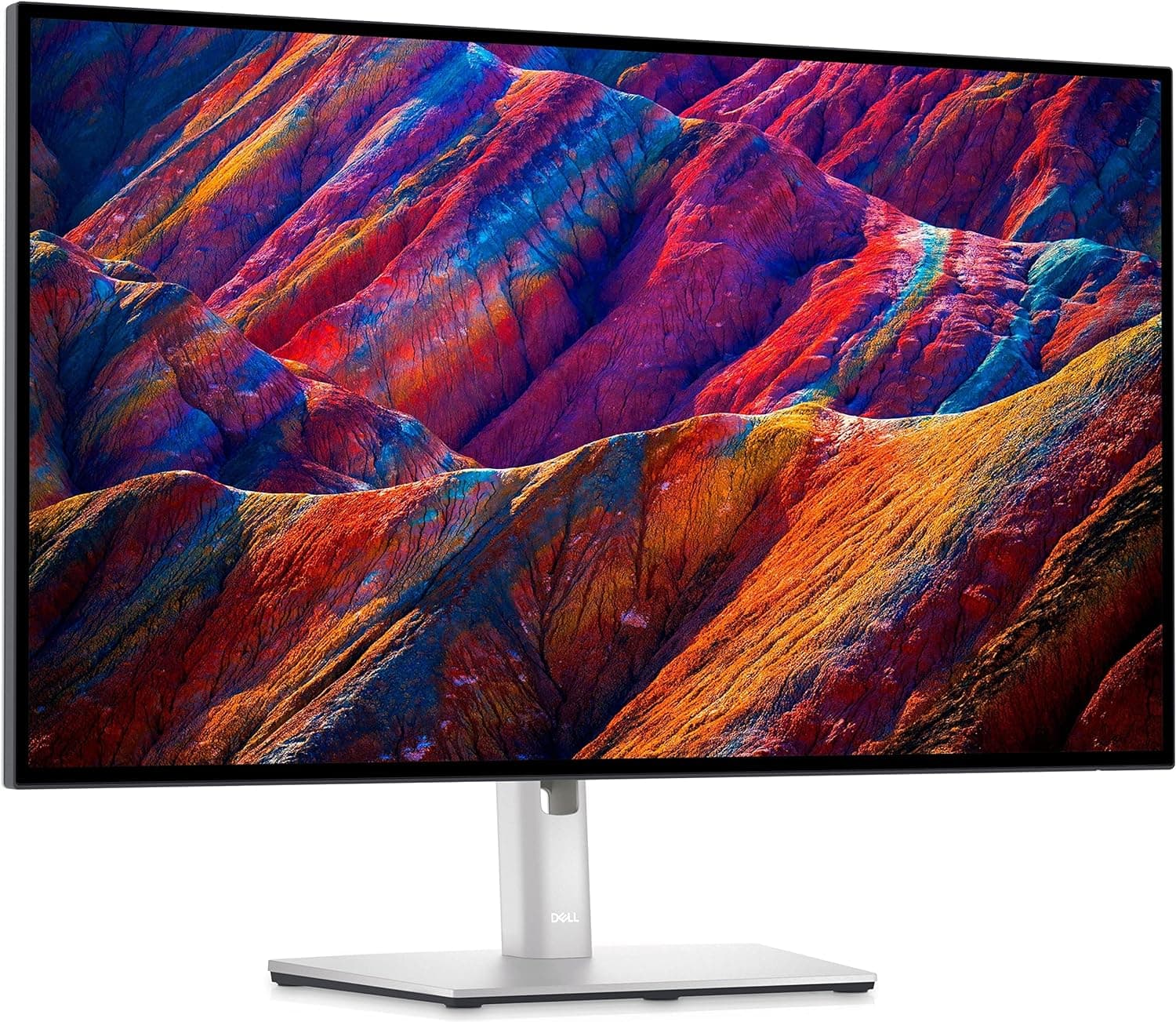
Best Overall: Dell UltraSharp U2723QE

If I had to recommend one monitor to most home office workers in 2026, it's the Dell UltraSharp U2723QE. It's a 27-inch 4K IPS display that hits every mark — color accuracy, build quality, connectivity and ergonomics.
The panel covers 98% of the DCI-P3 color space and ships factory-calibrated to Delta-E under 2, which means colors are accurate right out of the box. The USB-C port delivers 90W of power delivery, so laptop users can run a single-cable setup. The stand offers full height, tilt, swivel and pivot adjustment.
It's not cheap, but for the price, it's genuinely one of the best work monitors you can buy. If you want a deeper look at this display, check out my best Dell 4K monitor review.
Who it's for: Professionals who want a no-compromise display for daily work, video calls, writing and light creative tasks.
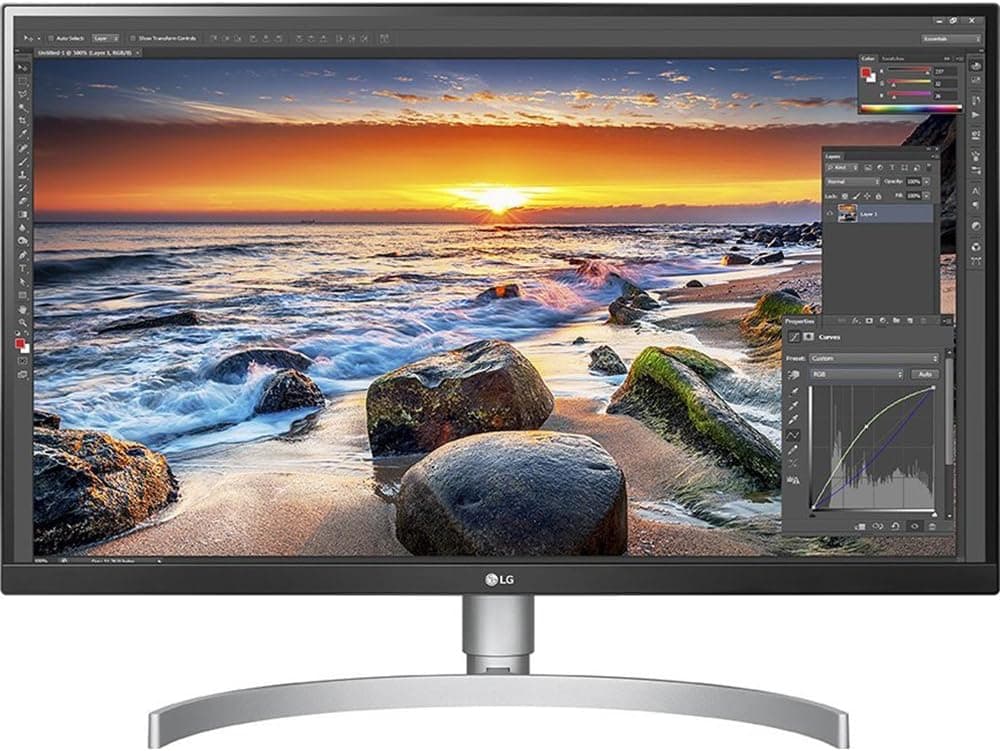
Best 27-Inch: LG 27UK850-W

The LG 27UK850-W is a fantastic 4K IPS panel that punches above its price in terms of image quality. I've used this one for extended work sessions and the color accuracy is noticeably better than similarly priced competition.
It supports HDR10 and has solid USB-C connectivity with 60W power delivery. The stand is decent but not as adjustable as the Dell. If you want the full breakdown, I've written a dedicated review of the best LG 4K monitor.
Who it's for: Remote workers who want premium image quality without the premium price tag of a fully specced Dell or BenQ.
Best Budget Option: Best Monitors Under $300
You don't need to spend a lot to get a capable work monitor. There are solid IPS displays in the $150-$250 range that will serve most office workers very well. I've covered the full range in my best affordable 4K display guide and also have a dedicated roundup of budget options if you're watching your spending.
Who it's for: People setting up a first home office or anyone who needs a reliable secondary screen without spending much.
Best 4K Under $500
If you want 4K without spending over $500, there are strong options available in 2026. I've tested and reviewed the best picks in this category in a dedicated guide covering the best affordable 4K display monitors worth buying this year.
Who it's for: Anyone who wants the clarity of 4K but has a firm budget ceiling.
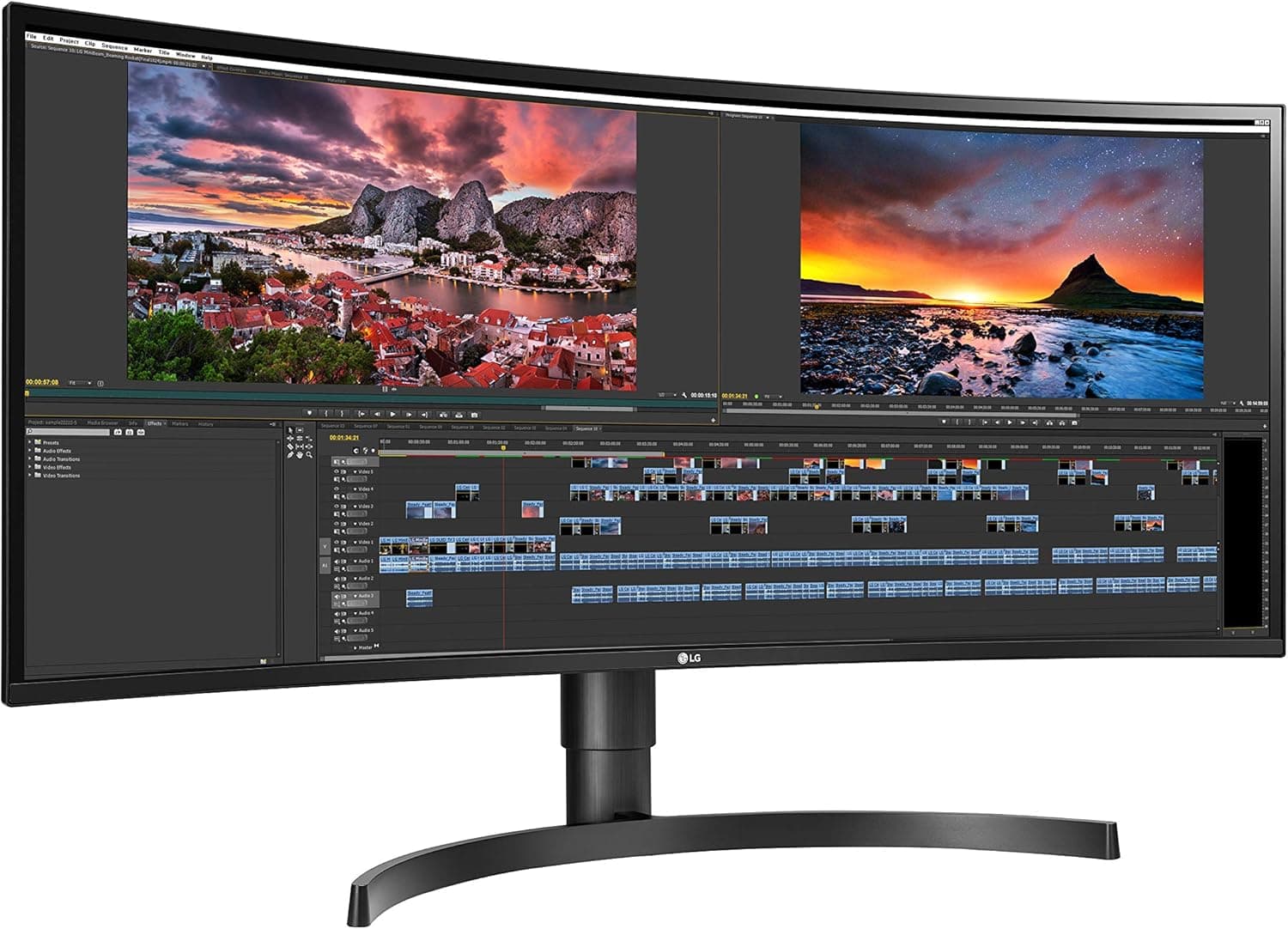
Best Ultrawide: LG 34WN80C-B
Ultrawide monitors are polarizing. Some people try one and can never go back. Others find them awkward. I'm firmly in the first camp for office work.
A 34-inch ultrawide at a 21:9 aspect ratio essentially replaces a dual monitor setup without the gap in the middle. You can have a document open on the left, a browser on the right and a communication tool in a narrow strip on the side — all on one continuous screen.
The LG 34WN80C-B is an IPS panel with accurate colors, USB-C connectivity and a curved screen that wraps your field of view comfortably. If you live in spreadsheets, write long-form documents, or just want more horizontal space, ultrawide is worth seriously considering.
Who it's for: Productivity-focused workers who want maximum screen real estate and work with multiple windows simultaneously.
Best Portable Monitor
Sometimes you need a second screen on the go. Portable monitors have improved enormously in 2026. A good USB-C portable display weighs under 2 pounds and runs off your laptop's power — no adapter needed.
I've reviewed the best options in my guide to best USB-C portable display monitors for remote and hybrid workers.
Who it's for: Hybrid workers, frequent travelers, or anyone who wants a secondary screen at a coffee shop or client office.
Best Monitor for Mac Users
Mac compatibility used to be a headache. In 2026, most premium monitors work seamlessly with macOS, but some are noticeably better tuned for it than others.
The best monitors for Mac Mini users prioritize USB-C or Thunderbolt connectivity, accurate sRGB and P3 color profiles and resolution scaling that looks sharp under macOS. I've put together a full guide to the best external display Mac Mini options if you're running an Apple silicon setup.
Who it's for: Mac users who want a plug-and-play experience with minimal driver headaches.
Best Monitor with KVM Switch
If you switch between two computers regularly — say a work laptop and a personal desktop — a monitor with a built-in KVM switch saves you from constantly swapping cables. You just press a button and everything (monitor, keyboard, mouse) switches over.
I've covered the best options in detail in my best KVM monitor 2026 guide.
Who it's for: Home office workers who use two computers and hate cable juggling.
Best Curved Monitor for Work
Curved monitors are more than just aesthetics. On a large screen, a gentle curve matches the natural arc of your vision, reducing the need to move your eyes as much to scan edge to edge. This genuinely reduces fatigue over long work sessions.
If you want something that handles both work and occasional gaming without compromise, I've reviewed the best curved IPS work display options worth considering in 2026.
Who it's for: Anyone who spends long hours reading or working with large documents and wants a more natural viewing experience.
Best Monitor with USB-C
USB-C monitors deserve their own mention because they've become so important for modern workflows. If your laptop has a USB-C or Thunderbolt port, a single-cable monitor setup is genuinely life-changing.
One cable handles video output, peripheral connectivity through built-in USB hubs and charges your laptop simultaneously. No more power brick on your desk. I've reviewed the best best power delivery monitor options available right now.
Who it's for: Laptop users who want a clean, minimal desk setup.
How to Set Up Your New Monitor the Right Way
Buying the right monitor is step one. Setting it up correctly is step two and most people skip this entirely.
Eye Level and Distance
The top of your screen should be at or slightly below eye level. This keeps your neck in a neutral position rather than craning up or hunching down. Your eyes should land naturally on the upper third of the screen when you're sitting upright.
Distance-wise, about an arm's length away (roughly 50-70cm) is the standard recommendation for most monitor sizes.
Brightness and Color Temperature
Default brightness settings out of the box are almost always too bright for indoor office work. Most people find 70-120 nits comfortable in a typical home office environment — much lower than the 250-300 nits many monitors ship at.
For color temperature, warmer settings (around 5500-6500K) are easier on the eyes than the harsh blue-white default most displays use. If you work late, enabling a night mode or blue light filter can help you wind down more easily. I've written a full guide on best blue light filter monitor options and settings if eye strain is a concern.
Calibration
If you do any creative work, color calibration matters more than you might think. Even well-regarded monitors can drift from accurate colors over time. I've put together a full best monitor calibration guide that walks through how to get accurate results with and without a hardware calibrator.
Dual Monitor Setup
Thinking about adding a second screen? Running two monitors is one of the highest-impact productivity upgrades you can make. I've covered everything in my guide to setting up best Mac dual display setup (which also applies broadly to Windows setups).
Most Common Home Office Monitor Mistakes
Buying based on size alone. A 32-inch 1080p monitor looks worse than a 27-inch 1440p monitor. Bigger is not always better — pixel density matters.
Ignoring the stand. Cheap monitors often have stands with no height adjustment. Within a week you'll be stacking it on books. Pay attention to ergonomic adjustability.
Overlooking connectivity. If your laptop only has USB-C ports and you buy a monitor with only HDMI inputs, you'll need an adapter. Check your ports before you buy.
Setting brightness too high. This is one of the leading causes of eye strain at a desk. Turn it down significantly from the default.
Not calibrating. If you're doing design, photo, or video work on a monitor that isn't calibrated, your output will look different on other screens. At minimum, run through the free calibration tool built into your OS.
Final Thoughts
The best monitor for your home office in 2026 is the one that fits your work style, desk space and budget — not necessarily the most expensive one on the list. For most people, a 27-inch 1440p IPS display with solid ergonomics and USB-C connectivity hits every important mark at a reasonable price.
If you do design, photo, or video work, it's worth spending more for color accuracy. If you're on a tight budget, there are genuinely good options under $200. And if you're chasing maximum productivity, an ultrawide or dual monitor setup will change how you work.
Take your time, know what you actually need and don't buy based on spec sheets alone.
Affiliate Disclaimer: This site participates in the Amazon Associates Program and other affiliate programs. If you click a link and make a purchase, I may earn a small commission at no extra cost to you. I only recommend products I've personally tested or thoroughly researched.

Written by
Jordan Lee
I'm Jordan Lee, a tech reviewer and peripheral enthusiast with 7+ years of hands-on experience evaluating monitors, mechanical keyboards, wireless mice, and audio equipment. With a degree in Computer Engineering, I bring a technical yet practical perspective to every review I write. I don't just benchmark — I actually use these products daily and put them through real work scenarios. When I recommend a monitor, I've checked its color accuracy, refresh rate, and eye strain levels myself. When I suggest a keyboard, I've typed thousands of words on it. My goal is simple: help you find the right gear so you can work smarter, not just spend more.