Best 27-Inch Monitors for Home Office Work
The 27-inch monitor is the gold standard for home office work in 2026. It gives you enough screen real estate to work comfortably without overwhelming your desk. In this guide, I've reviewed the best 27-inch displays across every budget and use case so you can make the right call.

Our Top Picks
If you ask most home office veterans what size monitor they'd recommend, the answer is almost always 27 inches. It's not too big, not too small and at the right resolution it gives you exactly the kind of screen real estate that makes a full workday feel manageable rather than cramped.
I've spent time testing 27-inch monitors across a range of price points and use cases and in this guide I'll walk you through the best options available in 2026. Whether you're a writer, designer, developer, or just someone who needs a solid daily driver, there's a great 27-inch monitor out there for you.
Let me break it all down.
Why 27 Inches Is the Home Office Sweet Spot
Before I get into the specific picks, it's worth understanding why 27 inches has become the default recommendation for desk work.
At 24 inches, you have a compact display that works well at close distances and on smaller desks. It's a great size, but you do notice the limits when you're trying to have two documents open side by side.
At 32 inches and above, you get a lot of space, but you start needing to move your head more to scan across the screen. At a typical desk distance, it can feel like you're watching a TV rather than working on a monitor.
27 inches hits the middle ground. Combined with 1440p resolution, you get a pixel density of around 109 PPI, which is sharp enough for reading text comfortably all day. Combined with 4K, it's genuinely crisp in a way that makes a real difference if you work with detailed content.
It also fits naturally on most home office desks without dominating the workspace.
What to Look for in a 27-Inch Home Office Monitor
Resolution: 1080p vs 1440p vs 4K at 27 Inches
Resolution matters more at 27 inches than at smaller sizes.
At 1080p (1920x1080), a 27-inch display has a pixel density of around 82 PPI. That's noticeably soft. Text edges look slightly fuzzy and after a full workday, your eyes feel it. I'd only recommend 1080p at 27 inches if you're on a very tight budget and have no other option.
At 1440p (2560x1440), pixel density jumps to 109 PPI. This is where 27 inches really shines. Text looks sharp and clear, you get more working space than 1080p and the GPU requirements are much lower than 4K.
At 4K (3840x2160), you're at 163 PPI. Text and fine detail look exceptional. The tradeoff is a higher price and slightly more demanding graphics requirements, though for office work rather than gaming, any modern computer handles 4K at 60Hz without issue.
For most home office workers in 2026, 1440p at 27 inches is the sweet spot. If you do graphic design, photo editing, or video work, 4K is worth the extra spend.
Panel Type
For a 27-inch home office monitor, I strongly recommend an IPS panel. Here's why:
IPS panels offer accurate colors straight out of the box, wide viewing angles that stay consistent when you shift in your chair and generally excellent brightness uniformity. For writing, spreadsheets, research and video calls, an IPS panel just works reliably.
VA panels are an option if you work in a dim environment and want deeper blacks. The contrast ratio on a good VA panel is noticeably richer than IPS. The downside is color accuracy isn't quite as consistent and viewing angles are narrower.
TN panels should be avoided for home office use entirely. The color accuracy and viewing angles are simply too poor for all-day work.
OLED at 27 inches exists and looks stunning, but burn-in with static UI elements remains a consideration. If you're aware of it and take steps to avoid it, OLED is an incredible experience.
Refresh Rate
For office work, 60Hz is completely sufficient. You don't need 144Hz or higher for writing documents, spreadsheets, or video calls. If you plan to use your monitor for occasional gaming too, 144Hz gives you the option but it's not a productivity requirement.
Connectivity
Check that the monitor has the ports you actually need. For laptop users, USB-C with Power Delivery is the most convenient option. A single cable handles video and charging simultaneously. Most premium 27-inch monitors in 2026 include at least one USB-C port.
HDMI 2.0 and DisplayPort 1.4 are standard for desktop connections. For 4K at 60Hz, make sure you're using DisplayPort or HDMI 2.0 older HDMI versions can't handle 4K at full refresh rate.
Ergonomics
A monitor stand with height adjustment is genuinely important. Being able to raise or lower your screen by 3 to 4 inches gives you the flexibility to set it at proper eye level, which prevents neck and back strain over long work sessions.
Tilt adjustment is standard on most decent monitors. Swivel and pivot are bonuses that are worth having if you occasionally need to rotate the screen or share it with someone sitting beside you.
Best 27-Inch Monitors for Home Office in 2026
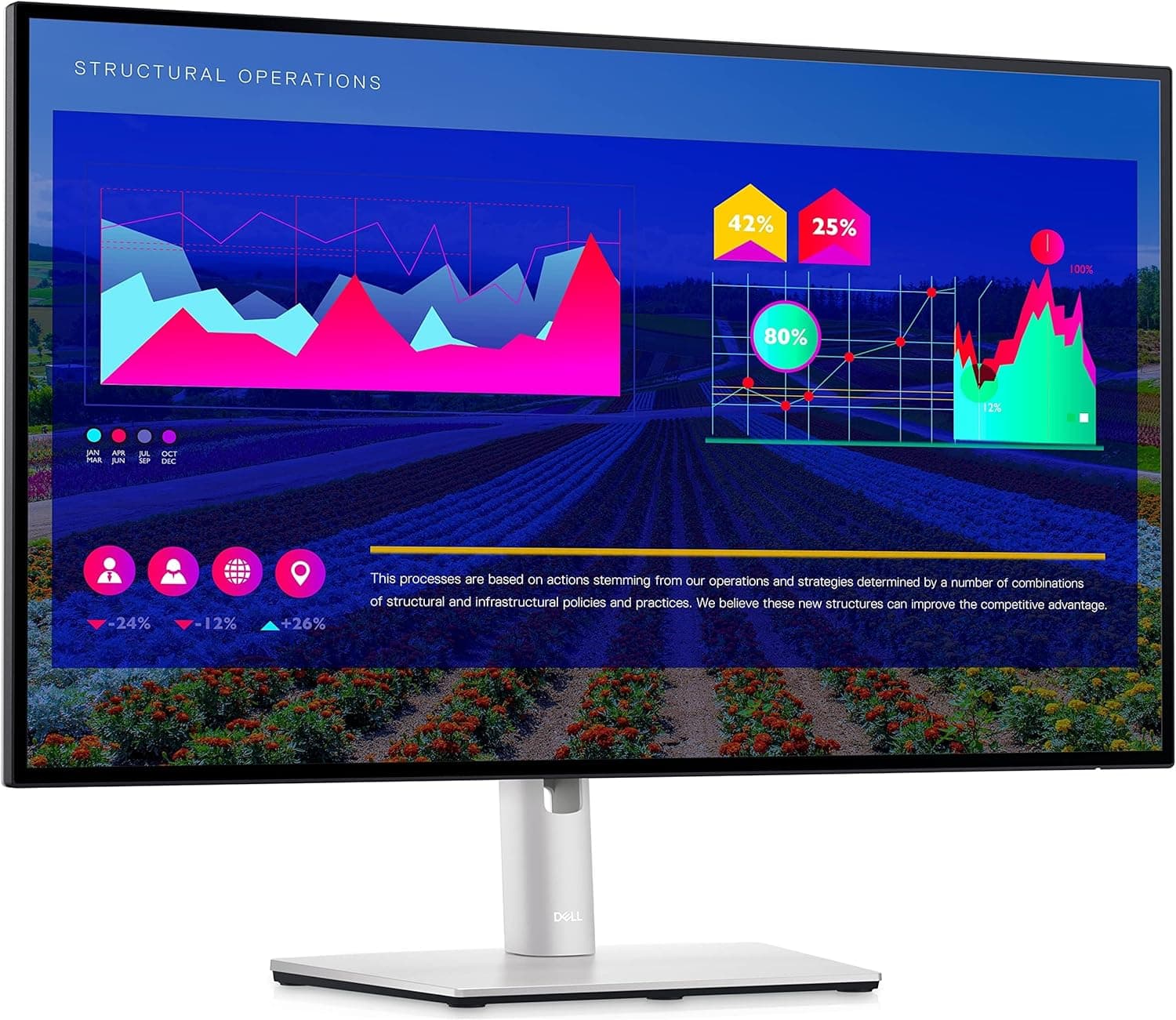
Best Overall 27-Inch: Dell UltraSharp U2723QE

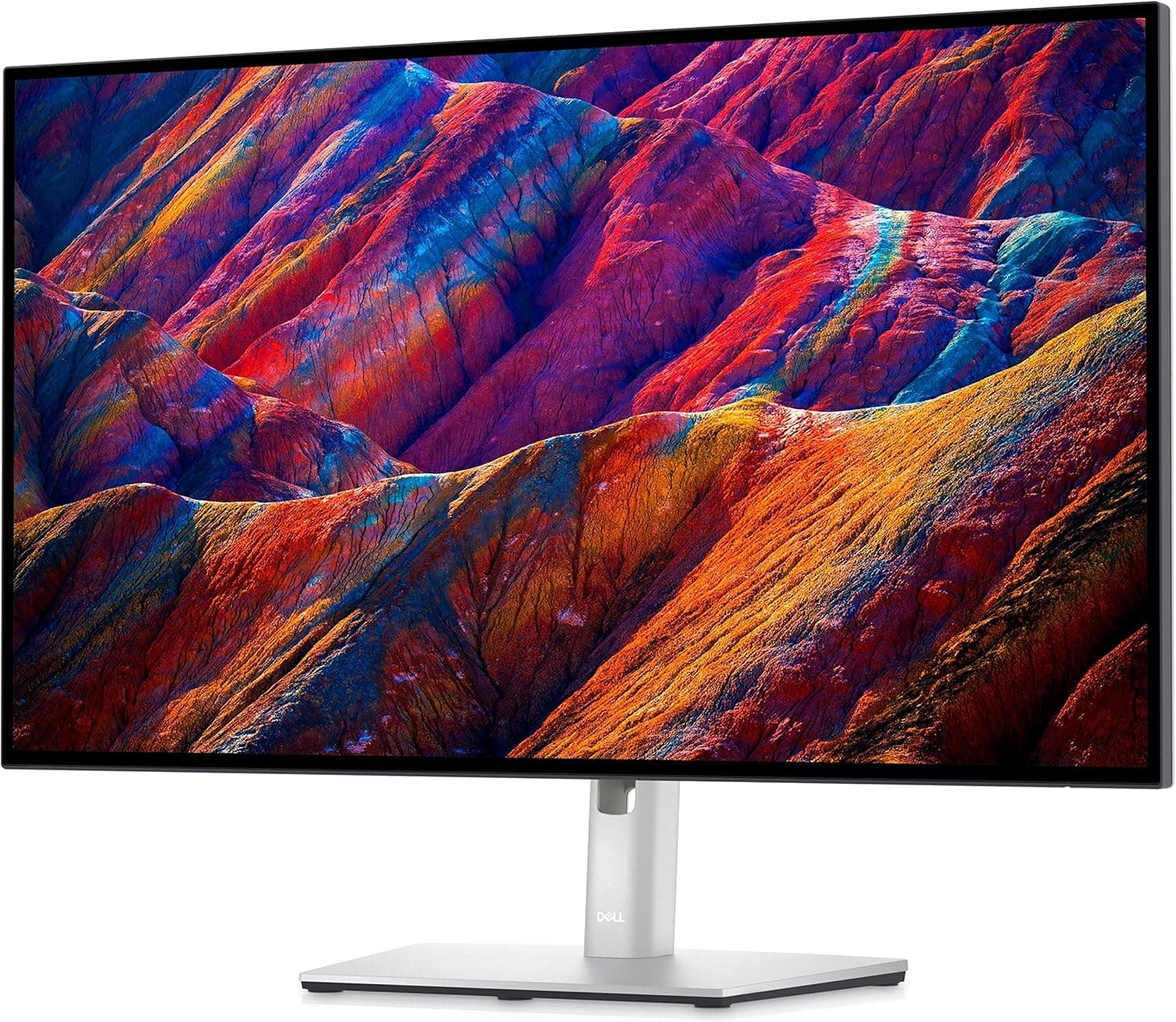
The Dell UltraSharp U2723QE is the monitor I'd recommend to most home office workers without hesitation. It's a 27-inch 4K IPS panel that covers essentially everything a professional needs.
Color accuracy is excellent, it ships factory calibrated with Delta-E under 2 and covers 98% of the DCI-P3 color space. That matters if you do any creative work and want what you see to match what you send to clients or print.
The stand is one of the best in this size class. Height, tilt, swivel and pivot are all adjustable, which means you can dial in your ergonomic setup properly. The USB-C port provides 90W power delivery, so laptop users get video and full charging through one cable.
The built-in USB hub is genuinely useful, you get USB-A and USB-C downstream ports, so your keyboard, mouse and external drive can all connect through the monitor and then travel to your laptop with a single cable.
It's priced at the premium end of the 27-inch market, but for the quality and features you're getting, it's fair value. If you want to go deeper on this model, I've written a full breakdown in my best Dell 4K monitor review.
Best for: Professionals who want a reliable, color-accurate, fully ergonomic 27-inch display and don't want to compromise on anything.
Best 27-Inch for Value: LG 27UK850-W

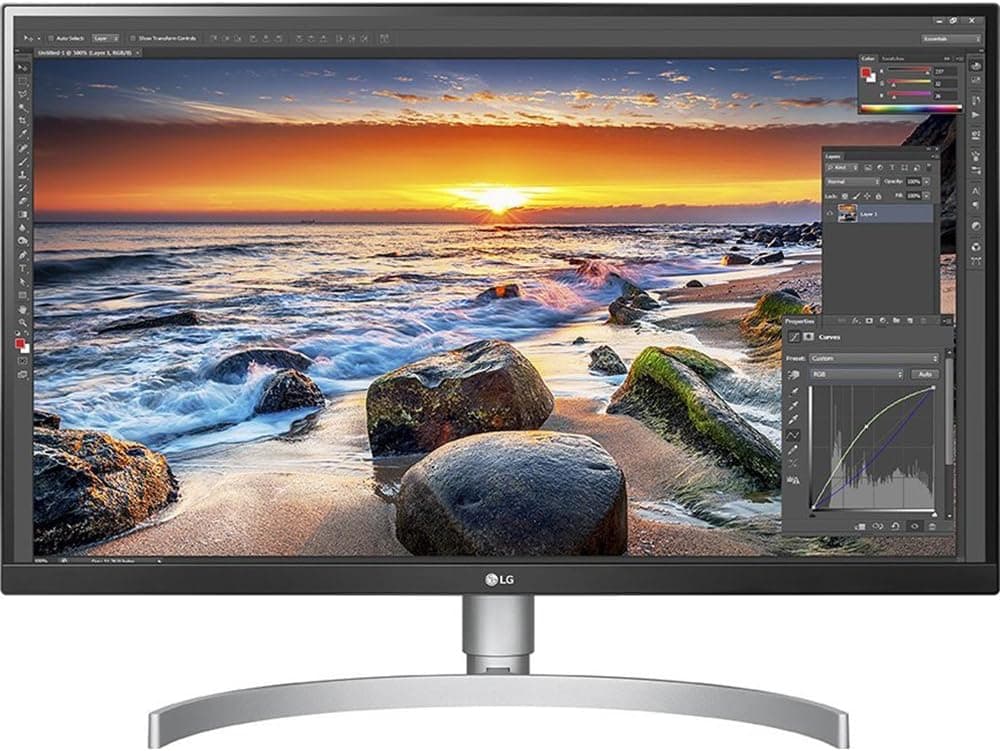
The LG 27UK850-W sits a step below the Dell in price but delivers excellent image quality for the cost. It's a 4K IPS display with HDR10 support and a solid port selection that includes USB-C with 60W power delivery.
Colors are vibrant and accurate. The FreeSync support means smoother visuals if you pair it with a compatible GPU. The stand is functional but offers less adjustability than the Dell, height adjustment is present but the range is narrower.
For most people doing general office work, this monitor delivers image quality well above its price bracket. I've gone into more detail in my best LG 4K monitor review.
Best for: Remote workers who want premium 4K image quality without the premium price.
Best Budget 27-Inch: ASUS VA27EHE

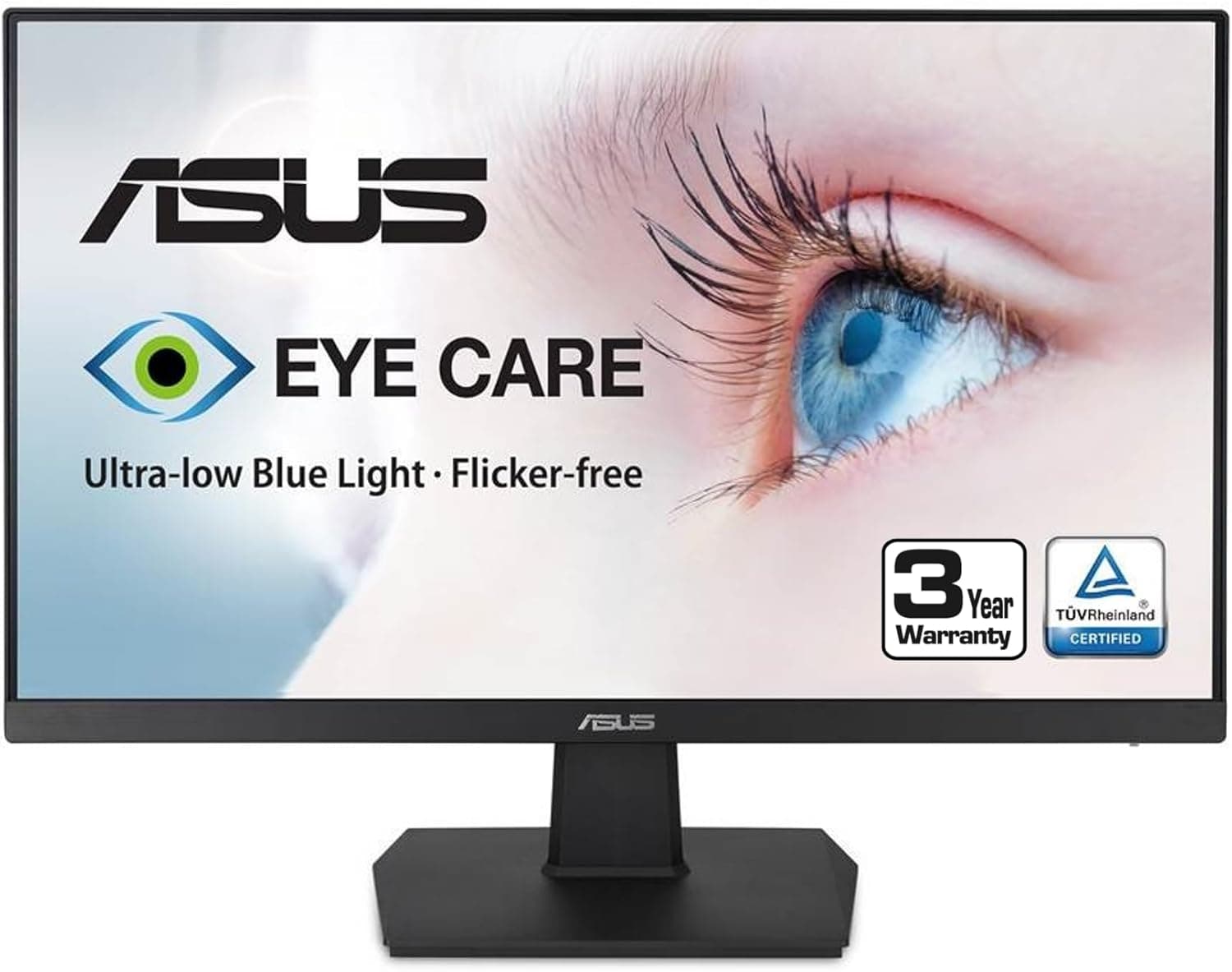
For anyone who needs a capable 27-inch monitor without spending much, the ASUS VA27EHE is one of the better budget options available. It's a 1080p IPS-like panel that gets the basics right, reasonable color accuracy, decent brightness and a slim, clean design.
The stand is limited at this price, height adjustment is not included and tilt is minimal. If you plan to use a monitor arm, that's not a problem. But if you're relying on the stand alone, keep in mind you'll likely need to raise it on something to hit proper eye level.
Connectivity is basic: HDMI and VGA. No USB-C. For a simple second monitor or a first display on a tight budget, it gets the job done.
Best for: People setting up a home office on a limited budget who need a functional 27-inch display without frills.
Best 27-Inch 1440p: BenQ PD2705Q

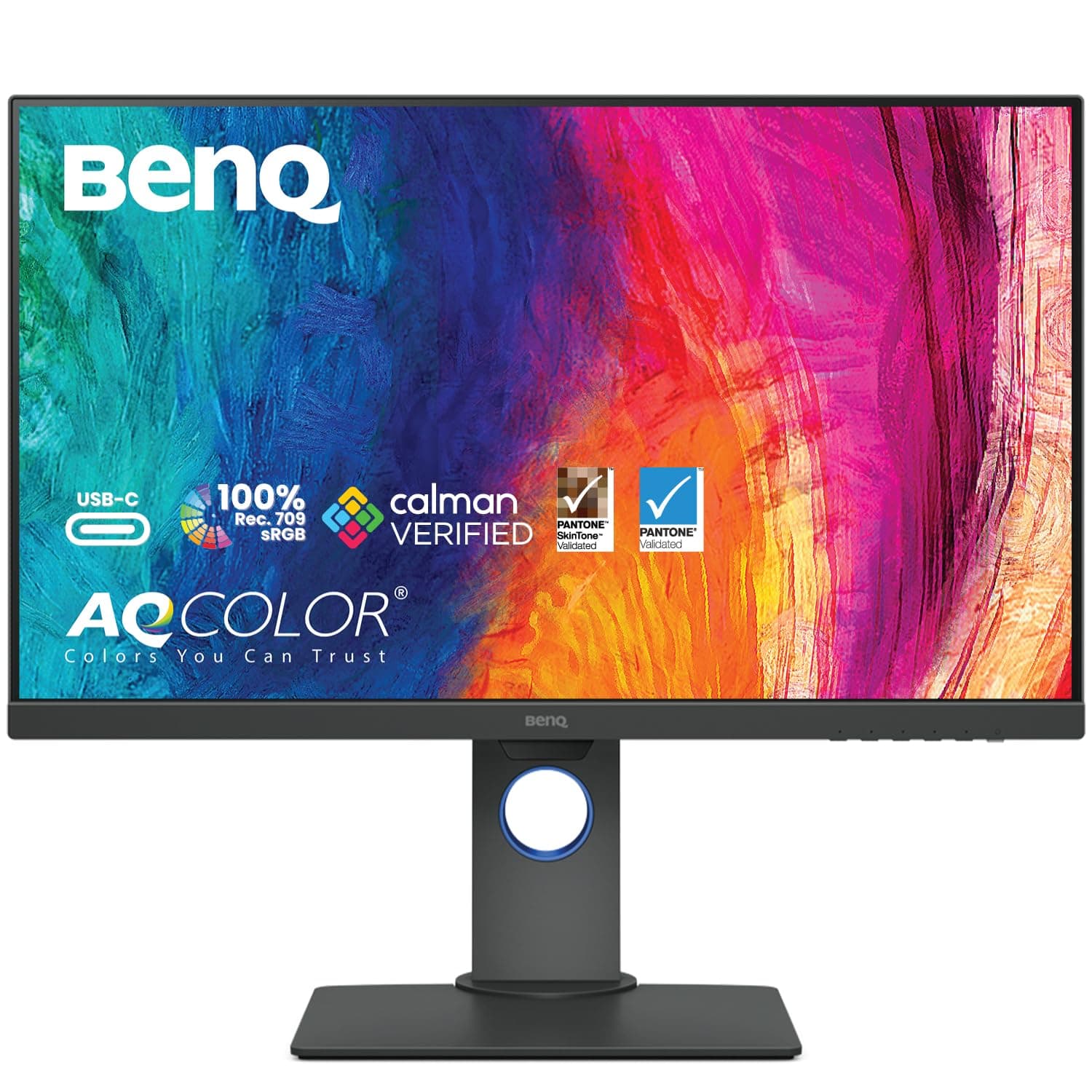
The BenQ PD2705Q is a 27-inch 1440p IPS monitor aimed squarely at creative professionals and demanding office workers. The color accuracy is factory calibrated, covering 95% of DCI-P3 and 100% of sRGB.
What sets this one apart is the hardware calibration support and the excellent out-of-the-box color profile. It's also VESA mount compatible and comes with a well-built stand that includes full height, tilt and swivel adjustment.
The USB-C port handles video and power delivery and there's a built-in USB hub for peripherals. At 1440p rather than 4K, everything runs a little smoother on the system side while still looking sharp at this screen size.
Best for: Designers and content creators who want accurate color at 1440p without paying for 4K.
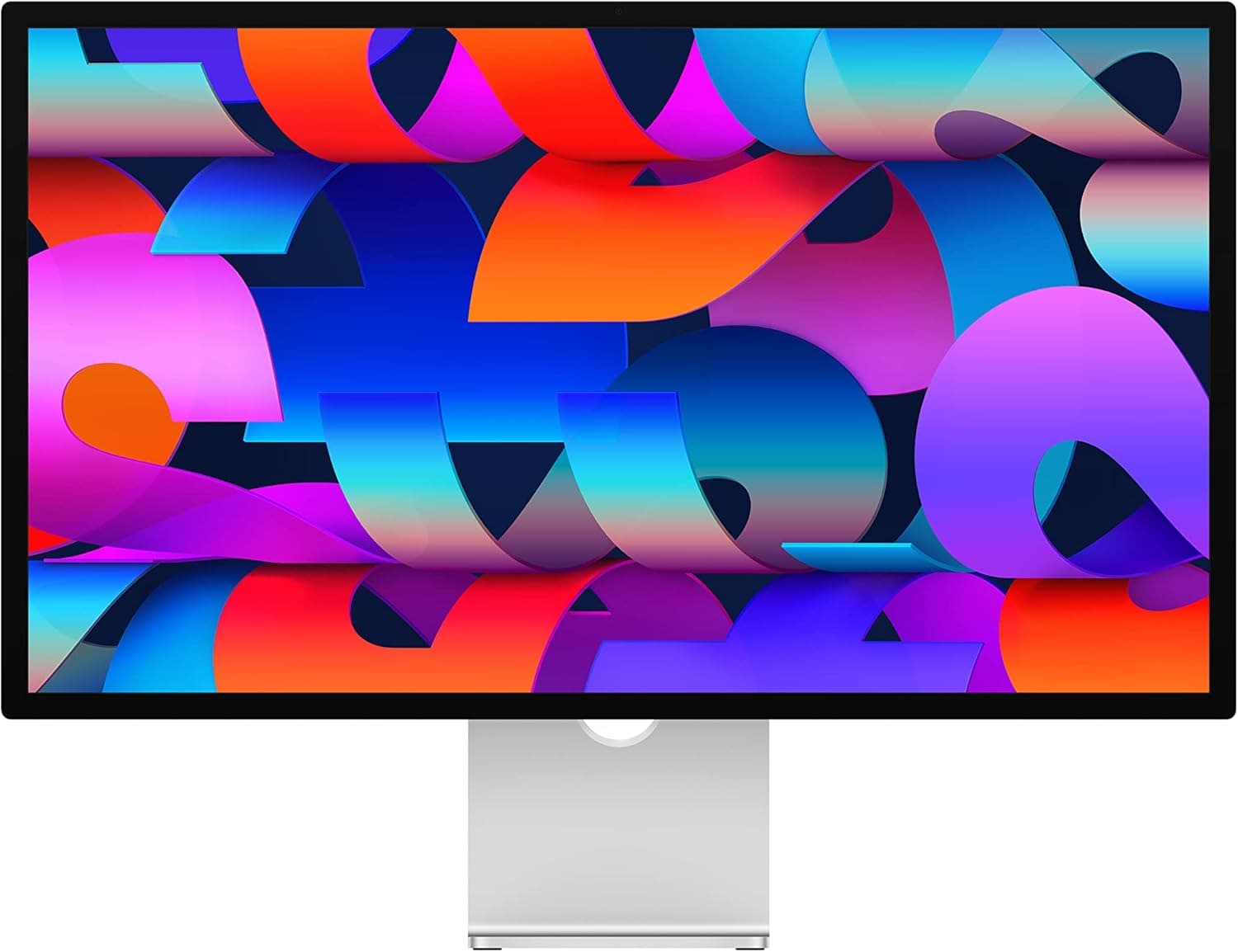
Best 27-Inch for Mac Users: Apple Studio Display
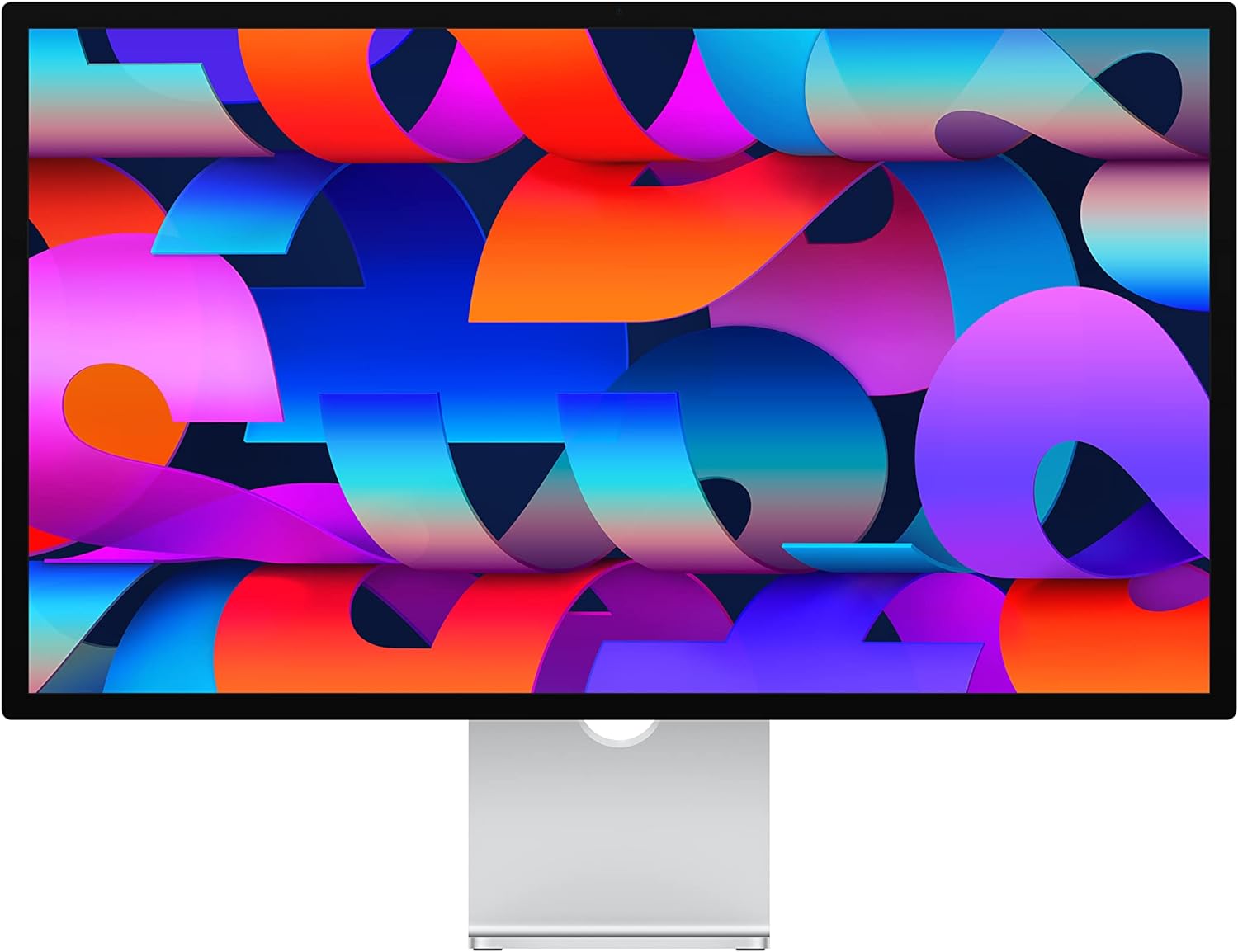
If you're running a MacBook Pro or Mac Mini with Apple silicon, the Apple Studio Display is the obvious premium choice at 27 inches. The 5K Retina panel at this size is genuinely exceptional, text looks like it's been printed on the screen rather than displayed.
The built-in 12MP ultrawide camera with Center Stage, six-speaker sound system and seamless macOS integration make it more than just a monitor. It's an all-in-one hub for a clean desk setup.
It's expensive. There's no getting around that. But if you're deep in the Apple ecosystem and want a monitor that simply disappears and lets you focus on your work, nothing else at this size competes.
For a broader look at Mac-compatible displays, including more affordable options, see my guide to the best external display Mac Mini.
Best for: Apple silicon users who want the best possible macOS experience and are willing to pay for it.
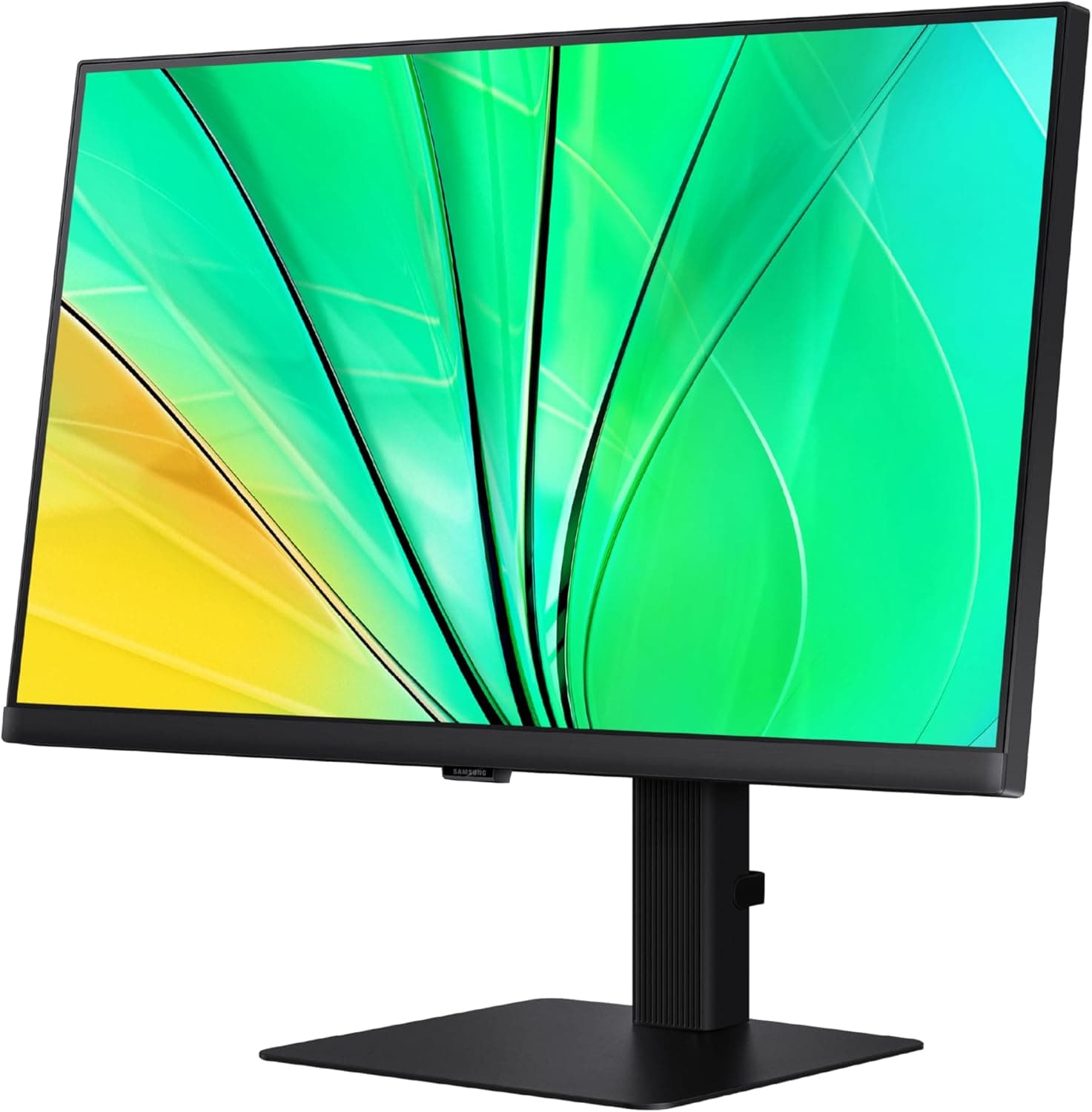
Best 27-Inch Curved: Samsung ViewFinity S6

Curved 27-inch monitors are a slightly niche choice. Most ergonomic guidance suggests that curves matter more on ultra-wide or larger displays. At 27 inches, the effect is subtle but real, the gentle curve does reduce the feeling of strain when your eyes track from one edge to the other.
The Samsung ViewFinity S6 is a 1440p curved IPS display that handles both office work and occasional gaming well. Colors are accurate enough for creative tasks, the refresh rate goes up to 100Hz for smoothness and USB-C connectivity is included.
Best for: Anyone who wants a slightly more immersive 27-inch experience without going ultrawide.
Best 27-Inch with Built-In KVM: Dell UltraSharp U2722D

If you regularly switch between two computers, a work laptop and a personal machine, for example, the Dell U2722D's built-in KVM switch is a genuinely useful feature. One button press switches the monitor, keyboard and mouse between two connected machines without touching a single cable.
It's a 27-inch 1440p IPS panel with the same color accuracy and build quality Dell's UltraSharp line is known for. The USB-C port delivers 65W power delivery.
For a more detailed look at monitors with this feature, check out my best KVM monitor 2026 guide.
Best for: Home office workers who use two computers and want a seamless way to switch between them.
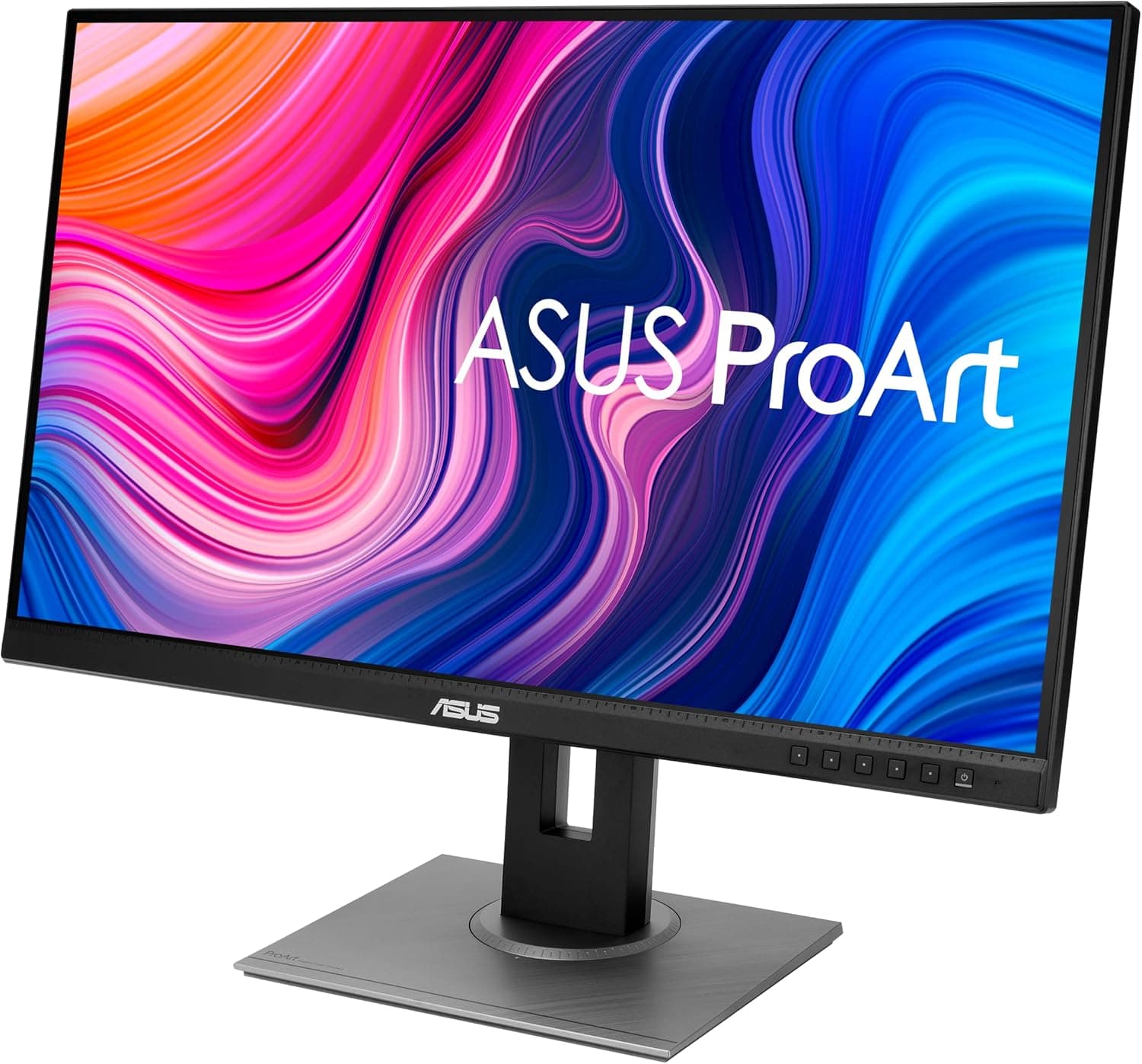
Best 27-Inch for Eye Comfort: ASUS ProArt PA278QV

Eye strain is a genuine concern for anyone spending 8 or more hours per day in front of a screen. The ASUS ProArt PA278QV is a 27-inch 1440p IPS monitor with a strong focus on display comfort, it includes flicker-free backlighting and a low blue light mode that reduces eye fatigue over long sessions.
Beyond the comfort features, the color accuracy is exceptional for this price range. It covers 100% of sRGB and 88% of DCI-P3, making it genuinely suitable for serious creative work.
The stand is fully adjustable with height, tilt, swivel and pivot. Connectivity is solid with DisplayPort, HDMI and USB ports on board.
For broader advice on reducing eye strain at your monitor, see my full guide on best blue light filter monitor settings and tools.
Best for: Anyone who spends long hours at a screen and prioritizes display comfort alongside color accuracy.
How to Get the Most Out of Your 27-Inch Monitor
Set It Up at the Right Height
The top of your monitor should sit at or slightly below eye level when you're seated properly. Most people place their monitor too low, usually because they're relying on a stand that doesn't adjust high enough.
If your stand doesn't reach the right height, a monitor arm is one of the best investments you can make. It lets you dial in the exact position and frees up desk space at the same time.
Calibrate Your Colors
Even a well-reviewed monitor can drift from accurate colors over time or simply not be calibrated well out of the box. If you do any design, photography, or video work, running a calibration, even with the free tool built into your OS, makes a meaningful difference.
For a full walk-through on this process, see my best monitor calibration guide.
Consider a Dual Monitor Setup
A single 27-inch monitor is great. Two of them side by side is better for most productivity workflows. If your desk has room and your computer supports a second display, adding a matching or complementary screen transforms how much you can have open simultaneously.
I've covered everything about running multiple displays in my guide to best Mac dual display setup.
Use USB-C for a Cleaner Setup
If your laptop has a USB-C or Thunderbolt port and your monitor supports USB-C Power Delivery, switch to a single cable setup immediately. The difference in desk cleanliness is significant and you stop fussing with power adapters.
See my best power delivery monitor roundup for options that handle this well.
27-Inch Monitor Buying Mistakes to Avoid
Buying 1080p at this size. At 27 inches, 1080p pixel density is noticeably soft for text-heavy work. Save a bit longer and go 1440p minimum.
Ignoring the stand adjustability. A monitor with no height adjustment almost always ends up at the wrong height. Check that the stand moves before you buy, or plan to use a monitor arm.
Overlooking refresh rate needs. If you're a gamer who also works from home, make sure the monitor goes above 60Hz. For pure office work, 60Hz is fine.
Not checking USB-C compatibility. If you're a laptop user, confirm the monitor's USB-C port provides Power Delivery, not just video. Some monitors have USB-C for video only and won't charge your laptop.
Final Thoughts
The 27-inch monitor category in 2026 is packed with genuinely excellent options at every price point. Whether you're spending $200 or $800, there's a display here that will serve you well for years.
My overall recommendation remains the Dell UltraSharp U2723QE for anyone who wants a no-compromise setup. If you want to spend less and still get great results, the BenQ PD2705Q at 1440p or the LG 27UK850-W at 4K are both excellent.
Whatever you choose, the upgrade from a mediocre display to a properly calibrated, ergonomically positioned 27-inch monitor is one of the most tangible improvements you can make to your home office setup.
Ready to buy? Check prices and current availability through the links above and feel free to explore the rest of the guides on this site for help with the rest of your setup.
Affiliate Disclaimer: This site participates in the Amazon Associates Program and other affiliate programs. If you click a link and make a purchase, I may earn a small commission at no extra cost to you. I only recommend products I've personally tested or thoroughly researched.

Written by
Jordan Lee
I'm Jordan Lee, a tech reviewer and peripheral enthusiast with 7+ years of hands-on experience evaluating monitors, mechanical keyboards, wireless mice, and audio equipment. With a degree in Computer Engineering, I bring a technical yet practical perspective to every review I write. I don't just benchmark — I actually use these products daily and put them through real work scenarios. When I recommend a monitor, I've checked its color accuracy, refresh rate, and eye strain levels myself. When I suggest a keyboard, I've typed thousands of words on it. My goal is simple: help you find the right gear so you can work smarter, not just spend more.
