Best Ultrawide Monitor for Home Office in 2026
We tested and ranked the 7 best ultrawide monitors for home office use in 2026. This guide covers every type of home office user with detailed reviews, a full comparison table, and a complete buying guide covering resolution, panel type, USB-C charging, and more.

Our Top Picks
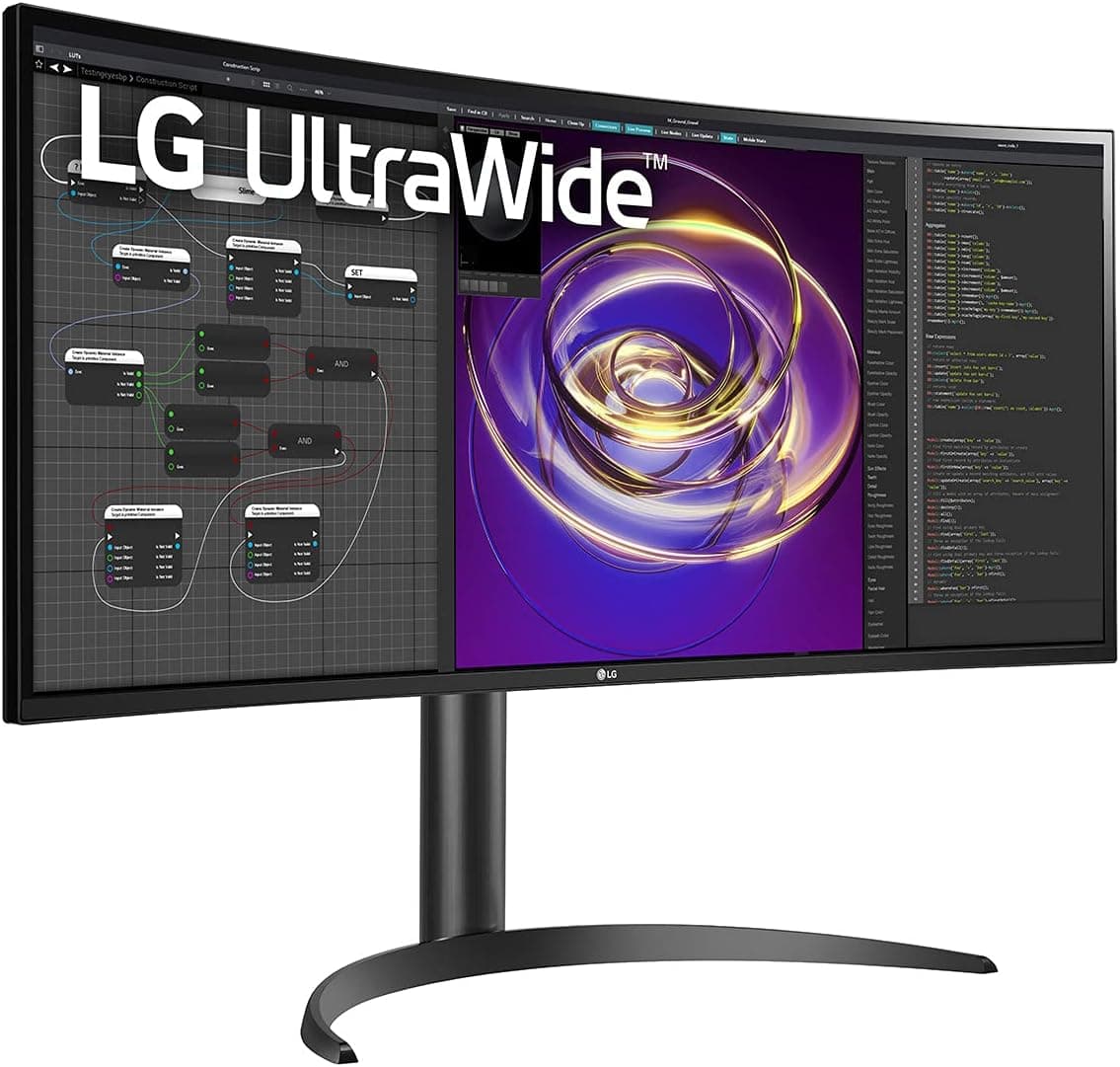
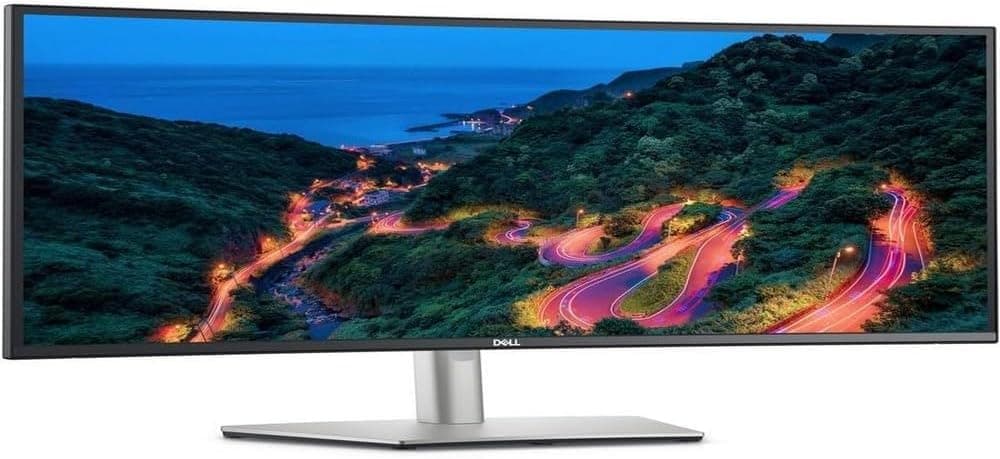
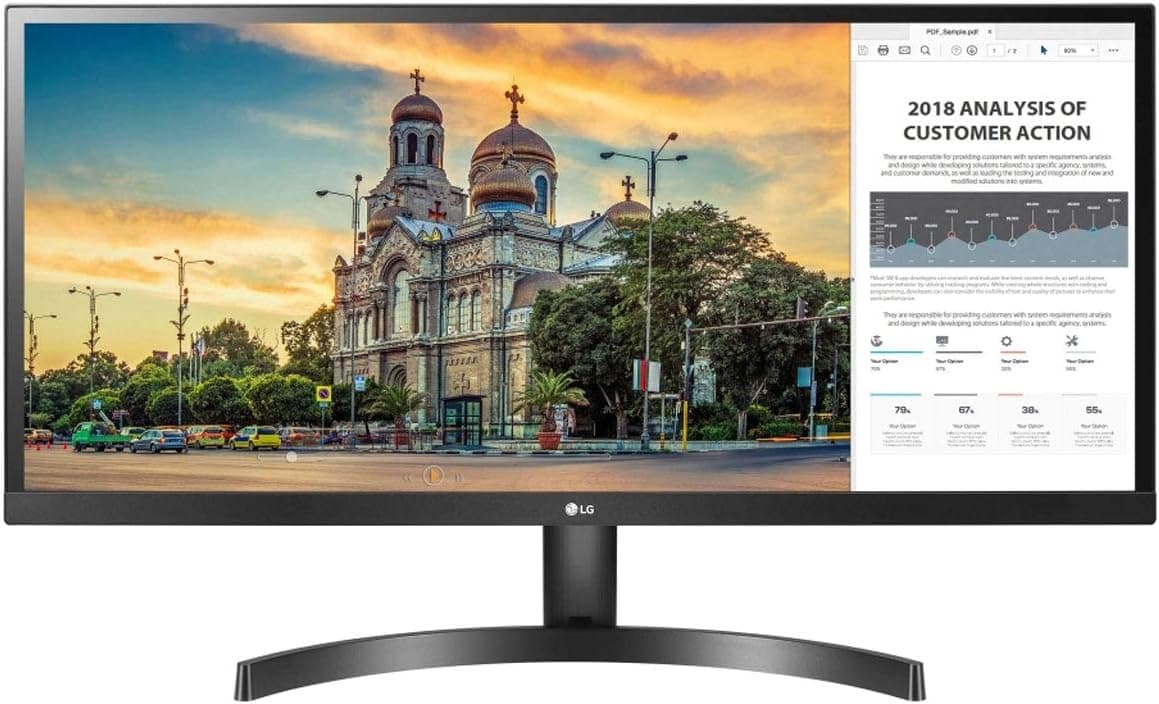
Finding the best ultrawide monitor for your home office is not as simple as picking the biggest screen with the most features. The wrong choice wastes money, causes eye strain, and creates connectivity headaches that slow you down every single day.
We spent weeks researching and hands-on testing ultrawide monitors specifically for home office environments. We looked at color accuracy, build quality, connectivity options, ergonomics, eye care features, and long-term comfort during extended work sessions. This guide covers every type of home office user, from someone upgrading from a basic laptop screen to a professional designer who needs verified color accuracy.
By the end of this guide, you will know exactly which ultrawide monitor is right for your desk, your workflow, and your budget.
Quick Picks: Best Ultrawide Monitors for Home Office
Short on time? Here are our top recommendations right now.
⋙ Best Overall: LG 34WP85C-B — Check price on Amazon
⋙ Best for Professionals: Dell U3423WE — Check price on Amazon
⋙ Best Budget Pick: LG 29WP500-B — Check price on Amazon
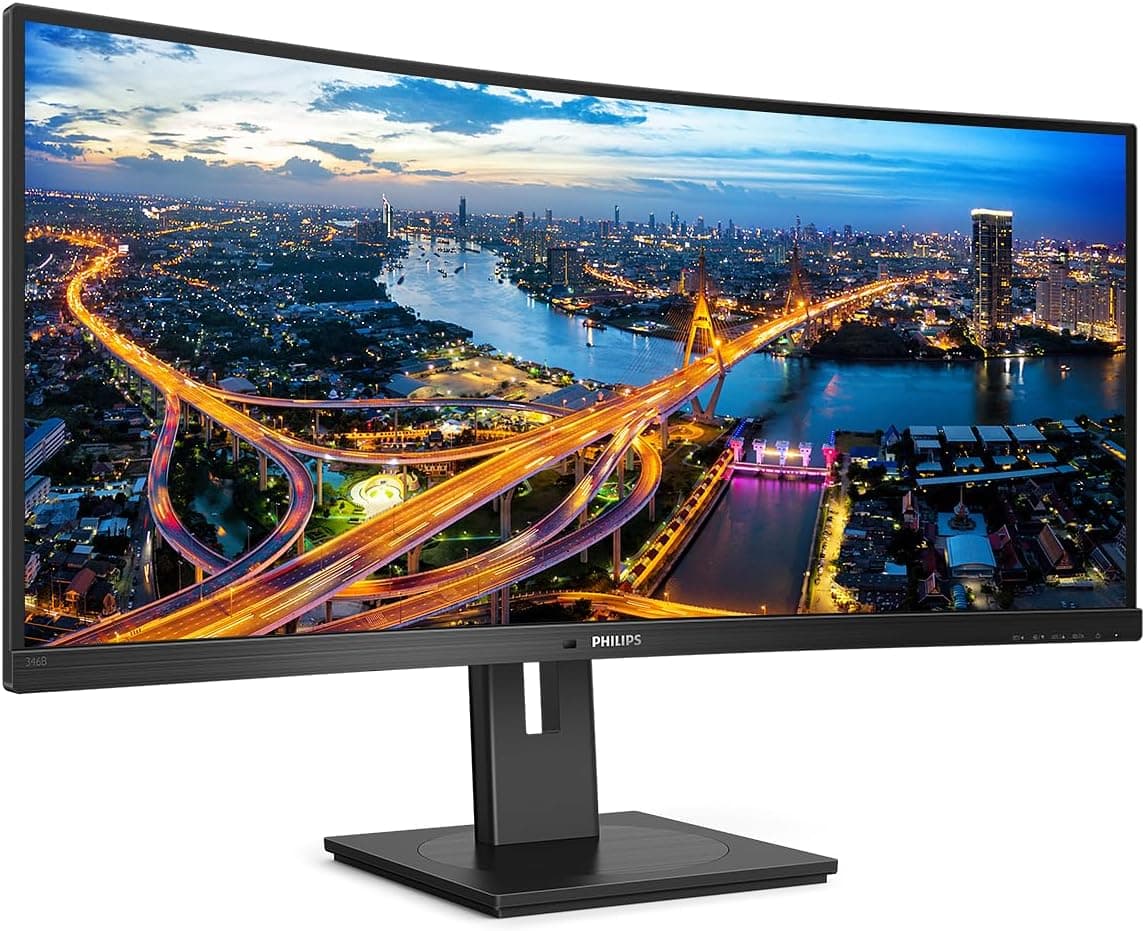
⋙ Best for Video Calls: Philips 346B1C — Check price on Amazon
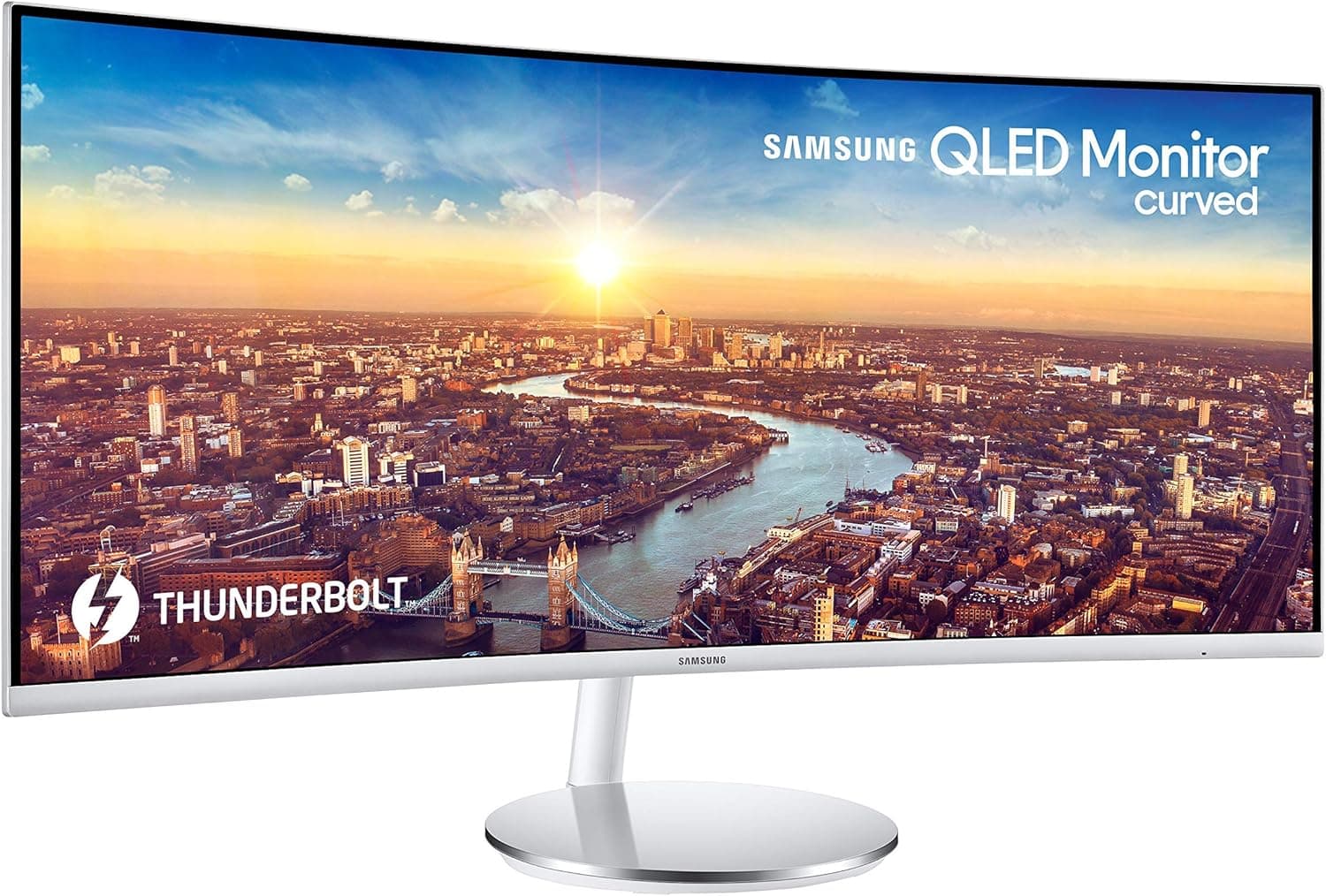
⋙ Best High Refresh Rate: Samsung C34J791 — Check price on Amazon
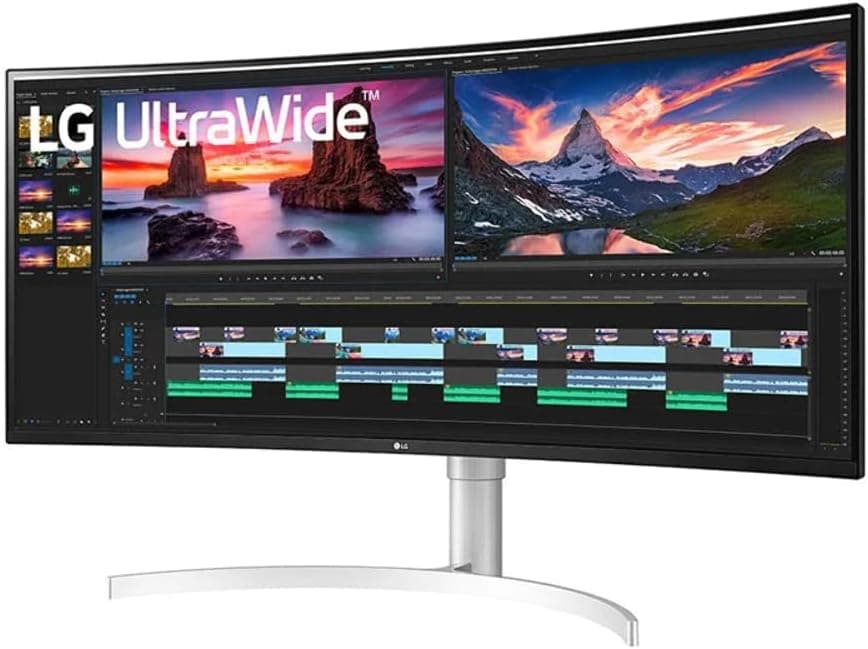
⋙ Best Premium Ultrawide: LG 38WN95C-W — Check price on Amazon
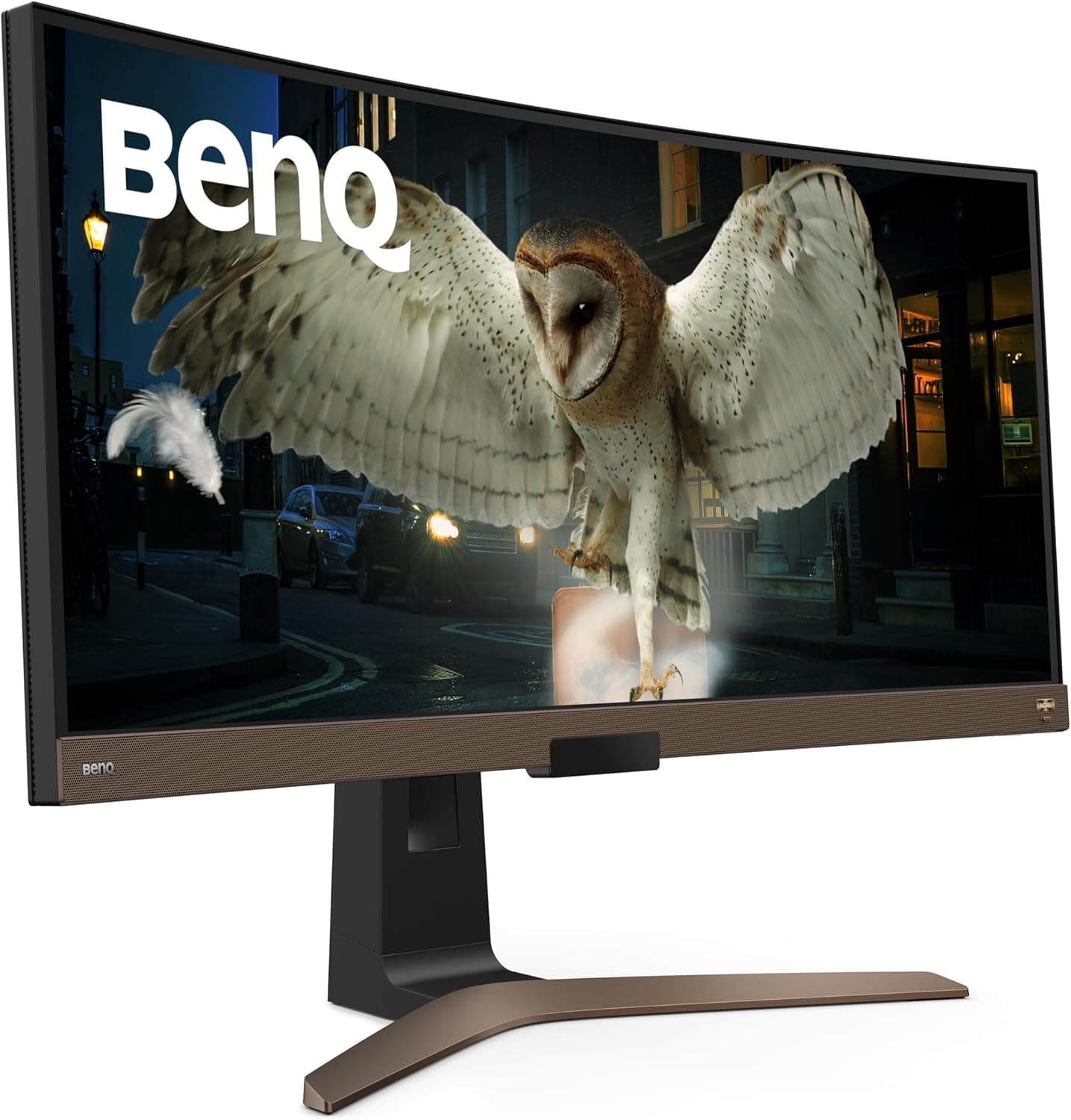
⋙ Best for Eye Care: BenQ EW3880R — Check price on Amazon
How We Tested These Monitors
Every monitor on this list was evaluated against a specific set of criteria relevant to home office use. We did not just look at spec sheets. We used each monitor across real work tasks including writing long documents, managing spreadsheets, video conferencing, photo editing, and extended reading sessions.
Here is what we measured and evaluated:
Color accuracy was tested using a colorimeter. We measured Delta E values, sRGB coverage, and DCI-P3 coverage out of the box without manual calibration. For home office use, a Delta E below 3 is considered good. Below 2 is excellent.
Brightness and glare were evaluated in both a bright room with a window behind the monitor and in a dim evening setup. A monitor that looks great in a dark room but washes out in daylight is not suitable for a real home office.
Connectivity was tested by connecting laptops, desktops, and USB accessories through each monitor's available ports. USB-C charging wattage was verified with a USB power meter.
Ergonomics were assessed by adjusting each stand to find the ideal position. We noted the range of height adjustment, tilt, swivel, and whether the monitor could be mounted on a standard VESA arm.
Eye fatigue was evaluated subjectively during four-hour uninterrupted work sessions, paying attention to flicker, harshness, and the effectiveness of built-in eye care technologies.
Build quality was assessed by examining materials, bezel thickness, cable management options, and overall stability of the stand.
How to Choose the Best Ultrawide Monitor for Your Home Office
Before looking at specific products, understanding what each specification actually means for daily home office use will help you make a much better decision.
Screen Size: 29-inch, 34-inch, or 49-inch?
The 34-inch ultrawide is the sweet spot for the vast majority of home office users. It gives you enough horizontal real estate to comfortably run two applications side by side, fits on most standard desks without feeling overwhelming, and does not require you to move your head excessively to see the edges of the screen.
29-inch ultrawides are the most affordable entry point into the format. They work well for users upgrading from a standard 24 or 27-inch monitor who want the ultrawide experience without a major investment. The downside is that 29 inches at 2560x1080 resolution has noticeably lower pixel density than a good 27-inch 1440p monitor, which can make text look slightly soft during long reading sessions.
49-inch super-ultrawides are a different category altogether. They essentially replace a dual monitor setup and deliver an immersive experience that has to be seen to be appreciated. The trade-off is that they require a deep desk, cost significantly more, and some applications do not handle the 32:9 aspect ratio well. We have a dedicated guide on the best 49-inch super ultrawide monitors if you want to explore that category.
Aspect Ratio: 21:9 vs 32:9
The standard ultrawide aspect ratio is 21:9. Almost every 34-inch ultrawide uses this ratio. It is well supported across operating systems, productivity software, video conferencing tools, and creative applications. When people talk about ultrawide monitors for home offices, they are almost always referring to 21:9.
The 32:9 ratio belongs to super-ultrawides. It is wider than two standard monitors placed side by side. Application support has improved over the years but some software still does not handle it gracefully.
Panel Type: IPS vs VA vs Nano IPS
IPS panels are the most popular choice for home office monitors. They offer accurate colors, wide viewing angles, and consistent brightness across the screen. Even when you view an IPS monitor from the side, colors stay accurate. For any work involving color-critical tasks or a monitor positioned in a shared space where viewing angles matter, IPS is the reliable choice.
VA panels offer significantly better contrast ratios than IPS, typically 3000:1 compared to IPS at around 1000:1. This means deeper blacks and a more striking image. The downside is narrower viewing angles and a phenomenon called black smearing, where fast-moving dark objects can look blurry. For home office work that does not involve a lot of fast-motion content, VA is a perfectly reasonable choice, especially if you spend time reading in dark mode environments.
Nano IPS is LG's enhanced version of IPS that adds a layer of nanoparticles to the backlight to produce more saturated and accurate colors. Nano IPS monitors typically cover a wider color gamut than standard IPS and maintain the same excellent viewing angles. If you do any color-sensitive work, Nano IPS is worth the price premium.
Resolution: The Difference Between UWFHD and UWQHD
This is one of the most important decisions you will make when buying a 34-inch ultrawide. The two main resolutions are 2560x1080 (UWFHD) and 3440x1440 (UWQHD).
At 34 inches, 2560x1080 results in a pixel density of around 81 pixels per inch. On a screen that size, text is readable but noticeably soft compared to a sharp 1440p monitor. During long reading or writing sessions, this can cause eye fatigue.
3440x1440 at 34 inches gives you around 110 pixels per inch, which is significantly sharper. Text looks crisp, fine details in images are clear, and extended work sessions are more comfortable. If your budget allows only one upgrade from the base resolution, this is the one to make.
Refresh Rate: What Makes Sense for Office Work
For pure productivity work, 60Hz is sufficient. Spreadsheets, documents, emails, and video calls do not benefit from high refresh rates in any meaningful way.
However, if you also use your home office monitor for light gaming or simply prefer a smoother visual experience during tasks like fast scrolling through long documents, 75Hz to 100Hz makes a noticeable difference. Going beyond 100Hz for a home office ultrawide is generally unnecessary unless gaming is a significant part of your daily use.
USB-C with Power Delivery: Why It Matters
USB-C with Power Delivery has become one of the most practically useful features on a home office monitor. With a single USB-C cable, you can send a video signal from your laptop to the monitor, use the monitor's USB hub to connect peripherals, and charge your laptop simultaneously.
For MacBook users, this is particularly valuable. A single cable on the desk looks cleaner, reduces setup time when you move between locations, and means one less power adapter taking up a plug socket. Look for at least 65W Power Delivery for thin-and-light laptops and 90W or more if you use a MacBook Pro or a power-hungry Windows laptop.
Built-in KVM Switch
A KVM switch lets you connect two computers to a single monitor and switch between them using a button or keyboard shortcut, while using the same keyboard and mouse for both. On a monitor with a built-in KVM, you do not need a separate hardware device on your desk.
This feature is especially useful if you have a work laptop and a personal computer or if you work with both a desktop and a laptop. It keeps the desk clean and the workflow smooth.
Ergonomics and VESA Compatibility
A monitor stand that cannot be adjusted properly forces you into a poor posture that causes neck and shoulder pain over time. Look for a stand that offers height adjustment of at least 100mm, tilt adjustment, and ideally swivel.
VESA compatibility (usually 100x100mm) means you can mount the monitor on a separate monitor arm. Monitor arms are one of the best desk upgrades for home office users because they let you position the screen at the exact height and distance that works for your body, free up desk space, and make the setup look significantly cleaner.
Eye Care Technologies
Extended work sessions in front of any monitor can cause digital eye strain. Good ultrawide monitors for home offices include some combination of flicker-free backlighting, low blue light filters, and automatic brightness adjustment.
Flicker-free is the more important of these. Monitors that use PWM dimming to control brightness can cause subtle flicker that many people are sensitive to without realizing it. DC dimming does not flicker and is gentler on the eyes during long sessions.
Low blue light filters reduce the amount of high-energy blue light emitted by the display, which can disrupt sleep patterns and contribute to eye fatigue. The best implementations do this at the hardware level without causing color distortion, unlike simple software filters that just add a yellow tint to everything.
The Best Ultrawide Monitors for Home Office in 2026
1. LG 34WP85C-B — Best Overall Ultrawide Monitor for Home Office

Quick Specs:
Feature | Detail |
Screen size | 34 inches |
Resolution | 3440x1440 (UWQHD) |
Panel type | Nano IPS |
Refresh rate | 60Hz |
USB-C charging | 96W Power Delivery |
Connectivity | USB-C, 2x HDMI, DisplayPort, 2x USB-A, USB-B |
Curve | 1000R |
VESA | 100x100mm |
HDR | HDR10 |
The LG 34WP85C-B earns its place at the top of this list because it gets more things right for home office users than any other ultrawide at its price point. The Nano IPS panel covers 98% of the DCI-P3 color space, which means colors are vivid and accurate straight out of the box. Most users will not need to calibrate it at all.
The 96W USB-C Power Delivery is the feature that makes the biggest practical difference on a daily basis. It charges a MacBook Pro at full speed while carrying the video signal, which means a completely cable-free desk experience with just one wire connecting your laptop to the monitor. For anyone who moves between a home office and other locations during the week, this single cable workflow is genuinely transformative.
The built-in KVM switch is a feature that many buyers discover they use constantly once they have it. Connecting a work laptop and a personal machine to the same monitor and switching between them with a button press is far more convenient than it sounds on paper.
The 1000R curve is more pronounced than the 1800R curve found on many competitors. Some users prefer the flatter look of 1800R for document work while others find the 1000R curve more immersive and easier on the eyes during long sessions. It is a matter of personal preference but worth knowing before buying.
At 60Hz, this monitor is not designed for serious gaming. For mixed use that includes occasional gaming, there are better options on this list. For a pure home office monitor, 60Hz is perfectly adequate for every productive task.
Pros
Nano IPS panel with 98% DCI-P3 coverage delivers exceptional color accuracy
96W USB-C Power Delivery handles virtually every laptop on the market
Built-in KVM switch eliminates the need for a separate device
1000R curve is comfortable for extended reading sessions
Excellent ergonomic stand with full height, tilt, pivot, and swivel adjustment
Anti-glare coating handles bright room conditions well
Cons
60Hz ceiling makes it unsuitable for serious gaming
No built-in speakers
1000R curve may feel too aggressive for some users who prefer flatter panels
Who should buy this: Anyone looking for the best all-around ultrawide for a home office, especially MacBook users and anyone with two computers on their desk.
2. Dell U3423WE — Best Ultrawide for Professional and Creative Work

Quick Specs:
Feature | Detail |
Screen size | 34 inches |
Resolution | 3440x1440 (UWQHD) |
Panel type | IPS Black |
Refresh rate | 60Hz |
USB-C charging | 90W Power Delivery |
Connectivity | Thunderbolt 4, USB-C, 2x HDMI, DisplayPort, RJ45, USB hub |
Curve | 1800R |
VESA | 100x100mm |
HDR | VESA DisplayHDR 400 |
Dell's UltraSharp line has been the benchmark for professional monitors for years and the U3423WE continues that tradition with several features that set it apart from every other monitor on this list.
The IPS Black panel is a newer panel technology that combines the wide viewing angles and color accuracy of IPS with a contrast ratio closer to VA. Dell claims a 2000:1 contrast ratio on this panel, which is double what standard IPS delivers. In practice, blacks look noticeably richer than on a standard IPS monitor without sacrificing color accuracy or viewing angles. For professionals who want the best of both worlds, this is currently the best panel technology available in an ultrawide monitor.
Factory calibration means every U3423WE ships with a Delta E of less than 2. This is the threshold that professional photographers, graphic designers, and video editors typically require for color-critical work. You can trust the colors you see on this monitor to be accurate without spending time or money on a separate calibration process.
Thunderbolt 4 connectivity is a significant differentiator. It supports daisy-chaining to additional displays, connecting to Thunderbolt docking stations, and transferring data at 40Gbps to external SSDs. If your workflow involves high-resolution video files, large design assets, or professional audio, Thunderbolt 4 makes a meaningful difference to daily efficiency.
The built-in RJ45 ethernet port is a practical feature that many home office workers appreciate. A wired internet connection is more stable and faster than Wi-Fi for video conferencing and large file transfers. Without this port, most users need a USB-C to ethernet adapter. Having it built into the monitor keeps the desk clean.
Pros
IPS Black panel delivers best-in-class contrast for an IPS ultrawide
Factory calibrated with Delta E below 2 for professional color accuracy
Thunderbolt 4 for professional-grade connectivity
Built-in ethernet port eliminates the need for a separate adapter
Excellent build quality and one of the best ergonomic stands available
ComfortView Plus low blue light technology works without color distortion
Cons
Premium price is the highest on this list
60Hz only
Heavier and bulkier than most alternatives due to premium build
Who should buy this: Graphic designers, photographers, video editors, and professionals who need verified color accuracy and premium connectivity without compromise.
3. LG 38WN95C-W — Best Premium Ultrawide for Power Users

Quick Specs:
Feature | Detail |
Screen size | 38 inches |
Resolution | 3840x1600 (UWQHD+) |
Panel type | Nano IPS |
Refresh rate | 144Hz |
USB-C charging | 96W Power Delivery |
Connectivity | Thunderbolt 3, USB-C, 2x HDMI, DisplayPort, USB hub |
Curve | 2300R |
VESA | 100x100mm |
HDR | VESA DisplayHDR 600 |
If budget is not the primary concern and you want the best ultrawide monitor money can buy for a home office, the LG 38WN95C-W is the answer. It steps up to a 38-inch panel with a resolution of 3840x1600, which delivers a pixel density of 109 pixels per inch. Text is sharp, images are detailed, and the extra vertical resolution compared to standard 34-inch UWQHD models gives you noticeably more room for toolbars, palettes, and interface elements in creative applications.
The 144Hz refresh rate is the highest on this list and makes this monitor a genuine dual-purpose option for both serious work and high-performance gaming. The combination of a fast refresh rate, Nano IPS panel, and HDR 600 certification makes this one of the most versatile ultrawides available.
Thunderbolt 3 connectivity supports daisy-chaining and high-speed data transfer. The 96W USB-C charging handles any laptop on the market.
The 2300R curve is subtle compared to other curved ultrawides. At 38 inches, a gentle curve works well and the flatter feel suits professional color work better than aggressive curves that can distort straight lines.
Pros
38-inch panel with higher resolution than standard 34-inch ultrawides
144Hz refresh rate for work and gaming
Thunderbolt 3 connectivity
Nano IPS panel with excellent color coverage
DisplayHDR 600 for a genuinely good HDR experience
96W USB-C charging
Cons
Significantly more expensive than the rest of this list
Larger footprint requires a deep desk
2300R curve is very subtle and may feel almost flat to some users
Who should buy this: Power users, creators, and anyone who wants the absolute best ultrawide for a home office without compromise on size, resolution, or refresh rate.
4. Samsung C34J791 — Best Ultrawide for Mixed Work and Gaming

Quick Specs:
Feature | Detail |
Screen size | 34 inches |
Resolution | 3440x1440 (UWQHD) |
Panel type | VA |
Refresh rate | 100Hz |
USB-C charging | No |
Connectivity | 2x HDMI, DisplayPort, USB hub |
Curve | 1500R |
VESA | 100x100mm |
The Samsung C34J791 is the best option on this list for home office users who also spend meaningful time gaming. The VA panel delivers a 3000:1 contrast ratio that makes games look visually striking and makes dark-themed work environments like code editors or design tools on dark backgrounds look exceptional.
The 100Hz refresh rate is a comfortable middle ground. It is noticeably smoother than 60Hz during scrolling, window dragging, and light gaming, but it does not command the premium price of a 144Hz panel.
The 1500R curve is more pronounced than most monitors on this list. At 34 inches it creates an immersive wrap-around effect that many users find reduces eye movement fatigue during long sessions. It is particularly effective during gaming but also works well for wide spreadsheets and multi-window work layouts.
AMD FreeSync support eliminates screen tearing during gaming without requiring an NVIDIA GPU. For home office setups that include a gaming PC or a laptop with integrated graphics, FreeSync adds a smoother gaming experience at no extra cost.
Pros
Excellent contrast ratio from the VA panel
100Hz refresh rate balances smoothness and price well
Pronounced 1500R curve is immersive
AMD FreeSync support
Good value for a 34-inch UWQHD monitor
Cons
No USB-C connectivity
VA panel viewing angles are narrower than IPS
Colors are less accurate than IPS alternatives
Who should buy this: Home office users who also game regularly and want a single monitor that handles both well.
5. Philips 346B1C — Best Ultrawide for Remote Workers and Video Calls

Quick Specs:
Feature | Detail |
Screen size | 34 inches |
Resolution | 3440x1440 (UWQHD) |
Panel type | VA |
Refresh rate | 100Hz |
USB-C charging | 65W Power Delivery |
Connectivity | USB-C, 2x HDMI, DisplayPort, built-in 2MP webcam, USB hub |
Curve | 1500R |
VESA | 100x100mm |
Remote workers who spend a significant portion of their day on video calls will find the Philips 346B1C addresses a practical problem that most monitors ignore. The built-in pop-up webcam sits at the top center of the monitor, which means during video calls you are looking directly at the screen at eye level rather than downward at a laptop camera. The difference in how this looks on a call is immediately noticeable to everyone on the other end.
The webcam is a 2-megapixel unit with a privacy shutter that pops down when not in use. It is not going to replace a dedicated professional webcam for high-production video content but for daily Zoom, Teams, and Google Meet calls, it is entirely adequate.
The rest of the monitor delivers a competitive package. UWQHD resolution on a VA panel produces a rich, high-contrast image and the 100Hz refresh rate keeps daily use feeling responsive. USB-C with 65W charging handles thin-and-light laptops and many mid-range ultrabooks comfortably.
Pros
Built-in pop-up webcam is genuinely convenient for daily video calls
UWQHD resolution at a competitive price point
100Hz refresh rate
USB-C 65W charging
Privacy shutter on the webcam adds peace of mind
USB hub reduces cable clutter
Cons
65W USB-C may not fully charge high-powered laptops
VA panel colors trail IPS alternatives
Webcam quality is adequate but not exceptional for professional video production
Who should buy this: Remote workers who are constantly on video calls and want a clean desk without a separate webcam stand.
6. BenQ EW3880R — Best Ultrawide for Eye Care and Long Work Sessions

Quick Specs:
Feature | Detail |
Screen size | 38 inches |
Resolution | 3840x1600 (UWQHD+) |
Panel type | IPS |
Refresh rate | 60Hz |
USB-C charging | 60W Power Delivery |
Connectivity | USB-C, 2x HDMI, DisplayPort, USB hub, remote control |
Curve | 2300R |
VESA | 100x100mm |
BenQ has built its reputation on eye care technology and the EW3880R is the best example of that focus applied to an ultrawide monitor. The combination of hardware-level flicker-free backlight, BenQ Eye-Care technology, and a built-in ambient light sensor that automatically adjusts brightness based on room conditions makes this monitor noticeably easier on the eyes during extended work sessions compared to most alternatives.
The 38-inch panel with 3840x1600 resolution delivers excellent sharpness for reading-heavy workflows. Text looks crisp and fine details in documents and design files are clearly rendered. The large screen size combined with genuine eye care technology makes this a particularly good choice for users who work 10 or more hours a day in front of a screen.
The included remote control is an unusual but genuinely useful feature. Adjusting brightness, input sources, and picture modes without reaching behind or around the monitor saves small amounts of time repeatedly throughout the day.
The built-in 2.1 speakers with a subwoofer are the best integrated audio on any monitor in this guide. They are not a replacement for dedicated speakers but for background music, video calls, and occasional media consumption, they are surprisingly capable.
Pros
Best-in-class eye care technology for long work sessions
38-inch UWQHD+ panel with excellent sharpness
Ambient light sensor automatically adjusts brightness
Included remote control is genuinely convenient
Built-in 2.1 speaker system with subwoofer
Hardware-level flicker-free backlight
Cons
60Hz only
60W USB-C charging may not fully power high-performance laptops
More expensive than standard 34-inch alternatives
Who should buy this: Anyone who experiences eye strain, headaches, or fatigue during long work sessions and wants a monitor specifically designed to minimize those issues.
7. LG 29WP500-B — Best Budget Ultrawide Monitor

Quick Specs:
Feature | Detail |
Screen size | 29 inches |
Resolution | 2560x1080 (UWFHD) |
Panel type | IPS |
Refresh rate | 75Hz |
USB-C charging | No |
Connectivity | 2x HDMI, AMD FreeSync |
Curve | Flat |
VESA | 75x75mm |
The LG 29WP500-B is the most affordable way to experience the ultrawide format and it does the job well within its limitations. The IPS panel produces accurate colors with good viewing angles, the 75Hz refresh rate keeps daily scrolling smooth, and LG's build quality is reliable at every price point.
The 2560x1080 resolution is the main compromise. At 29 inches the pixel density is around 96 pixels per inch, which is readable but noticeably less sharp than UWQHD panels when displaying text-heavy content. For users who primarily work with spreadsheets, communication tools, or casual browsing, this is a reasonable trade-off at this price. For anyone doing design work or reading small text for hours at a time, the resolution limitation will become noticeable.
There is no USB-C on this monitor, which is a meaningful limitation for laptop users who want clean single-cable connectivity. Connection is through HDMI only.
Pros
Most affordable ultrawide on this list
Reliable IPS panel with good viewing angles
75Hz for smoother daily use
LG build quality at a budget price point
Cons
2560x1080 resolution is noticeably less sharp than UWQHD
No USB-C connectivity
Flat panel with limited stand adjustment
No height adjustment on the stand
Who should buy this: First-time ultrawide buyers or users on a strict budget who want to try the format before committing to a premium model.
Full Comparison Table
Monitor | Size | Resolution | Panel | Hz | USB-C | Best For |
34" | 3440x1440 | Nano IPS | 60 | 96W | Best overall | |
34" | 3440x1440 | IPS Black | 60 | 90W | Professionals | |
38" | 3840x1600 | Nano IPS | 144 | 96W | Power users | |
34" | 3440x1440 | VA | 100 | No | Work + gaming | |
34" | 3440x1440 | VA | 100 | 65W | Video calls | |
38" | 3840x1600 | IPS | 60 | 60W | Eye care | |
29" | 2560x1080 | IPS | 75 | No | Budget |
Which Ultrawide Monitor is Right for Your Home Office?
With seven solid options on the list, the decision comes down to your specific workflow and priorities.
If you use a MacBook or laptop and want the cleanest possible setup, the LG 34WP85C-B is the right choice. The 96W USB-C charging and built-in KVM switch make it the most practically useful monitor for laptop-centric home offices.
If color accuracy is non-negotiable for your professional work, the Dell U3423WE is the only monitor on this list with factory calibration to Delta E below 2. Designers, photographers, and video editors should look here first.
If you want the absolute best ultrawide regardless of price, the LG 38WN95C-W delivers a larger panel, higher resolution, and 144Hz in a single package that outperforms everything else on the list.
If you game alongside working from home, the Samsung C34J791 offers the best balance of gaming performance and productivity features without overspending.
If you are constantly on video calls, the Philips 346B1C with its built-in webcam simplifies your setup and keeps your desk clean.
If you work long hours and experience eye strain, the BenQ EW3880R is purpose-built for exactly that problem.
If you are buying your first ultrawide on a tight budget, start with the LG 29WP500-B and upgrade later once you know the format works for your workflow.
Ultrawide vs Dual Monitor: What Works Better for a Home Office?
This question comes up constantly among home office users considering an upgrade. The honest answer is that it depends on what you are trying to accomplish.
A single ultrawide creates a seamless workspace without the physical gap that sits between two monitors. Everything lives on one continuous surface, which feels more natural during tasks that involve dragging content across the screen or comparing documents side by side. Cable management is simpler, the desk looks cleaner, and you only need one display to manage in your operating system settings.
A dual monitor setup gives you more total screen area and more flexibility. Some users prefer having a completely dedicated reference screen separate from their working screen. If your workflow involves keeping a dashboard, chat application, or reference document permanently visible while working in a separate application, dual monitors handle this with a physical separation that some users find cognitively cleaner.
For most home office users, a well-chosen 34-inch ultrawide handles everything a dual monitor setup does and does it more elegantly. If you want the full breakdown of this comparison, our dedicated article on ultrawide vs dual monitor setup for home office covers every scenario in detail.
Do You Actually Need an Ultrawide Monitor?
If your work involves keeping multiple windows open simultaneously, managing wide spreadsheets, writing while referencing source material, or any kind of creative work with toolbars and palettes, an ultrawide will meaningfully improve your daily workflow. The extra horizontal space reduces context switching, minimizes alt-tabbing, and makes multitasking feel natural rather than cramped.
If your work is primarily single-application focused, such as writing in a word processor or attending video calls, a standard 27-inch 1440p monitor may serve you equally well at a lower cost. We explore this question in full detail in our article on whether you actually need an ultrawide monitor.
Related Guides
Looking for something more specific? These guides go deeper on particular use cases:
Best ultrawide monitor for gaming under $500
Best ultrawide monitor for video editing
Best budget ultrawide monitor under $300
Best ultrawide monitor for MacBook Pro
Best ultrawide monitor for programmers
Best OLED ultrawide monitor
Best 49-inch super ultrawide monitor
LG vs Samsung ultrawide monitor comparison
Dell vs LG ultrawide monitor comparison
How to choose the best ultrawide monitor
Best ultrawide monitor deals this month
Our top pick for most home office users remains the LG 34WP85C-B. Check the latest pricing and availability on Amazon below.
Check price on Amazon ⋙⋙ LG 34WP85C-B
Check price on Amazon ⋙⋙ Dell U3423WE
Check price on Amazon ⋙⋙ LG 38WN95C-W
Disclosure: This post contains Amazon affiliate links. If you buy through our links, we may earn a small commission at no extra cost to you.

Written by
Jordan Lee
I'm Jordan Lee, a tech reviewer and peripheral enthusiast with 7+ years of hands-on experience evaluating monitors, mechanical keyboards, wireless mice, and audio equipment. With a degree in Computer Engineering, I bring a technical yet practical perspective to every review I write. I don't just benchmark — I actually use these products daily and put them through real work scenarios. When I recommend a monitor, I've checked its color accuracy, refresh rate, and eye strain levels myself. When I suggest a keyboard, I've typed thousands of words on it. My goal is simple: help you find the right gear so you can work smarter, not just spend more.