Best Ultrawide Monitors for Productivity in 2026: Tested and Reviewed
Ultrawide monitors are one of the most impactful upgrades you can make to a home office setup. More horizontal space means fewer alt-tabs, less window juggling, and a genuinely smoother workflow. In this guide I've tested and reviewed the best ultrawide monitors for productivity in 2026 from budget-friendly options to premium curved panels.
Our Top Picks
The first time I used an ultrawide monitor for work, I didn't want to go back. Having a 34-inch curved screen with a 21:9 aspect ratio is a fundamentally different experience from a standard widescreen display. Two full-sized windows side by side with no gap in the middle, a spreadsheet that actually fits all your columns, a video timeline that doesn't feel cramped, it changes how your workday feels.
Ultrawide monitors are not for everyone. They take up more desk space, cost more than comparable standard displays, and some people find the extra width awkward rather than helpful. But for the right kind of worker, they're one of the best productivity tools available in 2026.
In this guide I've broken down the best ultrawide monitors for productivity covering every price range, panel type, and use case so you can figure out whether ultrawide is right for you and which one to buy if it is.
What Makes Ultrawide Monitors Good for Productivity?
Standard monitors have an aspect ratio of 16:9, 16 units wide for every 9 units tall. Ultrawide monitors run at 21:9 (and sometimes 32:9 for super-ultrawide, which I'll touch on separately). That extra horizontal space is the whole point.
Here's what that translates to in practice:
More Windows, No Juggling
On a standard monitor, having two windows open side by side means each one gets half the screen. On a 34-inch ultrawide, two windows side by side each get roughly the equivalent of a full standard 27-inch display. You genuinely work in both windows without feeling cramped.
For people whose workflow involves constantly referencing one window while working in another, a developer with a browser open next to their code editor, a writer with research notes beside their document, an analyst with a dashboard next to a spreadsheet ultrawide is a game changer.
No Gap Between Screens
Dual monitor setups are popular for the same reason people buy ultrawides: more screen space. But dual monitors have a seam down the middle. If you position a window across that seam, it's split awkwardly. Ultrawide eliminates the gap entirely. One continuous screen, full width.
Immersive Focus
There's something about a curved ultrawide that pulls you into your work in a way a flat standard monitor doesn't. The curve wraps your peripheral vision, reducing distractions at the edges of your view. Over a long workday, many people find this actually helps them stay focused.
What to Look for in an Ultrawide Monitor
Size and Resolution
The most common ultrawide sizes are 34 inches and 38 inches. Here's how resolution maps to each:
34-inch ultrawide at 3440x1440 (WQHD): This is the standard and the one I recommend for most buyers. At this size and resolution, pixel density is around 110 PPI sharp and comfortable for all-day work.
34-inch ultrawide at 2560x1080 (WFHD): This is the budget tier. The lower resolution at this size results in noticeably soft text. I'd generally avoid this unless budget is your primary concern.
38-inch ultrawide at 3840x1600: This is the premium tier. More screen, higher resolution, and a noticeably richer experience. The price is also significantly higher.
Curved vs Flat
At 34 inches and wider, a curved panel makes a real difference. Without a curve, the edges of a wide screen are noticeably further from your eyes than the centre, which can cause visual fatigue. A gentle curve typically 1800R or 1900R on most monitors keeps the screen at a consistent visual distance across the full width.
Most quality ultrawide monitors come curved by default. I'd recommend curved over flat at this size for daily work use.
Panel Type
IPS is the right choice for productivity-focused ultrawide use. The color accuracy, brightness uniformity, and wide viewing angles make it the best all-round option for office work.
VA panels offer better contrast and deeper blacks, which is appealing in a dim room or for mixed work-and-media use. Response times are slightly slower than IPS, which matters less for office work than gaming.
Refresh Rate
For pure office work, 60Hz is sufficient on an ultrawide. If you also use the monitor for gaming, look for 100Hz or higher. Many 34-inch ultrawides now include 100Hz or 144Hz panels without a big price premium.
Connectivity
USB-C with Power Delivery is especially valuable on an ultrawide, since the whole point is a clean, consolidated setup. Being able to connect your laptop with one cable and have the monitor power it simultaneously keeps your desk tidy.
Thunderbolt 4 is the premium version of this; it supports daisy-chaining additional devices and provides faster data transfer. Worth it if you're a Mac user or have a laptop with Thunderbolt support.
Best Ultrawide Monitors for Productivity in 2026
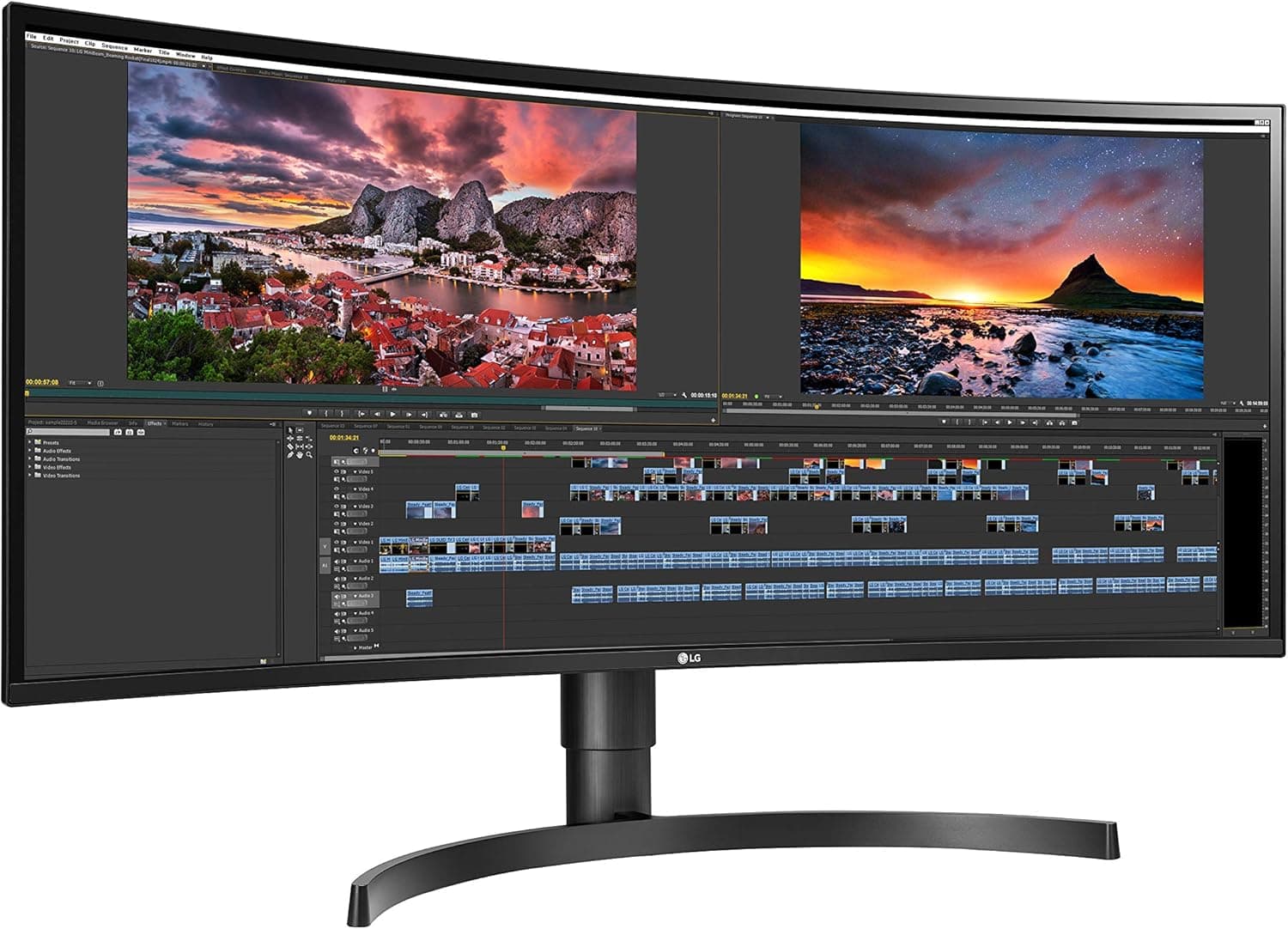
Best Overall Ultrawide: LG 34WN80C-B

The LG 34WN80C-B is the ultrawide I'd recommend to most home office workers. It's a 34-inch curved IPS panel at 3440x1440 resolution, the ideal resolution for this screen size.
Color accuracy is strong, covering 99% of sRGB and 85% of DCI-P3. For office work and light creative tasks, this is more than sufficient. The curved design uses a 1900R radius which wraps your field of view naturally without feeling excessive.
The USB-C port provides 60W power delivery, making it a solid choice for laptop users who want a single-cable connection. The stand includes height adjustment, tilt, and cable management built in.
AMD FreeSync support is included, which provides smoother display performance if you pair it with a compatible system, useful if you occasionally game on this monitor as well.
Who it's for: General home office workers, writers, analysts, developers, and anyone moving from dual monitors to a single ultrawide for the first time.
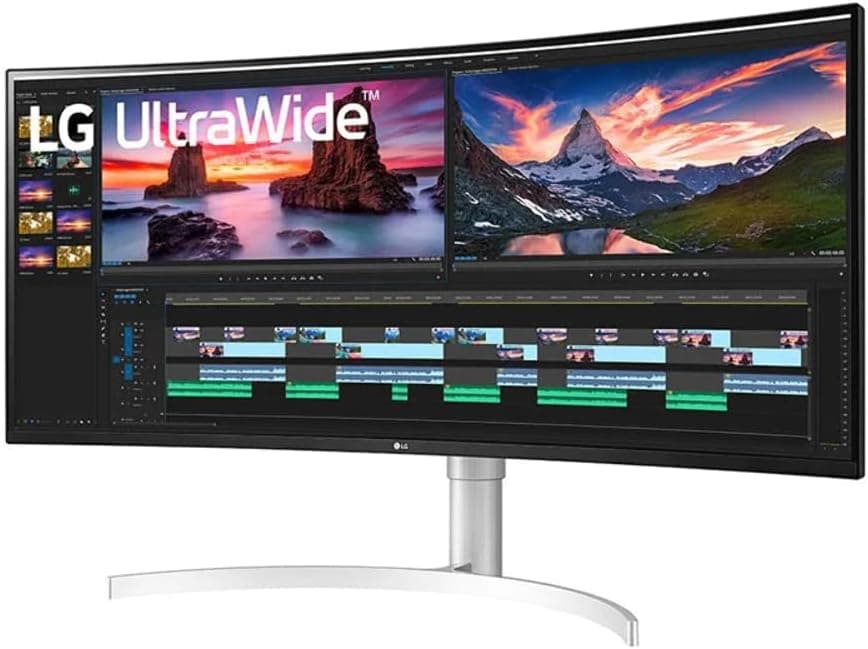
Best Premium Ultrawide: LG 38WN95C-W

If you're willing to spend more for a significantly better experience, the LG 38WN95C-W delivers it. This is a 38-inch curved IPS panel at 3840x1600 resolution with more pixels, more screen, and noticeably better image quality than the standard 34-inch tier.
The Nano IPS panel technology provides wider color gamut coverage and better accuracy than standard IPS. It covers 98% of DCI-P3, which makes it genuinely usable for professional creative work.
Thunderbolt 4 connectivity is built in, so MacBook Pro and high-end Windows laptop users get the fastest, most versatile single-cable connection available. The USB-C port provides 96W power delivery.
The stand is premium full height, tilt, and swivel adjustment with a refined industrial design that looks good on any desk. At this price, you'd expect nothing less.
Who it's for: Creative professionals, power users who spend 8+ hours at their desk daily, and anyone who wants the best ultrawide experience available without compromise.
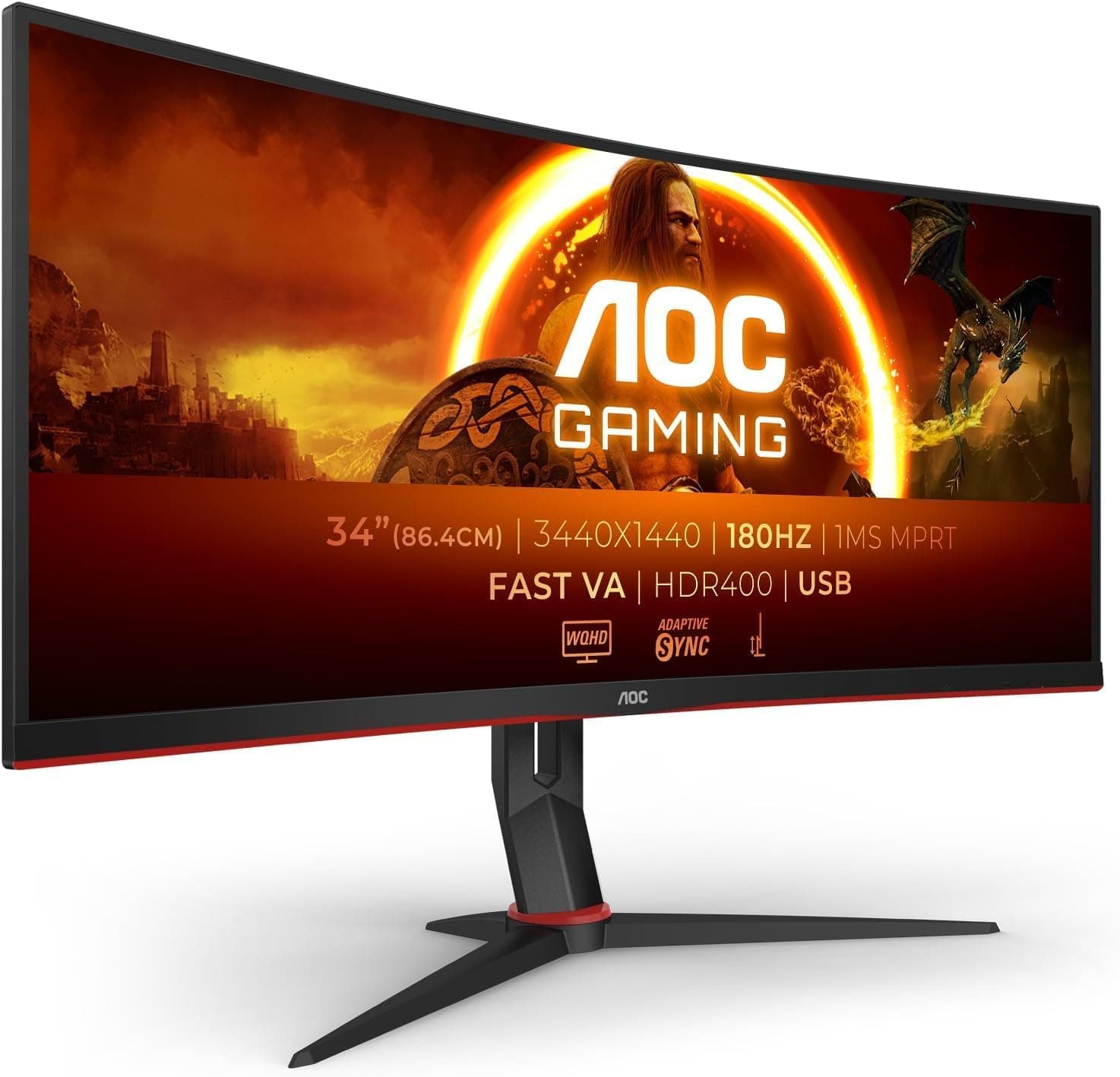
Best Budget Ultrawide: AOC CU34G2X

Not everyone can or wants to spend $500+ on an ultrawide. The AOC CU34G2X brings the core ultrawide experience 34 inches, 3440x1440 resolution, curved panel to a price point that's significantly lower than the premium options.
It's a VA panel rather than IPS, which means deeper blacks and higher contrast but slightly narrower viewing angles. For solo use at a desk where you're sitting directly in front of the screen, this trade-off is acceptable.
The 144Hz refresh rate is a bonus at this price. If you also game on this monitor, the high refresh rate makes a real difference. For office work, it's a nice extra but not essential.
There's no USB-C on this model; connectivity is HDMI and DisplayPort only. For desktop users, this is fine. For laptop users who want a single-cable setup, it's a limitation worth noting.
Who it's for: Budget-conscious buyers who want the ultrawide format without paying premium prices, and desktop PC users who don't need USB-C connectivity.
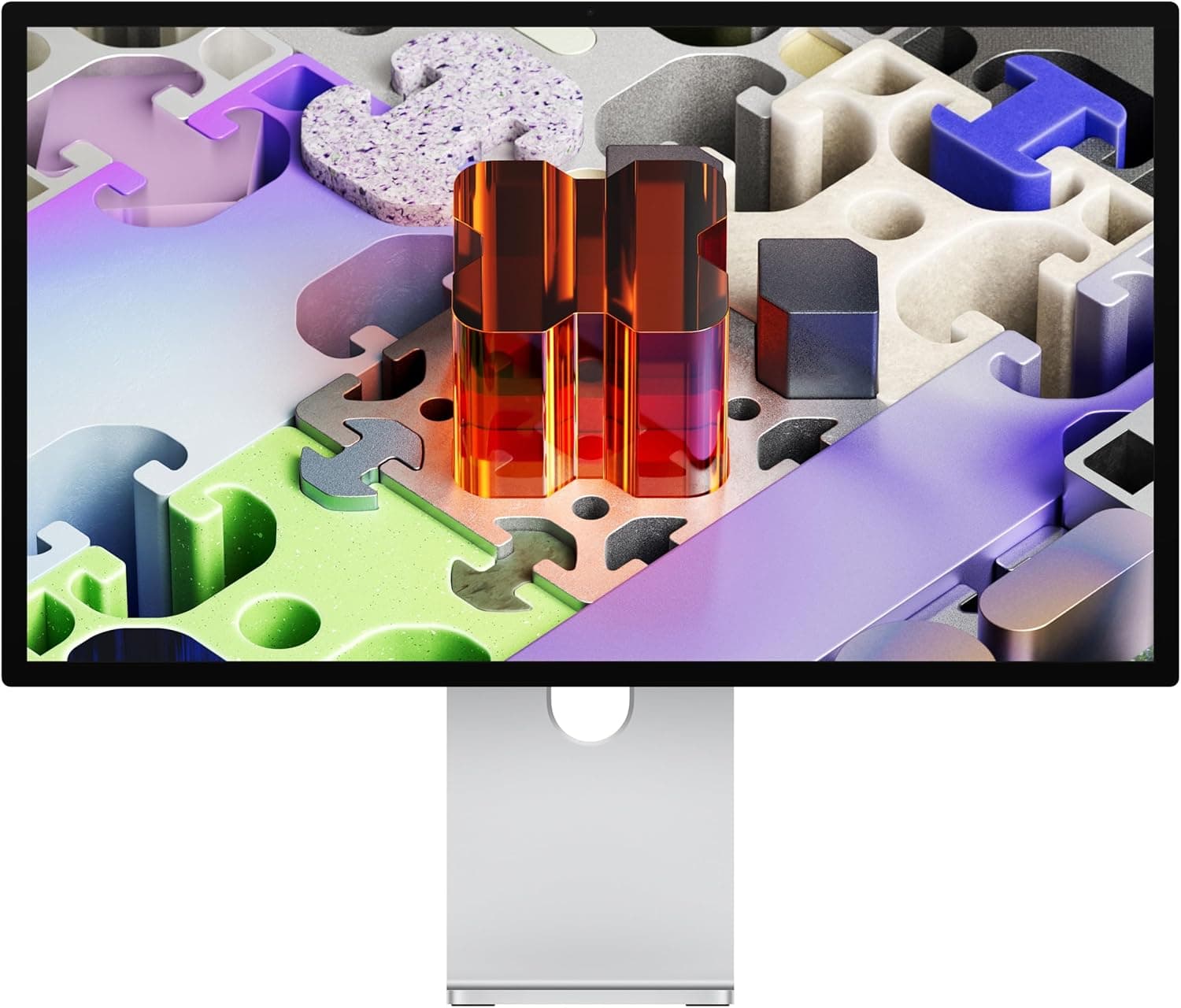
Best Ultrawide for Mac Users: Apple Pro Display XDR (Honorable Mention)

The Apple Pro Display XDR is technically a 32-inch 6K display rather than a traditional ultrawide, but it deserves mention for Mac users considering a large premium display. The image quality is in a different class to anything else available.
That said, it's extremely expensive and more than most home office workers need. For a better-value Mac-compatible ultrawide, look at Thunderbolt-equipped options like the LG 38WN95C-W above.
For a broader look at Mac-compatible external displays, see my guide to the best external display Mac Mini.
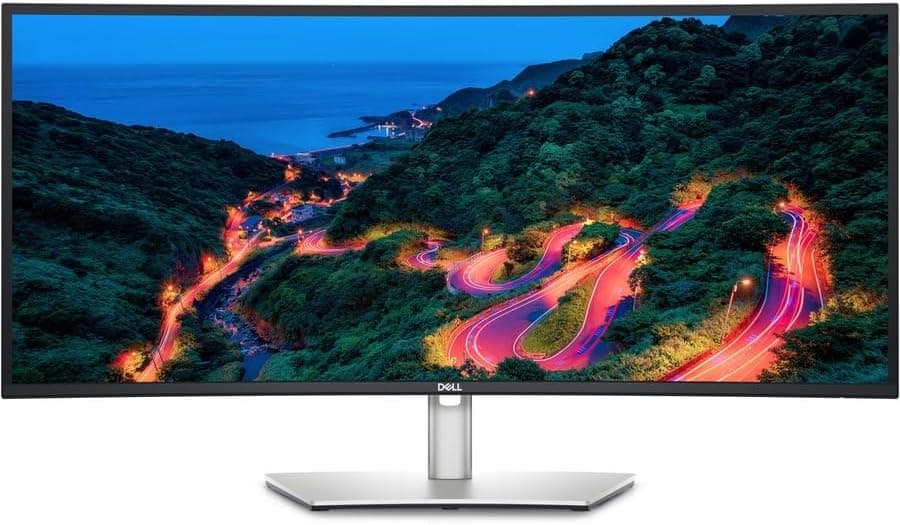
Best Ultrawide for Developers: Dell UltraSharp U3423WE

Developers have specific needs from a monitor: a lot of horizontal space for side-by-side windows, accurate colors for UI work, and connectivity that handles a full desk setup efficiently.
The Dell UltraSharp U3423WE ticks every box. It's a 34-inch IPS ultrawide at 3440x1440 with Thunderbolt 4 connectivity, a built-in USB hub with multiple downstream ports, and factory-calibrated color accuracy that covers 98% of DCI-P3.
The built-in KVM switch is particularly useful for developers who run a work laptop alongside a personal machine. One button switches everything, monitor, keyboard, and mouse between two connected computers. For more on this feature, see my best KVM monitor 2026 guide.
Who it's for: Software developers, UX designers, and technical professionals who need maximum screen real estate and versatile connectivity.
Best Curved Ultrawide for Mixed Use: Samsung Odyssey G5 34-Inch

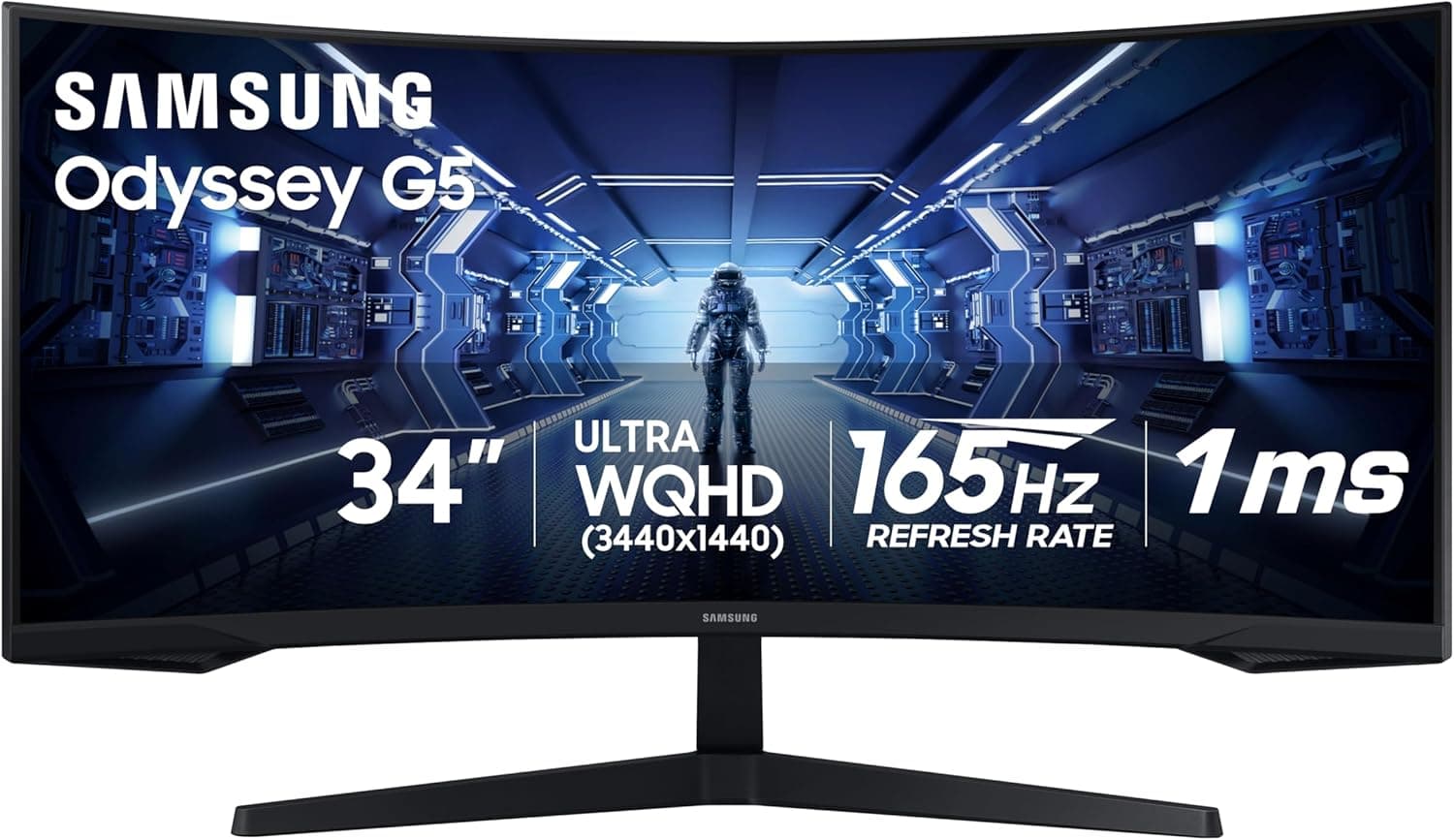
The Samsung Odyssey G5 is positioned as a gaming monitor, but it works excellently as a dual-purpose display for home office workers who also game in the evenings.
It's a 34-inch VA panel with a 1000R curve tighter than most office-oriented monitors. That aggressive curve is genuinely immersive for gaming but slightly unusual for standard office work. Some people love it; others find it a bit much for reading long documents.
At 165Hz refresh rate and with FreeSync Premium support, it's one of the best-performing budget options for gaming. The 3440x1440 resolution looks sharp and the VA contrast makes colors pop.
For a look at curved monitors more broadly, including options better suited to pure office use, check out my best curved IPS work display guide.
Who it's for: Home office workers who also game seriously and want one monitor that handles both without compromise.
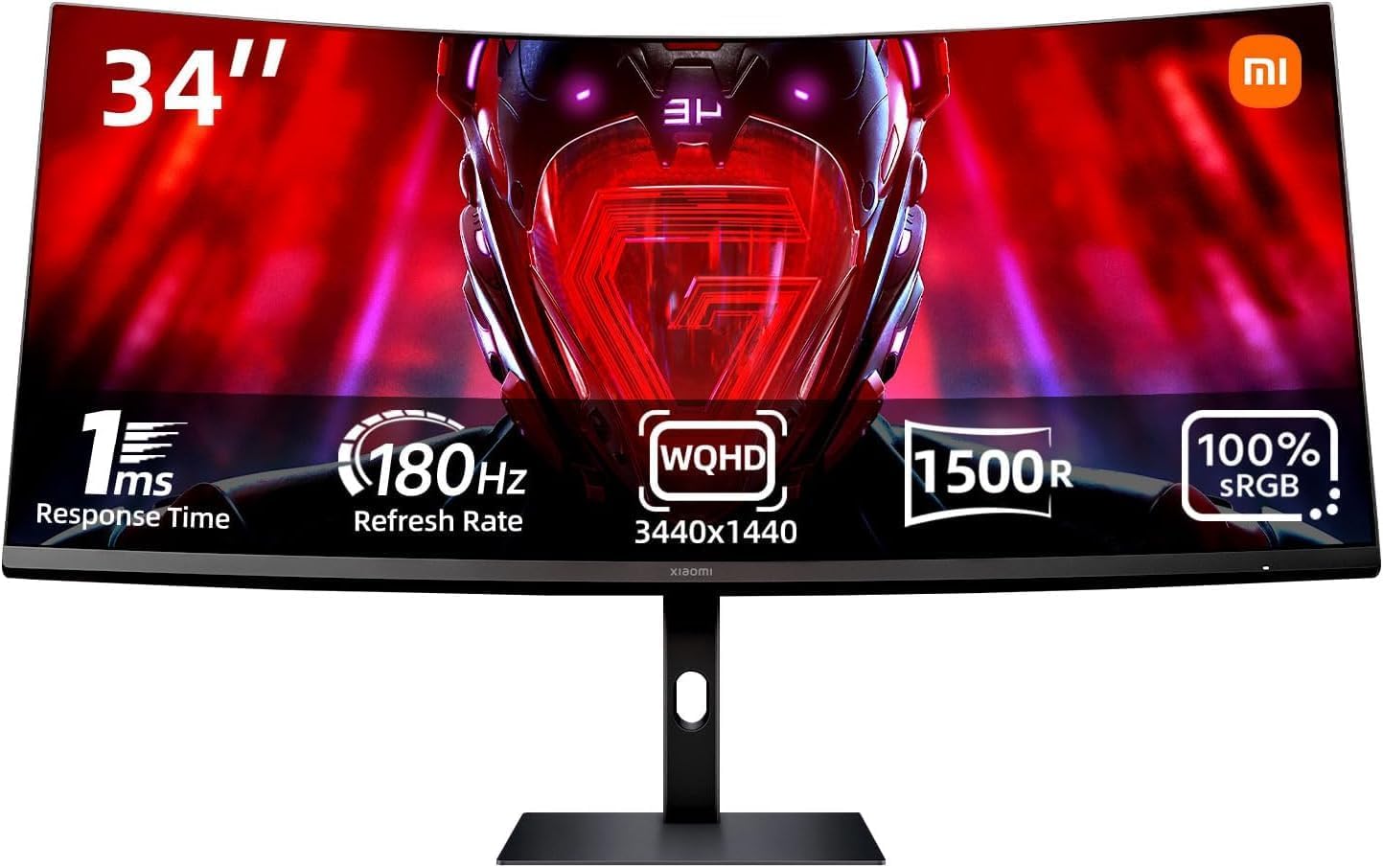
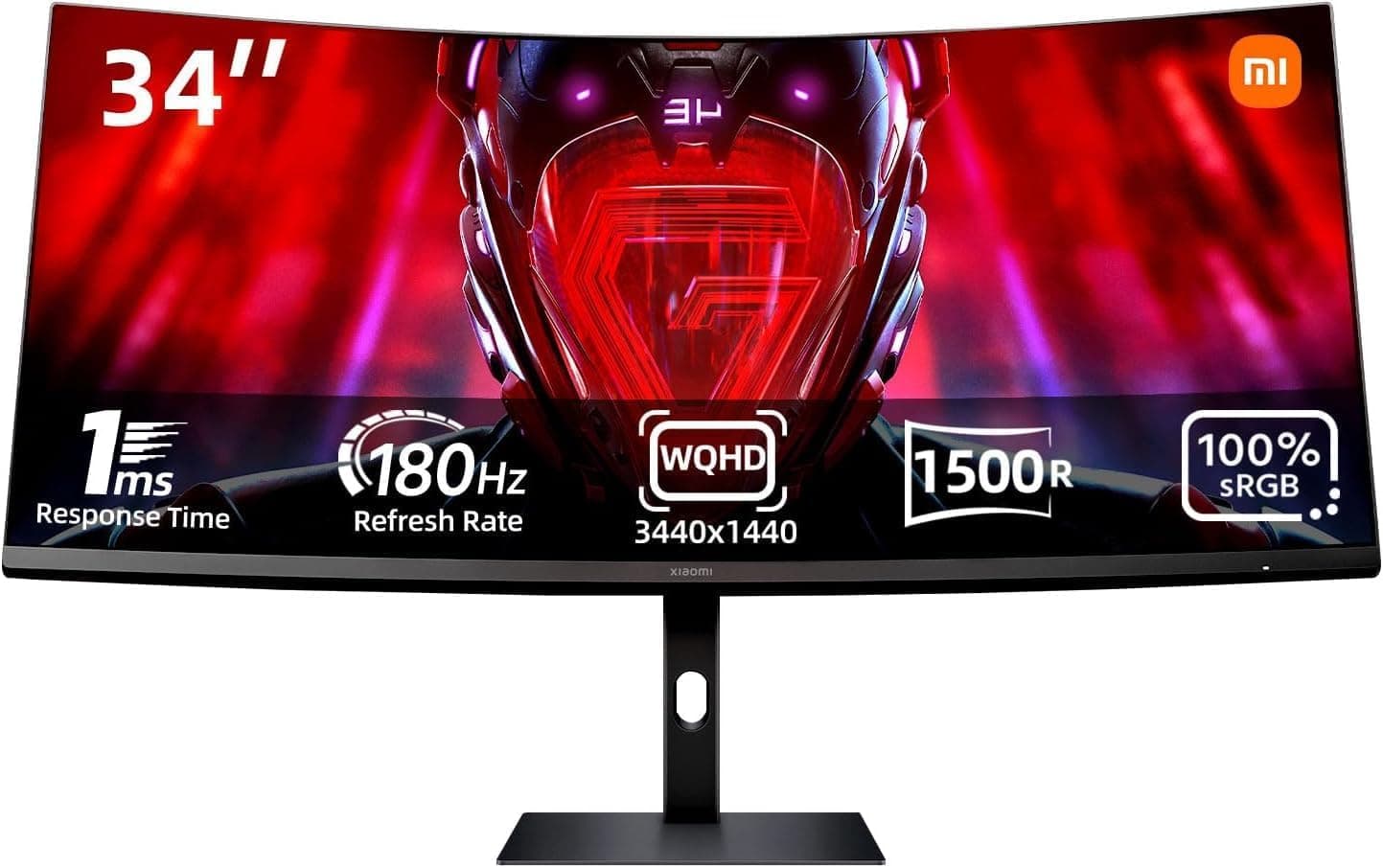
Best Ultrawide Under $400: Xiaomi Mi Curved Gaming Monitor 34
The Xiaomi 34-inch ultrawide has become a surprisingly strong option in the budget-to-mid tier. At under $400, you get a 3440x1440 VA curved panel with a decent feature set including FreeSync and a 144Hz refresh rate.
Color accuracy is not class-leading, it covers around 85% of DCI-P3 which makes it less suitable for serious design work. But for general productivity, writing, browsing, and spreadsheet work, it performs well above its price.
Connectivity is HDMI and DisplayPort only, no USB-C. For the price and screen size, the trade-offs are reasonable.
Who it's for: Home office workers who want a 34-inch ultrawide for under $400 and primarily need the screen real estate rather than color accuracy.
Ultrawide vs Dual Monitor Setup: Which Is Better?
This is the question I get asked most about ultrawide monitors, and the answer genuinely depends on your workflow.
Choose Ultrawide If:
You use one computer and want a clean, seamless setup
You want no gap between display areas
Your desk can accommodate a wide single monitor
You prefer a tidier cable setup
The immersive curved experience appeals to you
Choose Dual Monitors If:
You regularly switch between two computers
You want to position screens at different angles independently
You need more total screen area than a 34-inch ultrawide provides
Budget is a constraint and you already own one monitor
You need one portrait-oriented screen alongside a landscape one
For a detailed guide on setting up a dual monitor arrangement, see my post on the best Mac dual display setup, the principles apply to Windows setups as well.
Setting Up Your Ultrawide Monitor for Maximum Productivity
Use Window Snapping
The full benefit of an ultrawide only comes through if you're snapping windows to specific zones rather than just maximizing one application. On Windows, Fancy Zones (part of Microsoft PowerToys) lets you define custom snap areas for your ultrawide. On macOS, tools like Magnet or Rectangle do the same.
A typical three-zone layout left third, centre third, right third is a popular starting point. Many people settle on a 50/50 split with a narrow strip for communication tools on one side.
Calibrate Your Display
Even a well-reviewed ultrawide benefits from proper calibration, especially if you do any color-sensitive work. The factory calibration on most monitors is decent but not perfect. Running through a proper calibration process makes a noticeable difference.
See my best monitor calibration guide for a step-by-step walk-through.
Position It Correctly
Ultrawide monitors are wide enough that eye-level positioning matters more than with smaller screens. The center of the screen should be at or slightly below eye level. If the screen is too low, you'll find yourself tilting your head down for hours at a time.
A monitor arm designed for ultrawide screens, they have higher weight ratings and longer reach than standard arms is one of the best accessories you can add to this setup.
Pair It with a Good Chair
Long hours at an immersive ultrawide setup mean ergonomics matter more than ever. Make sure your chair supports your lower back properly and that your forearms are roughly parallel to the desk when typing. The monitor doing its job means nothing if the rest of your posture is off.
Who Should Not Buy an Ultrawide Monitor
Ultrawide is not the right choice for everyone.
If your desk is small: A 34-inch ultrawide typically measures around 32 inches wide. On a desk under 47 inches, it's going to feel tight, especially once you add a keyboard and other items.
If you work with multiple computers regularly: Switching inputs on an ultrawide every time you change machines gets old fast. A dual monitor setup or a monitor with a built-in KVM switch is more practical. See my best KVM monitor 2026 guide for options.
If you don't multitask heavily: If you mostly use one application at a time and maximize it, an ultrawide gives you a stretched, oversized version of that one application. The format rewards multitasking. Single-app focused work doesn't benefit the same way.
If your budget is under $300: The cheap end of the ultrawide market at 2560x1080 is not worth it compared to a quality 1440p standard monitor at the same price. Save a bit more or go standard.
Final Thoughts
Ultrawide monitors are one of the most impactful upgrades you can make to a home office setup in 2026, if your workflow rewards the format. The combination of seamless screen real estate, an immersive curved design, and the elimination of the dual-monitor gap makes for a genuinely better daily work experience.
My top pick for most people remains the LG 34WN80C-B, it hits the right balance of quality, features, and value at the 34-inch sweet spot. If your budget stretches further and you want a step up in every dimension, the LG 38WN95C-W is exceptional.
For triple monitor setups used in trading and finance, where screen coverage is even more critical, I've covered the best options in my dedicated guide to best triple monitor setup configurations worth considering this year.
Take your time with the decision. Measure your desk, think about how you actually work, and if ultrawide sounds like it fits your style, it almost certainly will.
Affiliate Disclaimer: This site participates in the Amazon Associates Program and other affiliate programs. If you click a link and make a purchase, I may earn a small commission at no extra cost to you. I only recommend products I've personally tested or thoroughly researched.

Written by
Jordan Lee
I'm Jordan Lee, a tech reviewer and peripheral enthusiast with 7+ years of hands-on experience evaluating monitors, mechanical keyboards, wireless mice, and audio equipment. With a degree in Computer Engineering, I bring a technical yet practical perspective to every review I write. I don't just benchmark — I actually use these products daily and put them through real work scenarios. When I recommend a monitor, I've checked its color accuracy, refresh rate, and eye strain levels myself. When I suggest a keyboard, I've typed thousands of words on it. My goal is simple: help you find the right gear so you can work smarter, not just spend more.

