Office Chair Ergonomics: The Complete Science-Based Guide
Office chair ergonomics is not about sitting perfectly still in a rigid position. It is about understanding how your body interacts with your chair and configuring that relationship to reduce pain, prevent injury, and support productivity. This complete science-based guide covers everything.
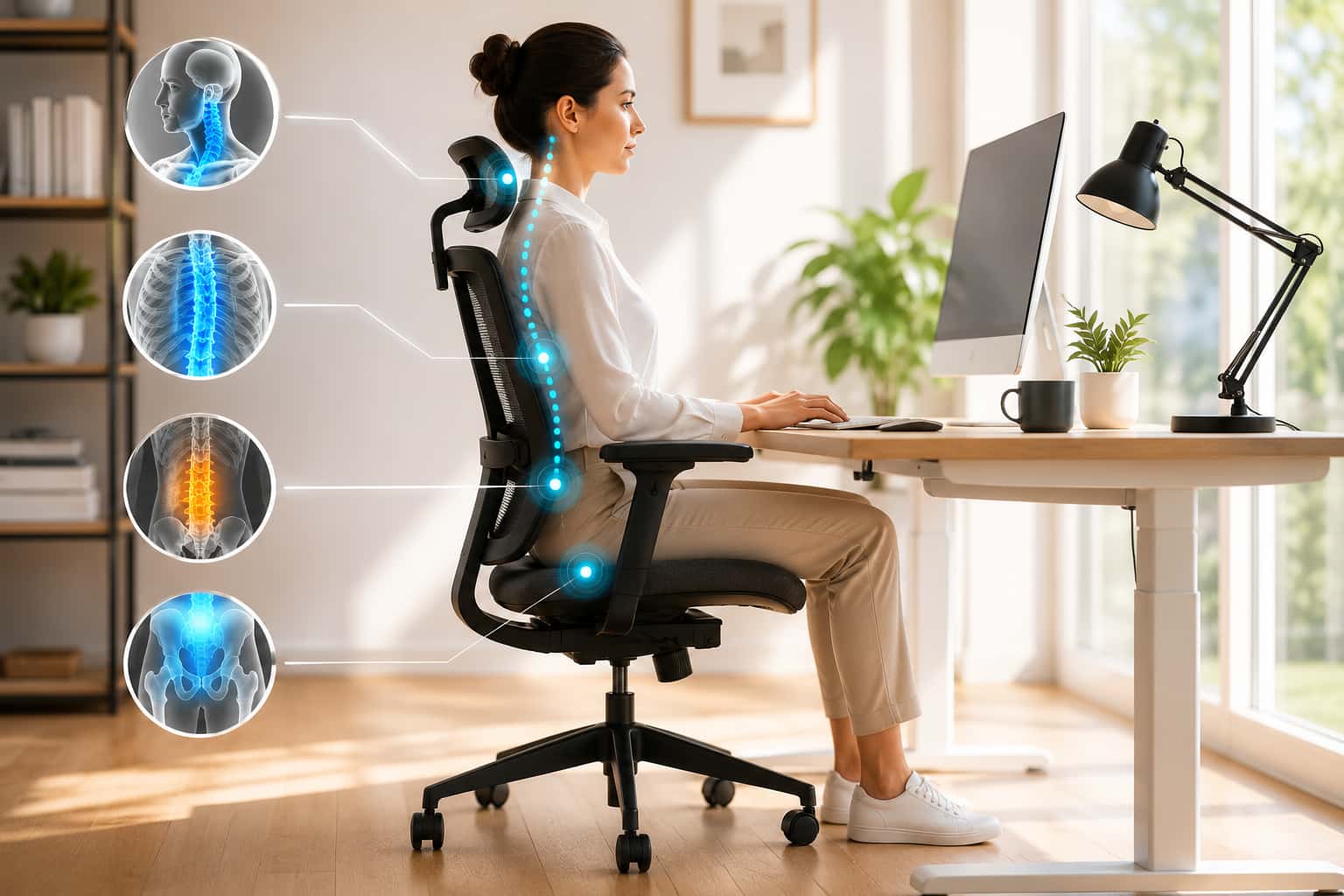
Most people who buy an ergonomic chair do so because something hurts. Their lower back aches after a long day. Their neck is stiff every morning. Their shoulders carry a tension that never fully releases. They spend money on a chair that promises to fix it, adjust the height so their feet reach the floor, and hope for the best.
The pain usually does not go away. Not because the chair is bad, but because ergonomics is not a product. It is a science, and applying it correctly requires understanding the principles behind the adjustments, not just turning the levers.
This guide covers the complete science of office chair ergonomics. It explains what happens to your body during prolonged sitting, breaks down every adjustment point and why it matters, covers the research on sitting posture and disc pressure, and gives you a framework for setting up your workstation as a system rather than a collection of separate purchases.
Whether you already own a good chair or are still deciding what to buy, this guide will help you understand what ergonomics actually means and how to apply it to your specific body and work situation.
What Ergonomics Actually Means
The word ergonomics comes from the Greek words ergon, meaning work, and nomos, meaning natural laws. It is the science of designing tools, environments, and tasks to fit the people who use them, rather than expecting people to adapt to poorly designed systems.
Applied to office seating, ergonomics means designing a chair and workstation configuration that supports the natural structure of the human body during work. This is not about achieving perfect posture in a fixed position. Human bodies are not built for static positioning. Ergonomics is about reducing the cumulative load on your musculoskeletal system over long working hours so that sustained desk work does not gradually damage your spine, joints, and soft tissues.
The practical goal of ergonomic chair setup is to keep your body in a range of positions where muscular effort is minimized, joint loading is distributed evenly, and your spine maintains something close to its natural curve. Small deviations from that range, sustained for hours at a time, are what cause the chronic pain most desk workers experience.
The Science of Sitting: What Happens to Your Body
Spinal Loading During Sitting
Swedish orthopedic surgeon Alf Nachemson conducted foundational research in the 1960s and 1970s measuring intradiscal pressure, the pressure inside spinal discs, in different body positions. His findings, which have been replicated and expanded in subsequent research, established that sitting actually places more load on the lumbar discs than standing or walking.
When you stand upright with good posture, your lumbar spine is in its natural lordotic curve and the load from your upper body is distributed across the vertebrae and discs in a balanced way. When you sit upright at 90 degrees, the pelvis rotates backward, the lumbar curve flattens or reverses, and intradiscal pressure in the lower back increases significantly compared to standing. When you sit and lean forward without back support, the pressure increases further.
This is why sitting, even in what feels like a healthy upright position, accumulates spinal stress over long durations. It is also why taking regular standing or walking breaks is a meaningful ergonomic intervention alongside chair setup.
The Effect of Recline on Disc Pressure
Subsequent research expanded on Nachemson's work and found that recline position significantly affects lumbar disc pressure. A seated recline of approximately 110 to 130 degrees reduces intradiscal pressure compared to sitting fully upright at 90 degrees. A slight recline allows the hip flexors to lengthen, reduces the posterior pelvic tilt that flattens the lumbar curve, and distributes the load from your upper body more broadly across the spine and backrest.
This is the scientific basis for the ergonomic recommendation to set your chair at a slight recline during active working, rather than locking it fully upright. A 100 to 110 degree recline reduces disc load while keeping you close enough to your work to function comfortably. The chair's backrest absorbs part of your upper body weight in this position, which your lumbar discs do not have to carry alone.
Muscle Fatigue and Static Posture
Even a well-supported sitting posture requires continuous low-level muscular effort from the muscles of your back, core, and neck to maintain your trunk and head position. Over several hours, this sustained low-level contraction produces metabolic waste products in the muscles faster than blood flow can remove them, contributing to the fatigue and aching that desk workers experience in their upper and lower back by mid-afternoon.
This is why movement matters even in a perfectly configured ergonomic chair. Shifting position, reclining, leaning slightly forward, and occasionally standing all change the pattern of muscle activation and allow overworked fibers to recover. An ergonomic chair that facilitates dynamic, shifting movement reduces the accumulated muscle fatigue of static sitting better than a chair that holds you in one fixed position all day, however well-supported that position may be.
Blood Flow and Soft Tissue Compression
Sitting concentrates your body weight on the ischial tuberosities, the bony protrusions at the base of your pelvis commonly called the sit bones. The soft tissue between the sit bones and the seat surface, including blood vessels, nerves, and the muscles of the gluteal region, compresses under this load.
Sustained compression reduces blood flow to the compressed tissue. Over 30 to 60 minutes, this contributes to the numbness, tingling, and discomfort that many sitters experience in their lower body. A seat that distributes pressure more evenly across a wider area of the thighs and pelvis, rather than concentrating it under the sit bones, reduces this effect. This is part of why correctly fitted seat depth and a quality seat surface matter for comfort during long sessions.
The Complete Ergonomic Chair Adjustment Guide
Seat Height: The Foundation of Everything
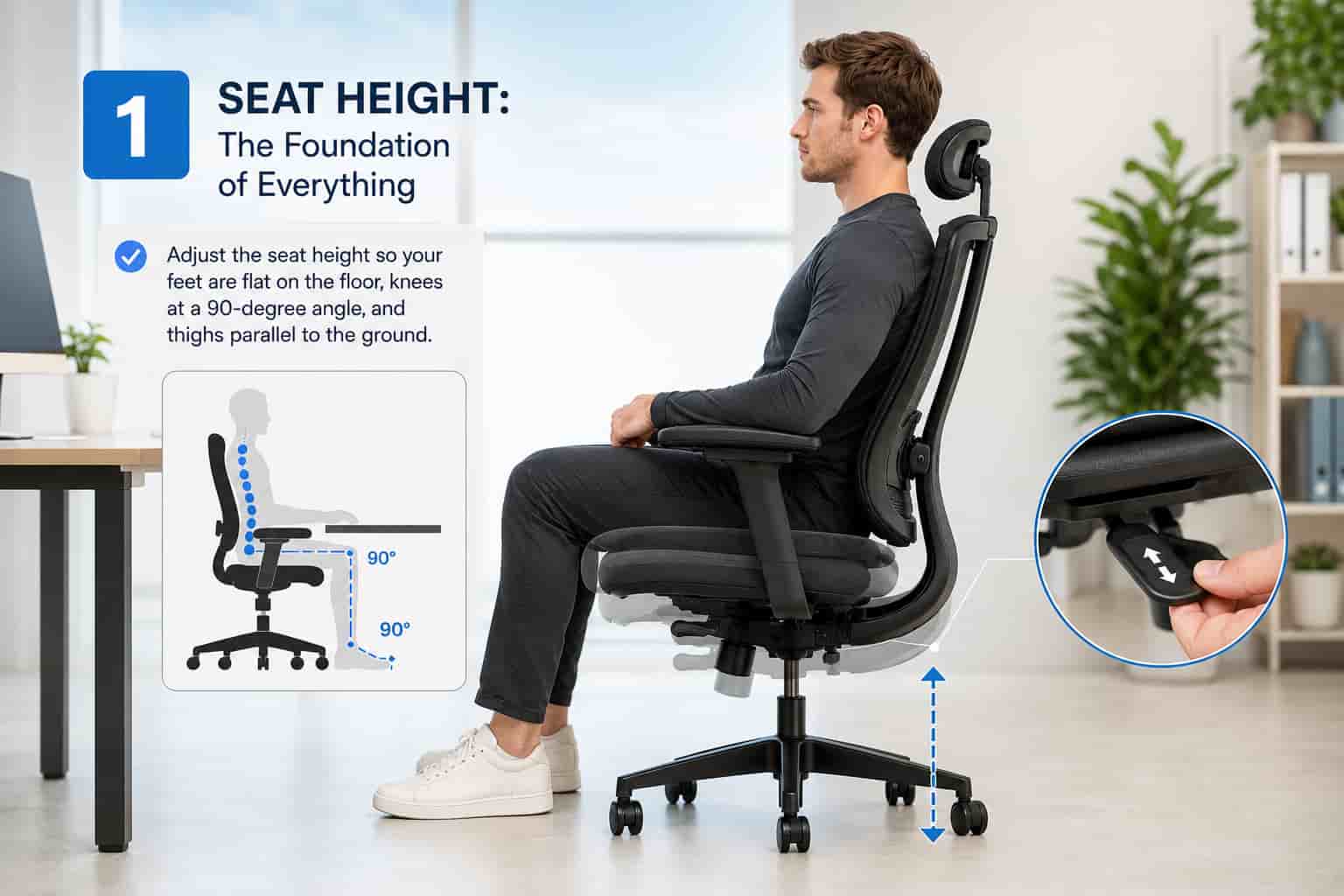
Seat height is the first and most foundational adjustment because every other setting depends on it. The correct seat height positions your feet flat on the floor, your knees at approximately 90 degrees, and your thighs roughly parallel to the floor. Your hips should be at or slightly above knee level.
At this height, your pelvis is in a neutral position that supports the natural lordotic curve of your lumbar spine. When the seat is too low, the knees rise above the hips, the pelvis rotates backward, and the lumbar curve collapses. When the seat is too high, the feet either dangle or are forced onto tiptoe, the sit bones bear more weight than they should, and circulation to the lower legs is compressed by the pressure under the thighs.
If your correct seat height for your chair does not align with your desk height, the desk or a footrest should be adjusted rather than compromising the seat position. A seat that is too low to allow your arms to work comfortably at desk height forces a trade-off that creates problems elsewhere in the chain.
Seat Depth: Matching the Chair to Your Leg Length
Seat depth is the front-to-back dimension of the seat pan. It is one of the most ergonomically significant adjustments and one of the most commonly ignored.
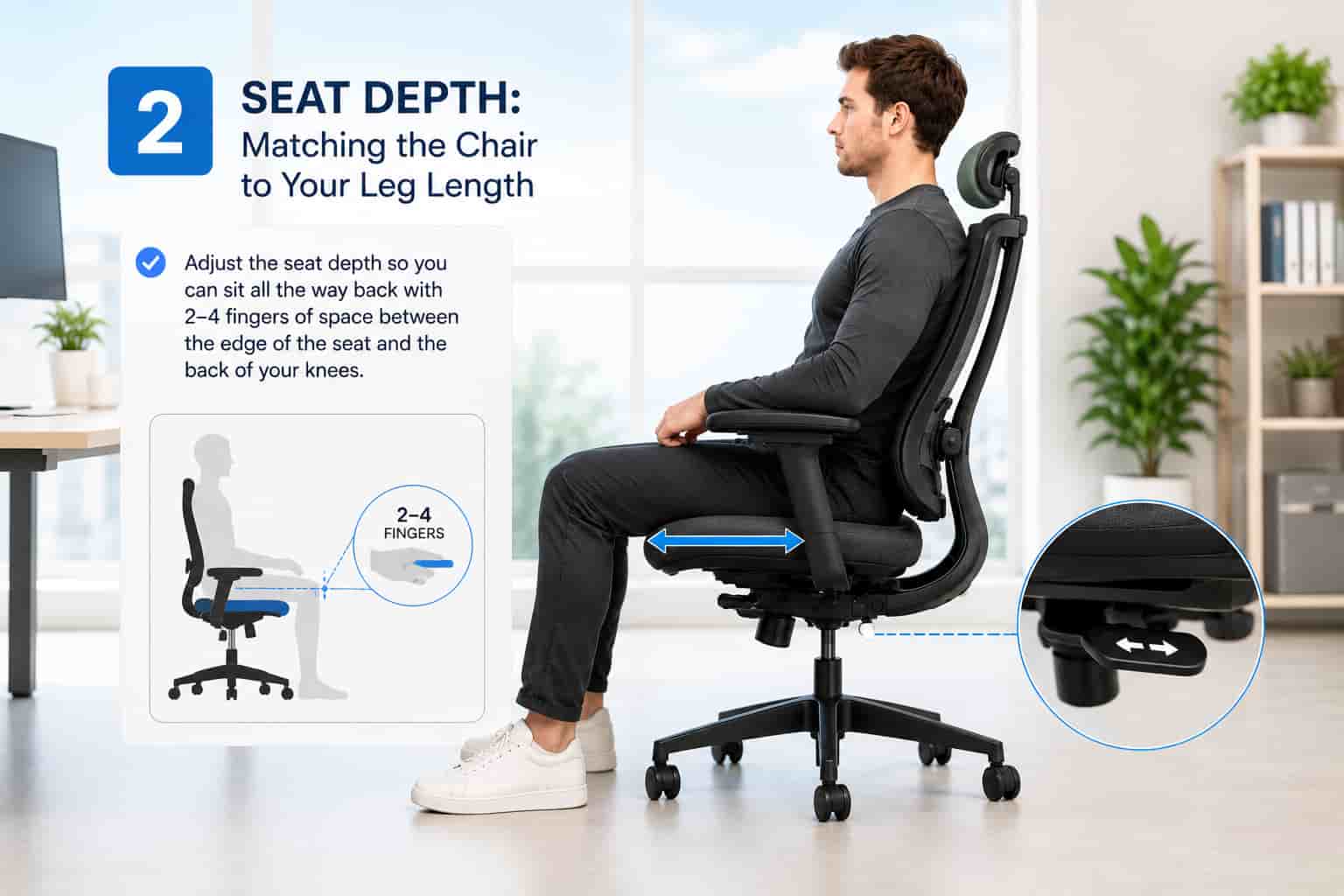
The correct seat depth positions the front edge of the seat approximately two to three finger-widths behind the back of your knee when you are sitting fully back against the backrest. At this position, the seat supports the full length of your thigh without pressing into the popliteal area behind the knee, which would compress the blood vessels and nerves that run through that region.
When the seat is too deep, the front edge creates pressure behind the knee that the sitter naturally relieves by sliding forward. Sliding forward means the back is no longer in contact with the backrest, the lumbar support is no longer engaged, and the spine is entirely unsupported by the chair structure. This is one of the most common ways an ergonomic chair's benefits are completely negated despite the chair being properly adjusted in isolation.
On chairs with adjustable seat depth, set the seat pan so the two to three finger gap is achieved. On chairs without this adjustment, assess whether the seat depth is appropriate for your leg length before purchasing. Very tall users, those over 6 feet with longer femurs, and very short users often need seat depth adjustment more than average-height users.
Lumbar Support: Supporting the Curve That Matters Most
The lumbar spine, the five vertebrae of the lower back designated L1 through L5, carries the load of your entire upper body. It also has the most pronounced natural curve of any spinal region, the lordotic curve that creates the characteristic inward arch at the small of your back.
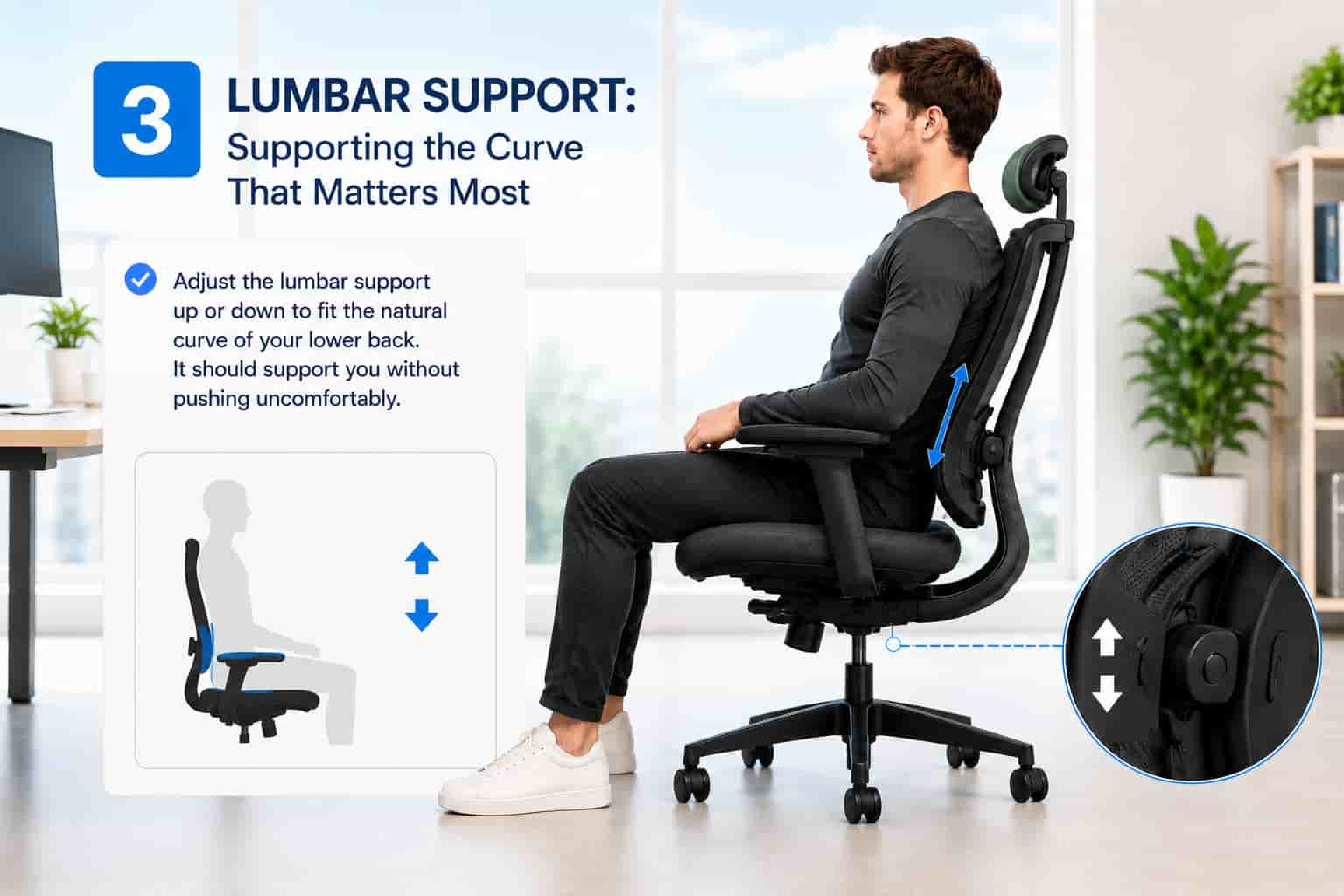
When this curve is supported during sitting, the load on the lumbar discs is distributed evenly across the disc surfaces. When the curve flattens, as it does when you sit without support, the posterior portion of the disc absorbs disproportionate pressure, which over time is a risk factor for disc bulging and herniation.
Lumbar support should be positioned to fill the gap between the small of your back and the backrest. In practical terms, this means the center of the lumbar support should sit at approximately the level of your belt line or slightly above it. The depth of the support should be enough to fill the gap without forcibly pushing your lower back into an exaggerated arch, which would be overcorrection in the opposite direction.
The gold standard is a lumbar system that supports both the lumbar curve and the sacrum simultaneously, which is what the Herman Miller PostureFit SL achieves. Supporting the sacrum, the broad flat bone below the lumbar spine, keeps the pelvis from rotating backward and maintains the lumbar curve more effectively than lumbar-only support.
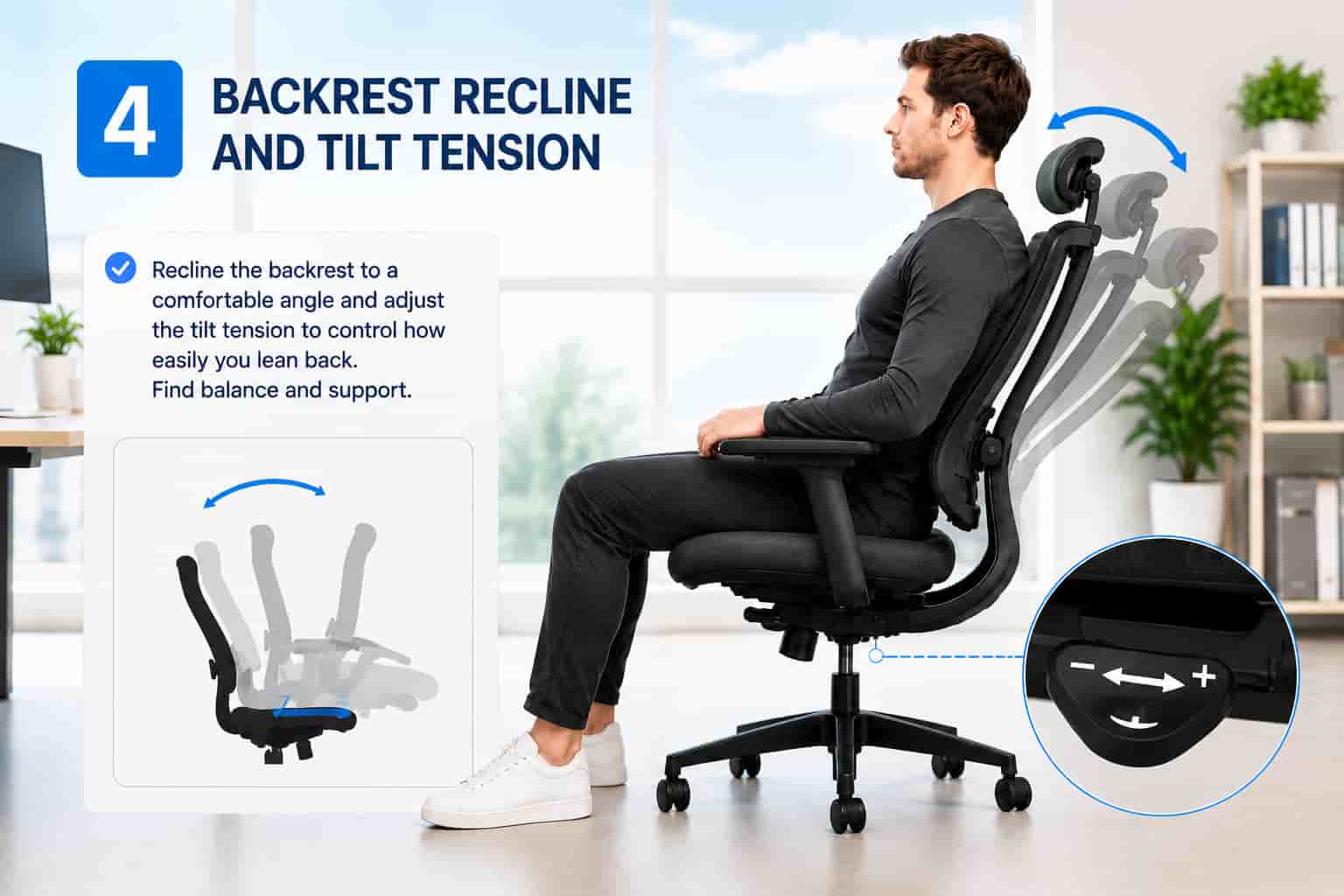
Backrest Recline and Tilt Tension
As established by the disc pressure research discussed earlier, a slight recline reduces lumbar disc load and allows the hip flexors to extend slightly from the shortened position they adopt in upright sitting. The recommended recline angle for active desk work is between 100 and 110 degrees, measured from the thigh.
The tilt tension adjustment controls how much force is required to recline the chair backward. The correct tension feels like a gentle, supported resistance when you lean back, not a wall that resists movement or a vacuum that pulls you backward. Most chairs calibrate tilt tension against body weight, and the correct setting typically requires some trial and adjustment.
Two important distinctions worth understanding are the difference between a tilt mechanism, where the seat and back recline together, and a back-only recline, where only the backrest moves while the seat stays flat. Research and ergonomic guidance generally favor synchronous tilt mechanisms that recline the seat and back together, as this maintains a more consistent hip angle throughout the recline range and keeps the lumbar support in contact with the lower back as you lean back.
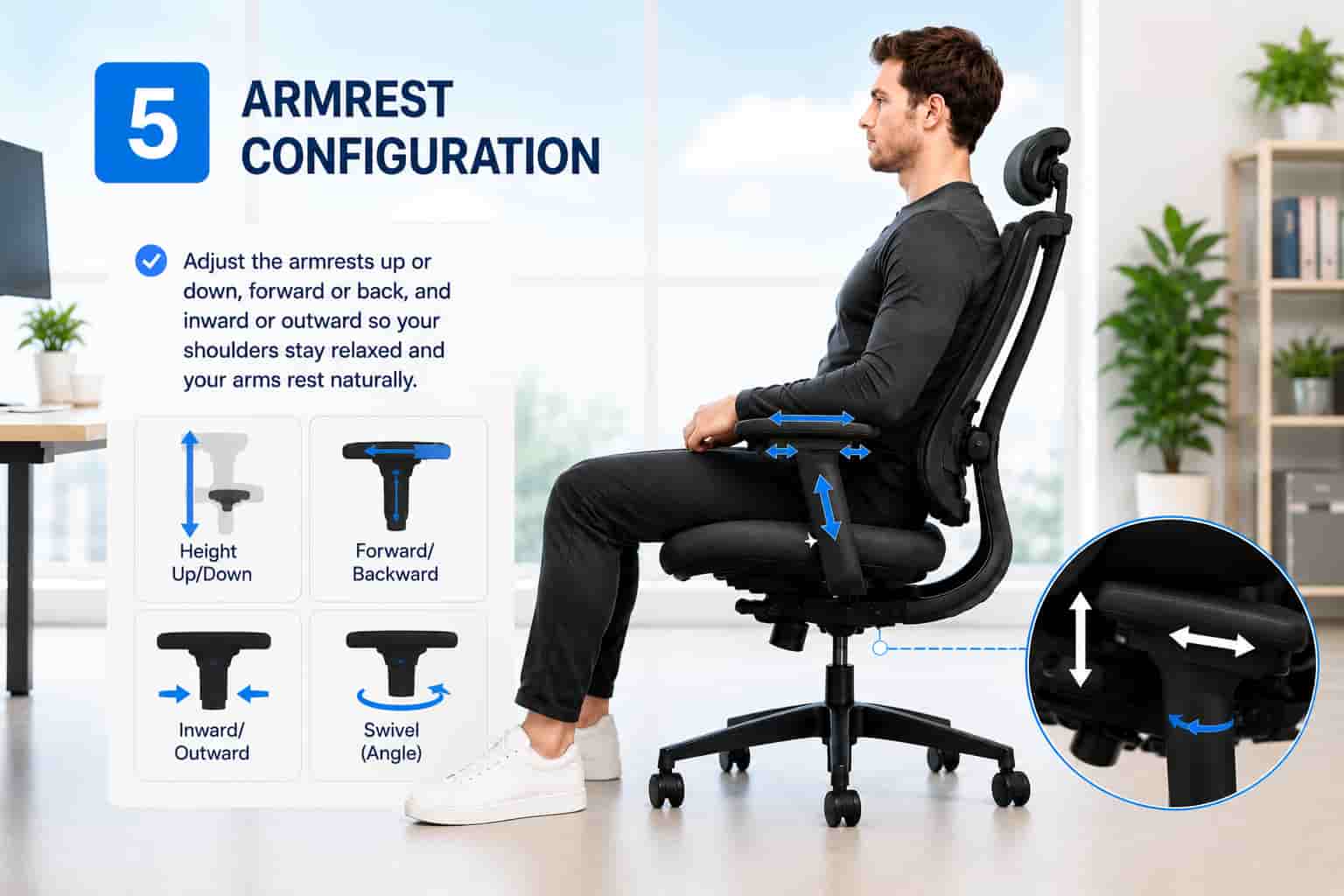
Armrest Configuration
Armrests serve two ergonomic functions: reducing the gravitational load on the shoulder muscles that hold your arms up during work, and preventing the rounded shoulder posture that develops when unsupported arms drag the shoulder girdle forward and downward.
Height is the most critical armrest dimension. Armrests set too high force continuous shoulder elevation, loading the upper trapezius and creating the neck and shoulder pain pattern that many desk workers experience. Armrests set too low provide no support and allow the arms to hang from the shoulder joints, which creates a different pattern of shoulder girdle fatigue over time.
The correct armrest height rests your forearms in a roughly horizontal position with your shoulders in a neutral, relaxed position. Your elbows should be at approximately the same height as your desk surface when your hands are resting on the keyboard.
Width adjustment is the second most important armrest dimension. Armrests set too wide force you to hold your arms away from your body, which creates tension in the shoulder muscles and can lead to lateral elbow strain over time. Bringing the armrests closer to your body width keeps the shoulder joints in a more neutral position.
Depth and pivot adjustability on 4D armrests allow fine-tuning that is useful but less critical than height and width for most users.
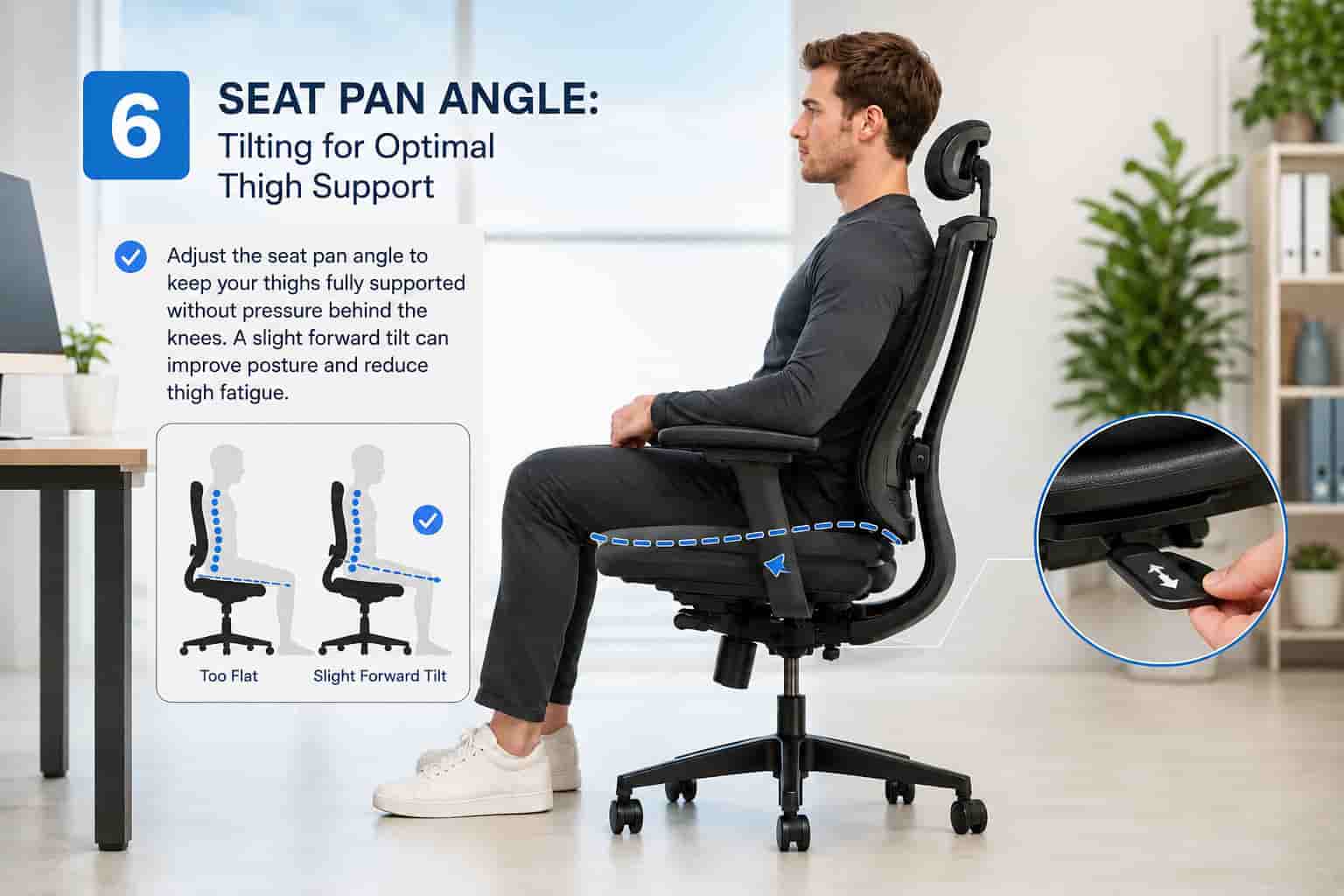
Seat Pan Angle
Most ergonomic chairs allow the seat pan to tilt slightly forward or backward. A slightly forward-tilted seat, by two to five degrees, can help maintain the lumbar curve by encouraging a slight anterior pelvic tilt. Users who find that they chronically flatten their lumbar curve when sitting may benefit from a modest forward tilt.
A backward-tilted seat increases the tendency toward posterior pelvic tilt and lumbar curve collapse. For most users, a neutral or very slightly forward-tilted seat is preferable, though individual anatomy and comfort preferences vary.
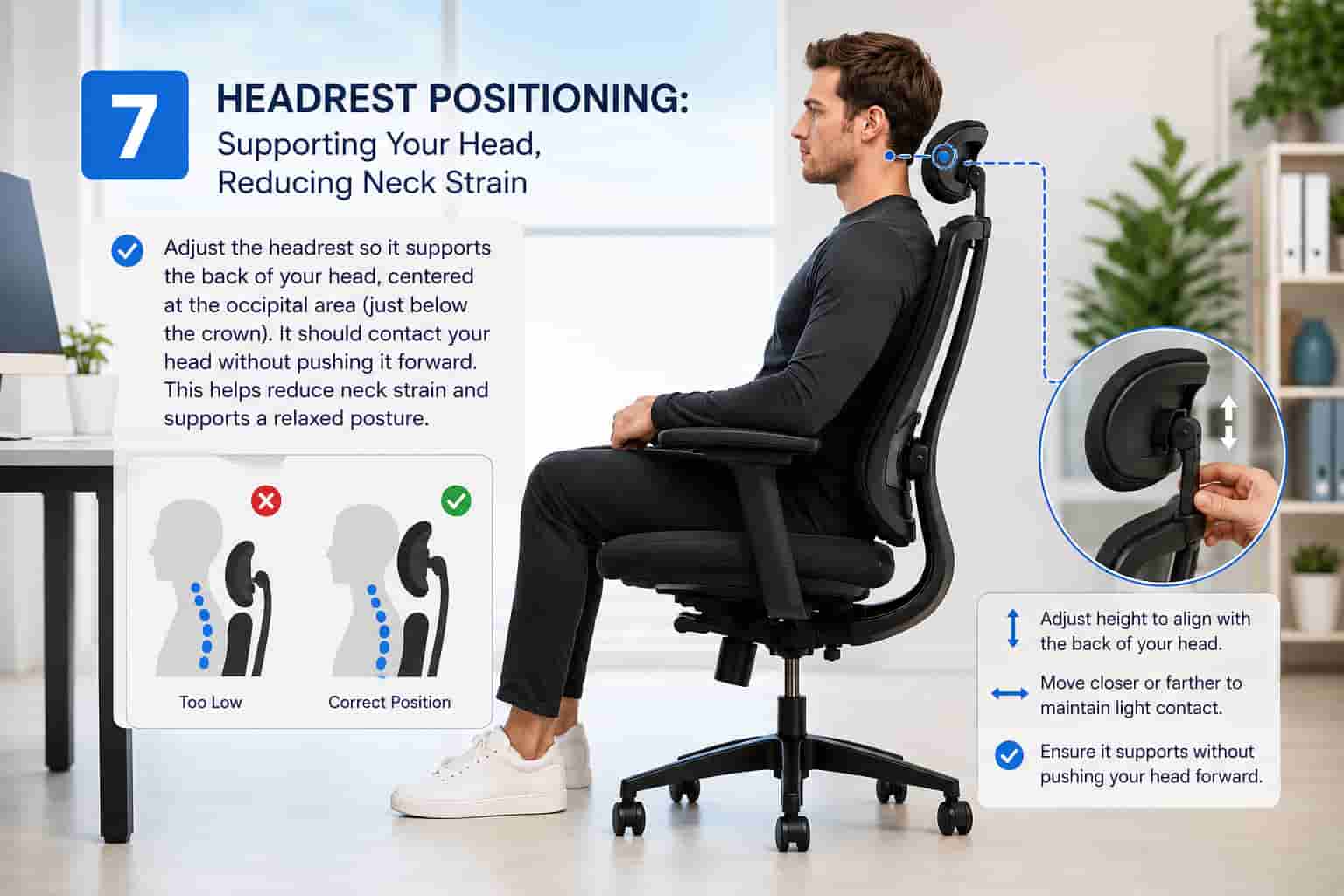
Headrest Positioning
A headrest is not essential for all users, but for those who recline or who use their chair for activities beyond active typing, correct headrest positioning prevents the forward head posture that is a major contributor to cervical spine pain.
The headrest should contact the back of the skull in a neutral head position, where the ears are over the shoulders and the cervical spine is in its natural curve. If the headrest contacts the back of the neck rather than the back of the skull, it pushes the head forward into flexion, which increases the load on the cervical vertebrae significantly. A headrest that pushes the chin downward is worse for neck health than no headrest at all.
The Workstation as a System
Chair ergonomics does not exist independently of the rest of your workstation. Every element of your desk setup interacts with your chair position, and optimizing one while ignoring the others leaves the system incomplete.
Desk Height
Your desk height should allow your forearms to rest horizontally or at a very slight downward angle when your chair is correctly positioned. A desk that is too high forces your shoulders to elevate while typing. A desk that is too low causes you to hunch forward and drop your head, loading the cervical and thoracic spine.
For users with fixed-height desks, the practical solution is to set the desk height as close to correct as possible, then adjust the chair to match. If the resulting chair height does not allow your feet to rest flat on the floor, a footrest bridges the gap.
Monitor Position
Monitor position is one of the most consequential factors in neck and upper back health for desk workers. The top of the screen should be at or slightly below eye level. At this position, your eyes look slightly downward toward the center of the screen, which keeps your cervical spine in a gentle, natural position.
A monitor that is too low forces sustained neck flexion, which increases the load on the cervical spine dramatically as the head tilts forward. A monitor that is too high forces sustained neck extension, which compresses the posterior cervical joints and can contribute to headaches. The horizontal distance should be approximately an arm's length to avoid sustained eye strain.
Keyboard and Mouse Placement
Your keyboard should be positioned so your forearms are approximately horizontal or angled very slightly downward, and your wrists are neutral rather than extended or flexed. The mouse should be at the same level as the keyboard and as close to the keyboard as your workflow allows, to minimize the reaching and shoulder rotation that contribute to lateral shoulder pain.
Active Sitting vs Passive Sitting
Why Movement Matters
The research on prolonged static sitting consistently shows that the cumulative effects of staying in one position, even a well-supported one, are worse than those of dynamic sitting where the user shifts, reclines, and changes position regularly throughout the day.
The most ergonomically sound approach to desk work is not to find the perfect sitting position and maintain it rigidly but to vary your position within a supported range throughout the day. Lean back slightly for reading. Sit more upright for focused typing. Shift your weight to one side briefly, then the other. Recline for five minutes between focused sessions.
Break Frequency
Current occupational health guidance recommends taking a standing or walking break from sitting every 45 to 60 minutes. Even a two-minute walk breaks the static loading pattern, encourages circulation in the lower extremities, and allows the spinal muscles to recover from the sustained low-level activation of holding your trunk upright.
Combining a well-configured ergonomic chair with regular movement breaks is significantly more effective at preventing desk-related musculoskeletal pain than either intervention alone.
Common Ergonomic Mistakes and How to Fix Them
Sitting Too Far From the Desk
When the chair is too far from the desk, users lean forward to reach the keyboard, pulling the back away from the backrest entirely. The lumbar support becomes irrelevant because the back is not in contact with it. Move the chair close enough to the desk that your arms can rest comfortably on the armrests or desk surface without forward lean.
Monitor Too Close or Too Low
A monitor closer than an arm's length causes eye strain from sustained near focus. A monitor below desk surface level is one of the most common causes of chronic neck pain in desk workers, as it requires sustained downward head tilt that multiplies the effective weight of the head on the cervical spine. Raise the monitor on a stand or a stack of books until the top of the screen is at eye level.
Armrests Too High During Typing
Armrests set at a height that interferes with typing force shoulder elevation throughout the work session. During active typing, armrests should be low enough that the shoulders are completely relaxed. Use them for support during breaks and passive reading, not during active keyboard use.
Never Reclining
Many users lock their chair fully upright because they believe this is the correct ergonomic posture. As the disc pressure research shows, a slight recline is actually healthier for the lumbar spine than sustained upright sitting. Allow the chair to recline gently and use tilt tension to support that position rather than resisting it.
Final Thoughts
Office chair ergonomics is one of those fields where a little understanding goes a long way. Most of the chronic pain that desk workers attribute to their workload, their stress level, or just aging is directly related to how they sit, and how they sit is almost always something that can be improved with the right chair and the right setup.
The science is clear: a slight recline reduces disc pressure, a properly positioned lumbar support maintains the spinal curve that protects your discs, seat depth determines whether the lumbar support actually reaches your back, and regular movement breaks are as important as any adjustment you can make to the chair itself.
Apply these principles deliberately. Take ten minutes to configure your chair correctly. Move regularly throughout the day. Address your desk height and monitor position as part of the same system. The results, less pain, more energy, better sustained focus, are proportional to the care you put into the setup.
If you are ready to put these principles into practice with a specific chair, the guides below cover the best options at every budget and for every specific need.
Disclosure: This post contains recommendations based on research and expert analysis. Some links may be affiliate links.

Written by
Alex Rivera
I'm Alex Rivera, a certified ergonomics consultant with over 8 years of experience helping remote workers build healthier, more productive home office setups. I've personally tested hundreds of ergonomic chairs, height-adjustable desks, and standing desk accessories, and I know firsthand how much the right setup can change your workday. My background in occupational health means I don't just look at specs. I evaluate how a product actually supports your posture, reduces fatigue, and protects your body over the long term. Whether you're setting up your first home office or upgrading your current one, I'm here to help you invest wisely in your comfort and productivity.
Written by
Alex Rivera
I'm Alex Rivera, a certified ergonomics consultant with over 8 years of experience helping remote workers build healthier, more productive home office setups. I've personally tested hundreds of ergonomic chairs, height-adjustable desks, and standing desk accessories, and I know firsthand how much the right setup can change your workday. My background in occupational health means I don't just look at specs. I evaluate how a product actually supports your posture, reduces fatigue, and protects your body over the long term. Whether you're setting up your first home office or upgrading your current one, I'm here to help you invest wisely in your comfort and productivity.


