Best Budget Ultrawide Monitor Under $300 in 2026: Best Value Picks Tested
We tested and ranked the best budget ultrawide monitors under $300 in 2026. This guide covers the honest trade-offs of buying cheap, the best 29-inch and 34-inch options, and which monitors deliver the most value for home office and casual gaming use.
Our Top Picks
The budget ultrawide market has improved dramatically over the last few years. Monitors that would have cost $400 or more just three years ago are now available under $300, and the quality gap between budget and mid-range ultrawides has narrowed significantly.
That said, buying a budget ultrawide still requires knowing what you are getting into. Under $300, you will encounter resolution limitations, basic connectivity, and stands that do not adjust as generously as premium alternatives. None of these compromises are dealbreakers for the right buyer, but walking in without knowing about them leads to disappointment.
We researched and tested ultrawide monitors specifically in the under $300 price range, evaluating panel quality, resolution, build quality, connectivity, and how well each monitor handles real home office and casual use. This guide helps you find the best ultrawide your budget allows without wasting money on a monitor that will frustrate you within a week.
Quick Picks: Best Budget Ultrawide Monitors Under $300
Best Overall: LG 29U511A ⟹ Check price on Amazon
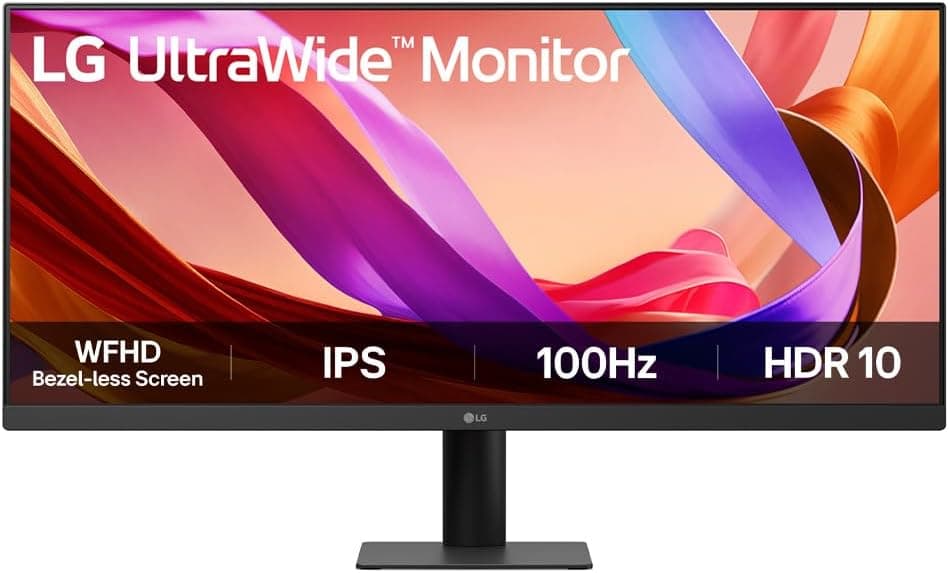
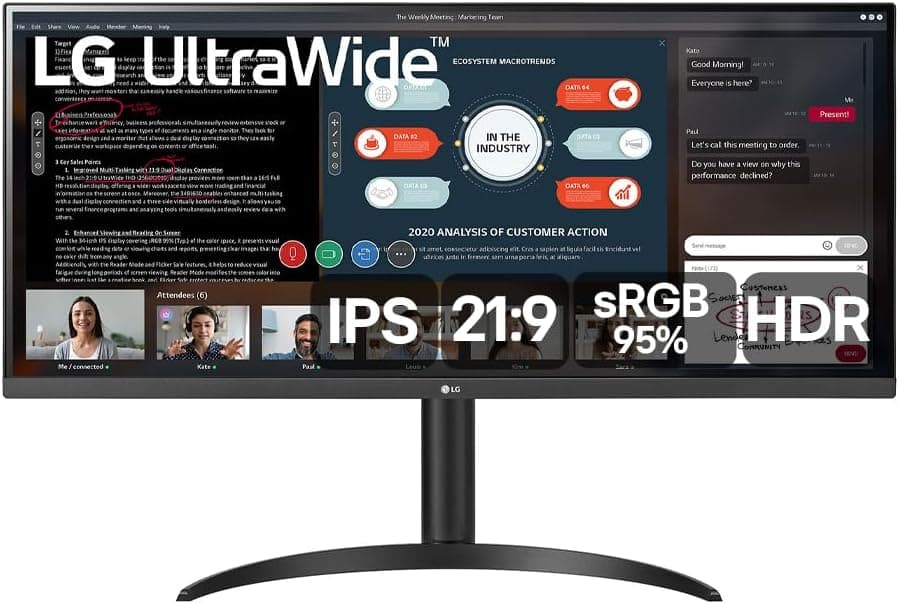
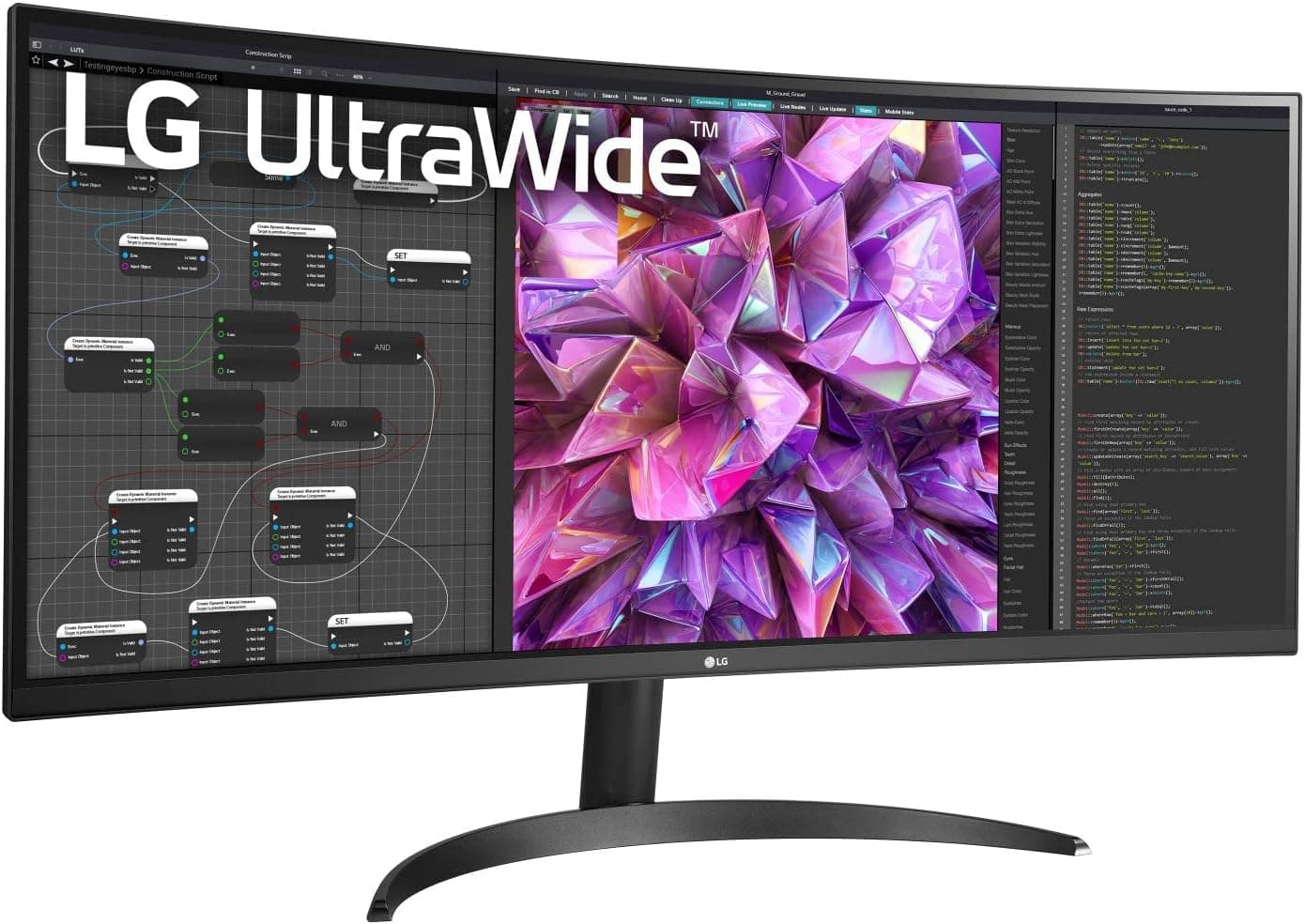
Best 34-inch Under $300: LG 34WP550-B ⟹ Check price on Amazon
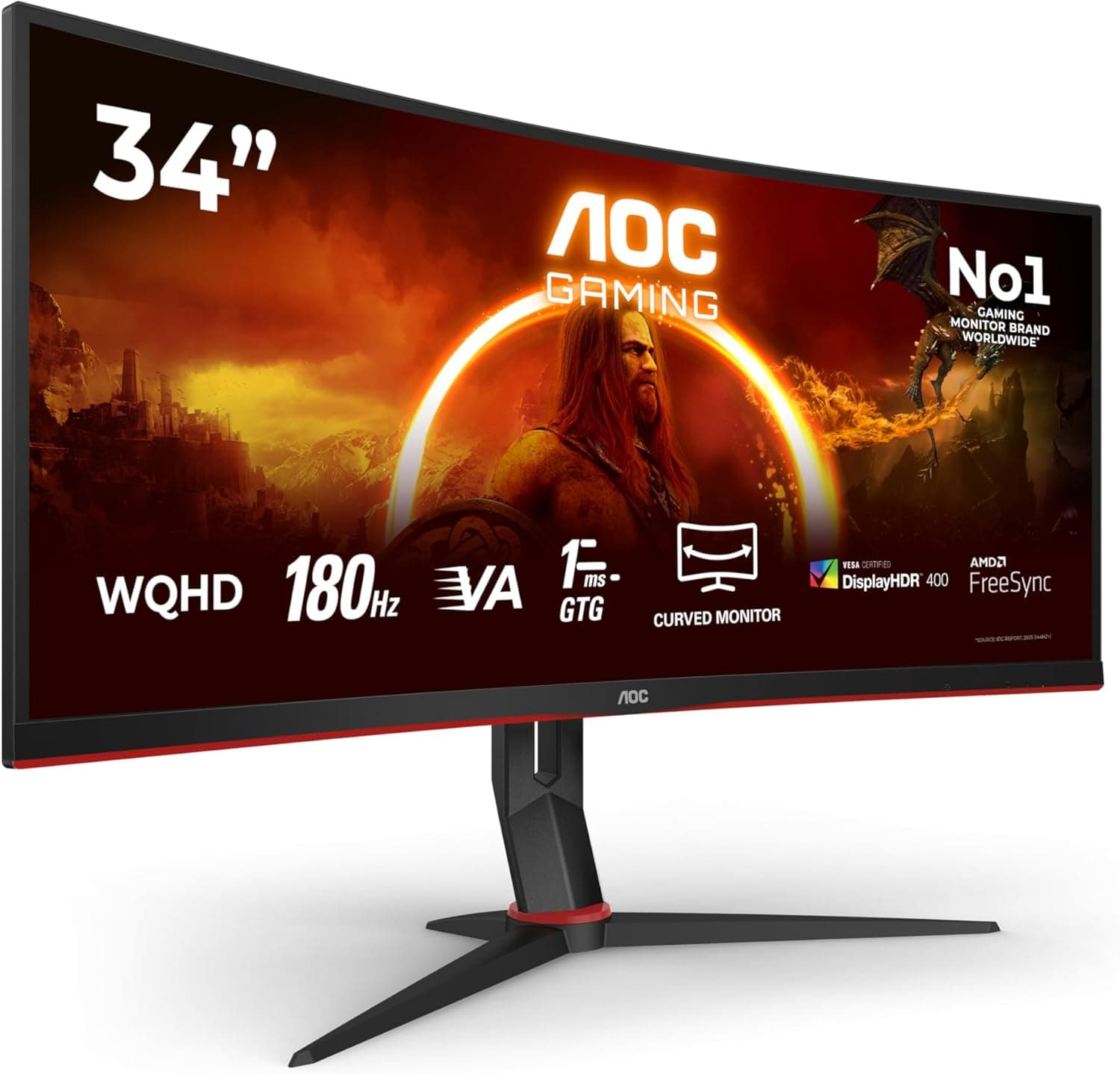
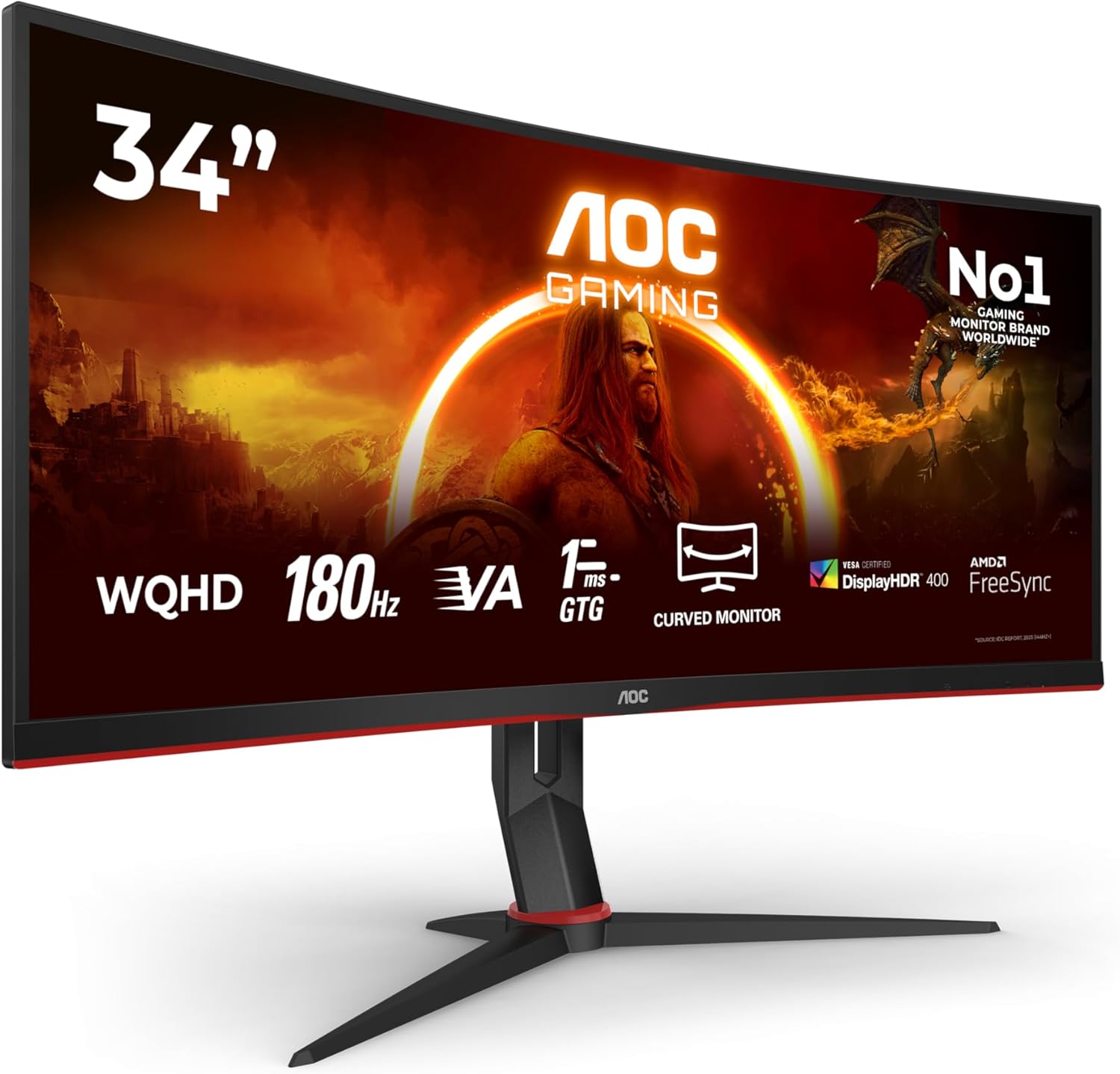
Best for Gaming: AOC CU34G2XP ⟹ Check price on Amazon
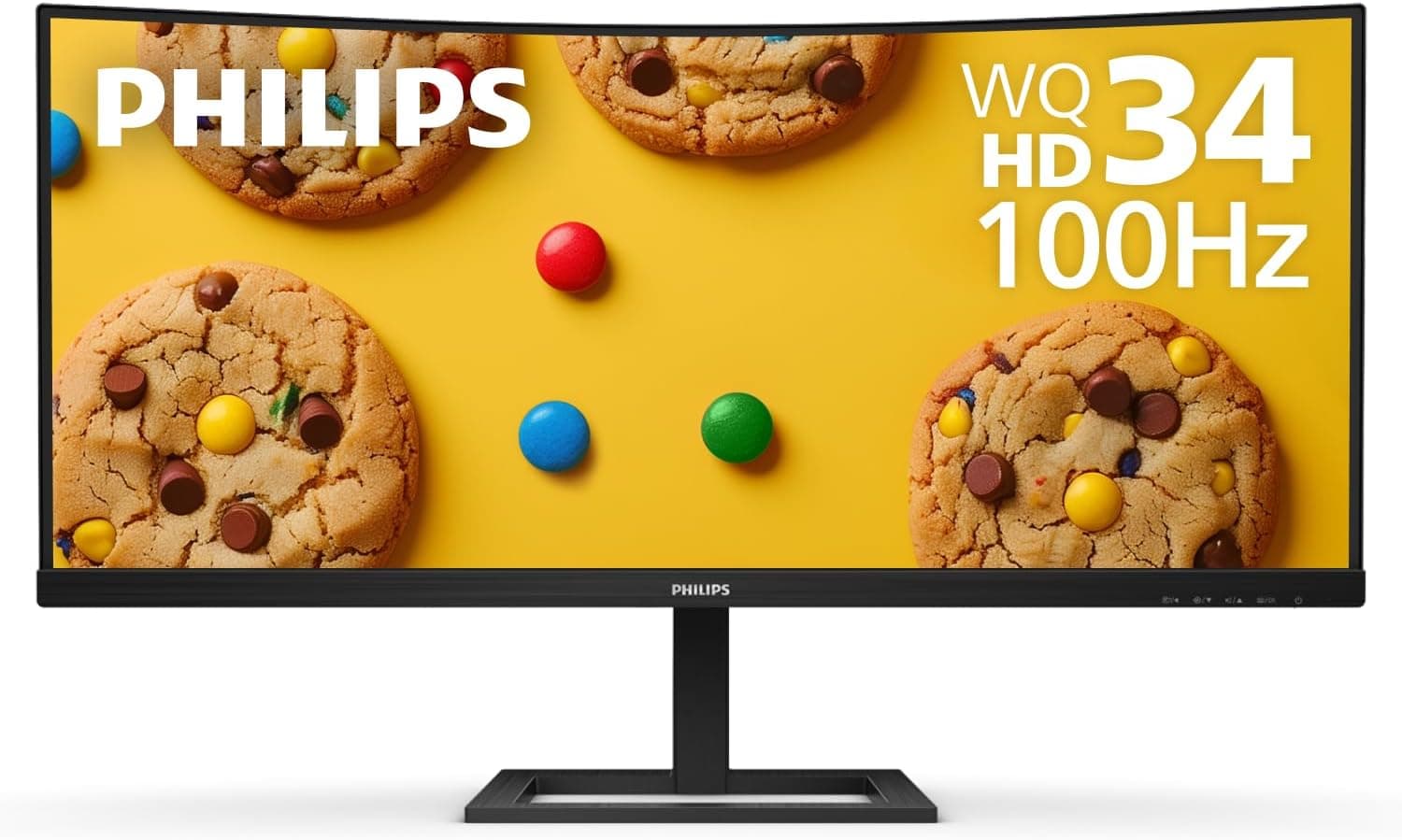
Best IPS Panel: Philips 346E2CUAE ⟹ Check price on Amazon
Best Flat Panel: LG 34WQ60C-B ⟹ Check price on Amazon
How We Tested These Monitors
Testing budget monitors requires a different evaluation mindset than testing premium alternatives. The question is not whether a budget monitor matches the performance of a $600 panel. The question is whether it delivers enough quality to justify its price and serve its intended audience well.
We evaluated each monitor across real home office tasks including document editing, spreadsheet work, video calls, and casual web browsing. We also ran each monitor through several hours of casual gaming and video streaming to assess how well it handles mixed use.
Color accuracy was measured with a colorimeter. For budget monitors, we set our acceptable threshold at Delta E below 4 out of the box, recognizing that factory calibration is not realistic at this price point. Panel uniformity was assessed by displaying solid color fields and checking for noticeable brightness or color shifts across the panel.
We paid particular attention to text clarity during extended reading sessions, since this is where lower-resolution budget monitors most frequently disappoint users who expected sharper results.
The Reality of Buying an Ultrawide Under $300
Before looking at specific products, it is important to understand what the under $300 price point typically delivers and where the compromises usually appear.
Resolution Is the Biggest Trade-off
Most ultrawide monitors under $300 use 2560x1080 resolution rather than the 3440x1440 UWQHD resolution found on mid-range and premium models. On a 29-inch panel, 2560x1080 produces a pixel density of around 96 pixels per inch. On a 34-inch panel, the same resolution drops to around 81 pixels per inch.
For comparison, a standard 27-inch 1440p monitor produces around 109 pixels per inch. This means a budget 34-inch ultrawide at 2560x1080 looks noticeably softer than a standard 27-inch monitor you might already own. Text is readable but not crisp. Small interface elements can look slightly blurry during extended use.
If text sharpness is important to your daily work, a 29-inch budget ultrawide at 2560x1080 handles it better than a 34-inch at the same resolution, because the smaller screen keeps pixel density higher.
Connectivity Is Basic
Under $300, expect HDMI and DisplayPort inputs. USB-C connectivity, USB hubs, and Power Delivery charging are not features you will find at this price point. If you need to connect a laptop cleanly with a single cable, you will need to step up to a mid-range monitor.
Stand Ergonomics Are Limited
Budget monitor stands typically offer tilt adjustment only. Height adjustment, swivel, and pivot are features found on mid-range and premium monitors. If ergonomics matter for your setup, budget for a VESA monitor arm alongside the monitor purchase. Most monitors in this category are VESA compatible, and a basic monitor arm costs around $25 to $40.
What You Do Get
Within these limitations, budget ultrawides in 2026 consistently deliver IPS panels with good viewing angles, reliable build quality from established brands like LG and AOC, adequate color accuracy for general use, and the genuine workflow benefit of the ultrawide format at a price that makes it accessible.
What to Look for in a Budget Ultrawide Monitor
Panel Type at This Price Point
IPS panels are available in the budget ultrawide category and should be prioritized over TN panels if you have the choice. IPS delivers wider viewing angles and more accurate colors, which matters for general home office use. TN panels are faster in terms of response time but the color and viewing angle trade-offs are significant enough to avoid at any price point for productivity use.
VA panels at the budget level can offer better contrast than IPS, which makes video content look richer. The trade-off is narrower viewing angles and potential motion smearing. For mixed use that includes movie watching, a budget VA panel is a reasonable choice.
Size: 29-inch vs 34-inch Under $300
The decision between 29 inches and 34 inches at this budget depends on what matters more to you: screen real estate or text sharpness.
A 34-inch budget ultrawide gives you more horizontal space and a more impactful ultrawide experience. The trade-off is softer text due to lower pixel density at 2560x1080.
A 29-inch budget ultrawide delivers noticeably sharper text at the same resolution and fits more comfortably on a compact desk. The ultrawide experience is still present but less dramatic than on a 34-inch panel.
For users who primarily work with text, the 29-inch option is the better choice. For users who want the wide-screen benefit for multitasking and do not work intensively with small text, the 34-inch option delivers a more impressive everyday experience.
Refresh Rate
Budget ultrawides typically offer 60Hz or 75Hz refresh rates. For office work, 60Hz is perfectly adequate. 75Hz provides slightly smoother scrolling and window management that is noticeable in everyday use without requiring any extra investment from your GPU.
If casual gaming is part of your use case, prioritize 75Hz over 60Hz at this budget level. Monitors offering 100Hz or higher under $300 do exist but often involve other trade-offs to hit that price point.
Brand Reliability
At the budget price point, sticking with established brands matters more than it does at higher budgets where quality control is generally tighter. LG, AOC, and Philips have consistent track records in the budget monitor category. Lesser-known brands occasionally offer attractive specs at low prices but have more variable panel quality and less reliable warranty support.
The Best Budget Ultrawide Monitors Under $300
1. LG 29U511A — Best Overall Budget Ultrawide

Quick Specs
Feature | Detail |
Screen size | 29 inches |
Resolution | 2560x1080 (UWFHD) |
Panel type | IPS |
Refresh rate | 75Hz |
Response time | 5ms GtG |
Adaptive sync | AMD FreeSync |
Connectivity | 2x HDMI |
Curve | Flat |
VESA | 75x75mm |
The LG 29U511A is the most reliable budget ultrawide available right now and the one we recommend most confidently to first-time ultrawide buyers. LG's IPS panel quality at this price point is consistently good, the 75Hz refresh rate keeps everyday use feeling smooth, and the flat panel suits both office work and casual gaming equally well.
The 2560x1080 resolution on a 29-inch panel produces a pixel density of around 96 pixels per inch, which is the most acceptable resolution-to-size ratio available in the budget ultrawide category. Text is readable and reasonably sharp for everyday tasks. It is not going to match the crispness of a UWQHD panel but it is comfortable for extended work sessions in a way that a 34-inch panel at the same resolution is not.
The IPS panel covers 99% of sRGB, which is adequate for general home office use, casual photo viewing, and video streaming. Color accuracy out of the box is good enough that most users will not feel any need to adjust settings after unboxing.
AMD FreeSync support means casual gaming on this monitor is tear-free with a compatible AMD GPU. The 5ms GtG response time is not particularly fast but is adequate for casual gaming at 75Hz without noticeable ghosting in most titles.
The flat panel is a practical advantage for home office use. Flat panels are easier to position flush against a wall and avoid the slight edge distortion that curved panels can show in color-critical document work.
The stand is basic, offering tilt adjustment only. Height adjustment is not available without a monitor arm. For most desk setups, the default height is workable but investing in a basic VESA arm gives you significantly more flexibility.
Pros
Best pixel density available in a budget ultrawide at 29 inches
Reliable LG IPS panel with 99% sRGB coverage
75Hz for smooth everyday scrolling
AMD FreeSync for casual gaming
Flat panel suits office work and casual gaming equally well
Competitive pricing with consistent availability
Cons
No USB-C connectivity
Stand offers tilt only, no height adjustment
2x HDMI only, no DisplayPort
2560x1080 resolution shows its limits during intensive text work
Who should buy this: First-time ultrawide buyers, students, and home office users who want reliable ultrawide quality at the lowest practical price.
2. LG 34WP550-B — Best 34-inch Ultrawide Under $300

Quick Specs
Feature | Detail |
Screen size | 34 inches |
Resolution | 2560x1080 (UWFHD) |
Panel type | IPS |
Refresh rate | 75Hz |
Response time | 5ms GtG |
Adaptive sync | AMD FreeSync |
Connectivity | 2x HDMI, DisplayPort |
Curve | Flat |
VESA | 100x100mm |
The LG 34WP550-B gives you the full 34-inch ultrawide experience at a budget price. The larger screen delivers a more impactful side-by-side multitasking layout and a more immersive overall experience compared to the 29-inch model above. The trade-off is that the same 2560x1080 resolution spread across a larger panel produces softer text, which is the main reason this monitor sits below the 29WP500-B as our top overall pick.
For users who prioritize screen real estate over text sharpness, the 34-inch format is worth the resolution trade-off. Managing two application windows side by side on a 34-inch panel feels genuinely spacious. Spreadsheets, split-screen reference work, and keeping a communication app open alongside a main workspace all benefit from the additional horizontal space that a 29-inch ultrawide cannot provide to the same degree.
The addition of a DisplayPort input alongside the two HDMI ports gives this monitor more connectivity flexibility than the smaller LG model. DisplayPort supports higher bandwidth for potential future use with higher resolution monitors and is the preferred connection for desktop PC users with dedicated GPUs.
The flat IPS panel maintains the same color accuracy and viewing angle advantages as the smaller model. LG's panel quality at this budget tier is reliable and the 99% sRGB coverage handles general office and media tasks well.
Pros
Full 34-inch ultrawide experience at a budget price
Flat IPS panel with 99% sRGB coverage
DisplayPort added alongside 2x HDMI
75Hz for smooth everyday use
AMD FreeSync for casual gaming
100x100mm VESA for monitor arm compatibility
Cons
2560x1080 on 34 inches produces noticeably softer text than UWQHD
No USB-C connectivity
Stand offers tilt only
Lower pixel density than the 29-inch model
Who should buy this: Users who want the largest possible screen at this budget and prioritize workspace real estate over pixel density.
3. AOC CU34G2XP — Best Budget Ultrawide for Gaming
Quick Specs
Feature | Detail |
Screen size | 34 inches |
Resolution | 3440x1440 (UWQHD) |
Panel type | VA |
Refresh rate | 144Hz |
Response time | 1ms MPRT |
Adaptive sync | FreeSync Premium, G-Sync Compatible |
Connectivity | 2x HDMI 2.0, DisplayPort 1.4, 4x USB-A |
Curve | 1500R |
VESA | 100x100mm |
The AOC CU34G2XP is the most impressive value proposition on this list. Finding a 34-inch UWQHD monitor with 144Hz refresh rate and FreeSync Premium support consistently under $300 is genuinely remarkable value and represents exactly the kind of price improvement the budget ultrawide market has made over recent years.
The VA panel delivers a 3000:1 contrast ratio that makes games look significantly more atmospheric and visually rich than the IPS panels on the LG budget models above. Dark scenes, space environments, and games with dramatic lighting all benefit from the deeper blacks that VA contrast produces. This is the most important visual advantage this monitor holds over cheaper alternatives.
UWQHD resolution at 34 inches is a substantial step up from the 2560x1080 panels on the LG budget models. Text is noticeably sharper, fine detail in games and images is clearer, and the overall visual quality feels significantly more premium. For a monitor in this price range, the combination of UWQHD and 144Hz is extraordinary value.
G-Sync Compatible certification ensures NVIDIA GPU users get the same tear-free gaming experience as AMD users with FreeSync. The four USB-A ports on the back reduce the need for a separate hub.
The main limitation of the VA panel at this budget is potential motion smearing in very fast dark-to-dark pixel transitions. For casual gaming and most genres this is not a noticeable issue. For competitive shooters played at maximum settings, the LG IPS gaming options in our best ultrawide monitor for gaming under $500 guide offer faster pixel response times.
Pros
UWQHD resolution at 34 inches under $300 is exceptional value
144Hz with FreeSync Premium and G-Sync Compatible
3000:1 contrast ratio from the VA panel
1500R curve for immersive gaming
Four USB-A ports for peripheral connectivity
Best gaming performance on this list by a significant margin
Cons
VA panel can show motion smearing in fast dark transitions
No USB-C connectivity
VA viewing angles are narrower than IPS alternatives
Colors are less accurate than IPS panels for productivity work
Who should buy this: Gamers who want the best possible gaming ultrawide under $300 and do not mind the VA panel trade-offs.
4. Philips 346E2CUAE — Best IPS Panel Budget Ultrawide

Quick Specs
Feature | Detail |
Screen size | 34 inches |
Resolution | 3440x1440 (UWQHD) |
Panel type | IPS |
Refresh rate | 60Hz |
Response time | 4ms GtG |
Adaptive sync | AMD FreeSync |
Connectivity | 2x HDMI, DisplayPort, USB-C (65W) |
Curve | 1500R |
VESA | 100x100mm |
The Philips 346E2CUAE stands out on this list for one specific reason: it offers UWQHD resolution on an IPS panel with USB-C 65W charging at a price that frequently falls under $300. That combination of features at this price point is unusual and represents one of the better value propositions in the budget ultrawide category.
The IPS panel delivers better color accuracy and wider viewing angles than the VA panel on the AOC above. For users who split their time between gaming and home office work, the IPS panel handles both use cases more consistently. Colors are more accurate for productivity tasks and viewing angles are comfortable regardless of screen position.
USB-C with 65W Power Delivery is a feature rarely found at this price point. It covers most thin-and-light laptops and many mid-range ultrabooks, providing single-cable connectivity that budget monitors almost never offer. For laptop users who want a cleaner desk setup, this is a meaningful differentiator.
The 60Hz refresh rate is the main gaming limitation. For casual gaming and all productivity work, 60Hz is adequate. For users who prioritize gaming performance, the AOC above is the stronger choice.
Pros
UWQHD IPS panel at a budget price
USB-C 65W charging is rare at this price point
Better color accuracy than VA alternatives for productivity work
Wide viewing angles from the IPS panel
1500R curve for a comfortable immersive feel
Cons
60Hz limits gaming performance
IPS contrast is lower than VA alternatives
Availability can be inconsistent depending on region
4ms GtG is adequate but not gaming-optimized
Who should buy this: Home office users and laptop users who want UWQHD resolution and USB-C connectivity at the lowest possible price.
5. LG 34WQ60C-B — Best Flat Panel Budget Ultrawide

Quick Specs
Feature | Detail |
Screen size | 34 inches |
Resolution | 2560x1080 (UWFHD) |
Panel type | IPS |
Refresh rate | 100Hz |
Response time | 5ms GtG |
Adaptive sync | AMD FreeSync Premium |
Connectivity | 2x HDMI, DisplayPort |
Curve | Flat |
VESA | 100x100mm |
The LG 34WQ60C-B offers the highest refresh rate among the flat panel options on this list at 100Hz with FreeSync Premium support. For users who do not want a curved screen but still want smooth performance for mixed work and casual gaming, this is the most capable flat panel option available under $300.
The 100Hz refresh rate makes scrolling through long documents, switching between applications, and casual gaming noticeably smoother than the 60Hz and 75Hz options above. FreeSync Premium ensures tear-free gaming across the full refresh rate range, which is a step above basic FreeSync certification.
The flat IPS panel is a deliberate choice for users who find curved panels distracting during document work or who sit at angles where a curved panel creates unwanted reflections. The flat surface also makes this monitor easier to position precisely on a desk with limited depth.
The 2560x1080 resolution is the same compromise found on the other budget LG models. For a 34-inch flat panel at 100Hz under $300, this is the current market reality.
Pros
100Hz with FreeSync Premium is the best refresh rate among flat budget ultrawides
Flat IPS panel with reliable LG quality
DisplayPort alongside HDMI inputs
Good for mixed work and casual gaming
100x100mm VESA for monitor arm compatibility
Cons
2560x1080 resolution on 34 inches produces soft text
No USB-C connectivity
Stand offers tilt adjustment only
Not ideal for color-critical work
Who should buy this: Users who specifically want a flat panel at this budget and value a higher refresh rate over resolution.
Full Comparison Table
Monitor | Size | Resolution | Panel | Hz | USB-C | Best For |
29" | 2560x1080 | IPS | 75 | No | Best overall budget | |
34" | 2560x1080 | IPS | 75 | No | Most screen space | |
34" | 3440x1440 | VA | 144 | No | Best for gaming | |
34" | 3440x1440 | IPS | 60 | 65W | USB-C laptop users | |
34" | 2560x1080 | IPS | 100 | No | Best flat panel |
Should You Buy a Budget Ultrawide or Save Up for UWQHD?
This is the most important question to answer before spending any money on a budget ultrawide monitor.
If your primary work involves reading long documents, writing, coding, or any task where text sharpness matters for hours at a time, a 34-inch monitor at 2560x1080 will likely disappoint you. The softer text becomes noticeable during extended sessions and the eye strain that results from reading on a lower pixel density panel can become a daily frustration.
In this case, the better decision is either to buy a 29-inch budget ultrawide, where the pixel density is higher and text is more acceptable, or to save up for a UWQHD monitor. Our best ultrawide monitor for home office guide covers UWQHD options starting around $350 to $400 that deliver a significantly better experience for text-heavy work.
If your work is primarily spreadsheets, communication tools, video calls, and casual browsing where text size tends to be larger and pixel-peeping is not part of your workflow, a 34-inch budget ultrawide is entirely workable and the wide-screen format delivers genuine daily productivity benefits.
For casual gaming and media consumption, the AOC CU34G2XP with its UWQHD VA panel is a genuinely strong option that punches well above its price category.
Budget Ultrawide vs Standard Budget Monitor
If you are deciding between a budget ultrawide and a standard budget 27-inch 1440p monitor, the honest comparison is this: a 27-inch 1440p monitor will deliver sharper text and better pixel density. A budget ultrawide will deliver more horizontal workspace.
For most productivity work, sharper text wins. For multitasking where running two windows side by side is a daily requirement, the wider format wins.
The ultrawide vs dual monitor setup guide explores this comparison in more depth and helps you decide which format genuinely suits your workflow.
Getting the Most From a Budget Ultrawide Monitor
A few setup tips that make a meaningful difference with budget ultrawide monitors:
Adjust the monitor's sharpness setting in the OSD menu. Most budget monitors ship with sharpness set too high, which creates an artificial edge enhancement that makes text look harsher than it needs to. Reducing sharpness to around 40 to 50 in most monitors produces a more natural and comfortable result.
Enable your operating system's window snapping features. Windows 11 snap layouts work particularly well with ultrawide monitors. On Mac, third-party apps like Magnet or Rectangle provide similar functionality. Using these tools lets you split the screen efficiently without manually dragging windows.
Use a monitor arm if your desk allows. The tilt-only stands on budget monitors leave most users with the screen positioned too low or at an uncomfortable angle. A basic VESA monitor arm costs around $25 and transforms the ergonomics of any budget monitor.
Set scaling to 100% in your operating system if you are using a 2560x1080 panel. Scaling up on a lower-resolution panel compounds the softness issue. Running at native resolution with slightly larger text in individual applications gives a cleaner result than system-level scaling.
Related Guides
These guides help you explore other options if the budget category does not fully meet your needs:
Best ultrawide monitor for home office
Best ultrawide monitor for gaming under $500
Best ultrawide monitor for video editing
Best ultrawide monitor for MacBook Pro
Ultrawide vs dual monitor setup for home office
How to choose the best ultrawide monitor
Best ultrawide monitor deals this month
Our top budget pick is the LG 29U511A for most users. For gaming, the AOC CU34G2XP is the best value under $300. Check current pricing on Amazon below.
Check price on Amazon — LG 29U511A
Check price on Amazon — AOC CU34G2XP
Check price on Amazon — Philips 346E2CUAE
Disclosure: This post contains Amazon affiliate links. If you buy through our links, we may earn a small commission at no extra cost to you.

Written by
Jordan Lee
I'm Jordan Lee, a tech reviewer and peripheral enthusiast with 7+ years of hands-on experience evaluating monitors, mechanical keyboards, wireless mice, and audio equipment. With a degree in Computer Engineering, I bring a technical yet practical perspective to every review I write. I don't just benchmark — I actually use these products daily and put them through real work scenarios. When I recommend a monitor, I've checked its color accuracy, refresh rate, and eye strain levels myself. When I suggest a keyboard, I've typed thousands of words on it. My goal is simple: help you find the right gear so you can work smarter, not just spend more.
Written by
Jordan Lee
I'm Jordan Lee, a tech reviewer and peripheral enthusiast with 7+ years of hands-on experience evaluating monitors, mechanical keyboards, wireless mice, and audio equipment. With a degree in Computer Engineering, I bring a technical yet practical perspective to every review I write. I don't just benchmark — I actually use these products daily and put them through real work scenarios. When I recommend a monitor, I've checked its color accuracy, refresh rate, and eye strain levels myself. When I suggest a keyboard, I've typed thousands of words on it. My goal is simple: help you find the right gear so you can work smarter, not just spend more.


