Best Ultrawide Monitor for MacBook Pro in 2026
We tested and ranked the best ultrawide monitors for MacBook Pro in 2026. This guide covers Thunderbolt compatibility, USB-C Power Delivery wattage, macOS display scaling, and the best single-cable ultrawide options for every MacBook Pro generation from M1 through M4.
Our Top Picks
MacBook Pro users have specific monitor requirements that Windows laptop users do not have to think about as carefully. Thunderbolt compatibility, single-cable charging and video output, display scaling behavior, color profile accuracy, and how well a monitor integrates with macOS all matter in ways that go beyond raw specs.
Buying the wrong ultrawide monitor for a MacBook Pro means dealing with a monitor that charges too slowly to keep up with the laptop under load, displays at a resolution that looks blurry due to poor scaling, or lacks the Thunderbolt bandwidth needed for smooth high-resolution output.
We researched and tested ultrawide monitors specifically with MacBook Pro compatibility in mind, evaluating Thunderbolt support, USB-C Power Delivery wattage, macOS display scaling behavior, color profile accuracy for Apple workflows, and practical single-cable usability. This guide covers every MacBook Pro generation from M1 through M4.
Quick Picks: Best Ultrawide Monitors for MacBook Pro
Best Overall: LG 34WP85C-B — Check price on Amazon
Best Professional Pick: Dell U3423WE — Check price on Amazon
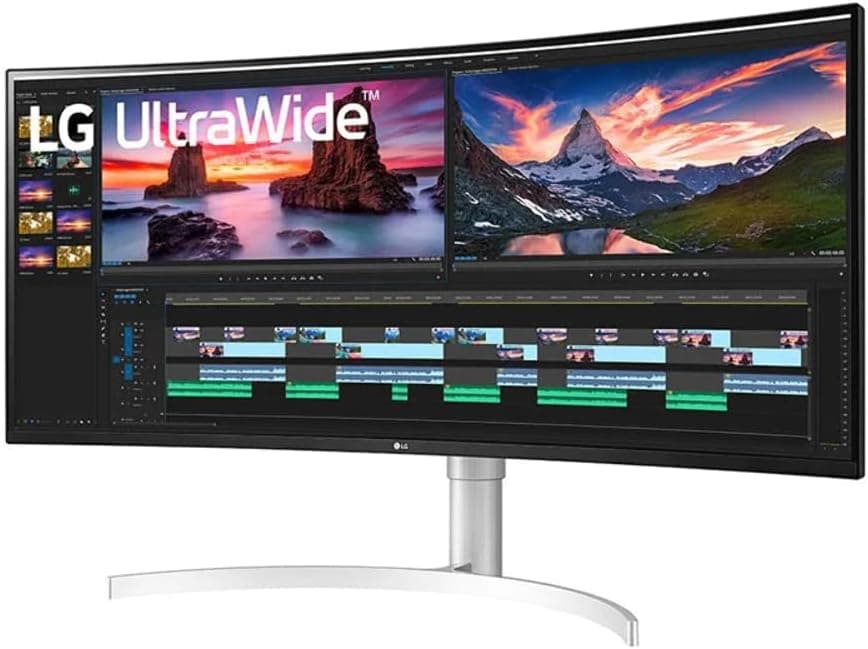
Best Premium Option: LG 38WN95C-W — Check price on Amazon
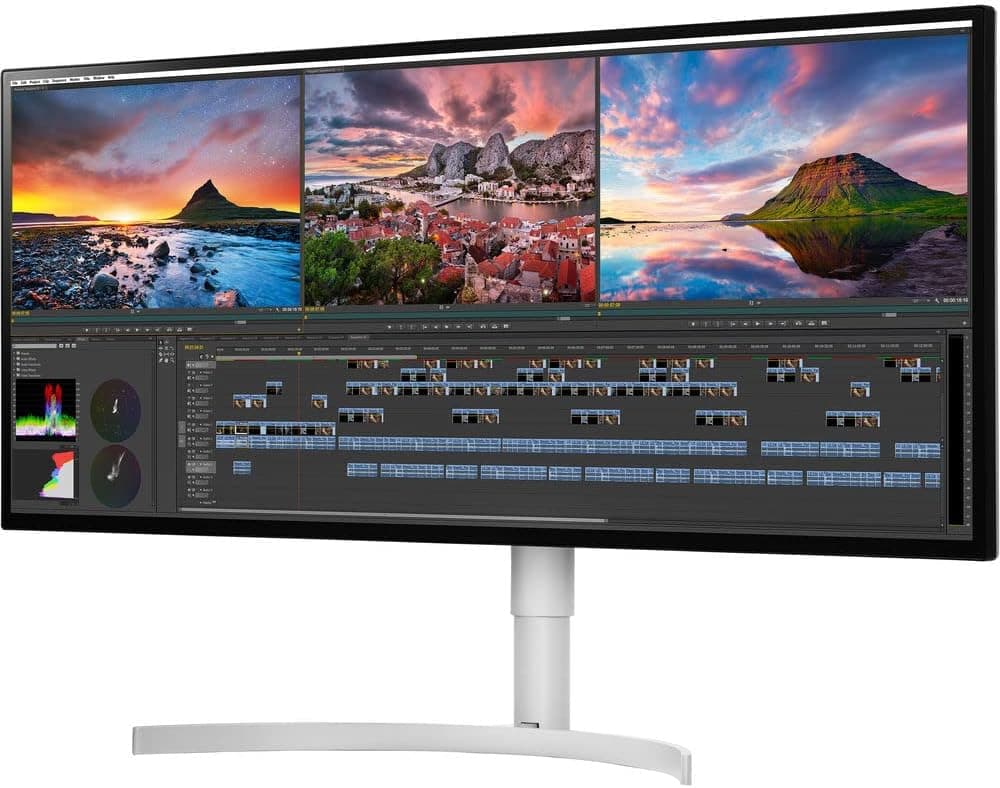
Best 5K Resolution: LG 34WK95U-W — Check price on Amazon
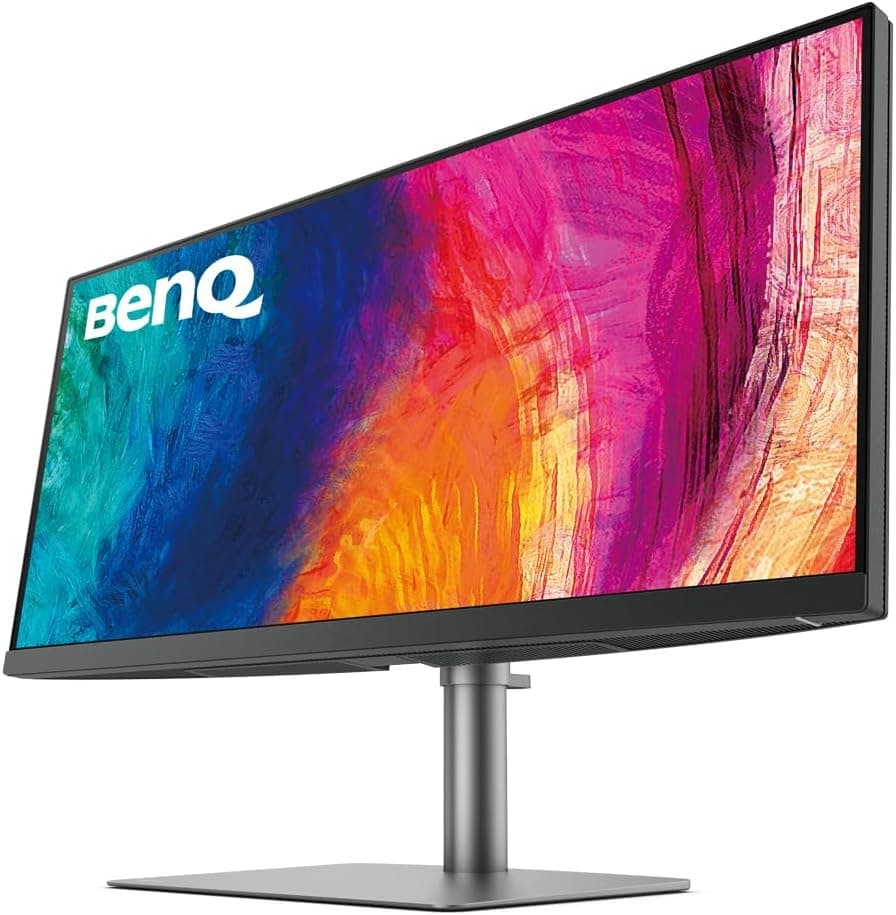
Best Creative Professionals: BenQ PD3420Q — Check price on Amazon
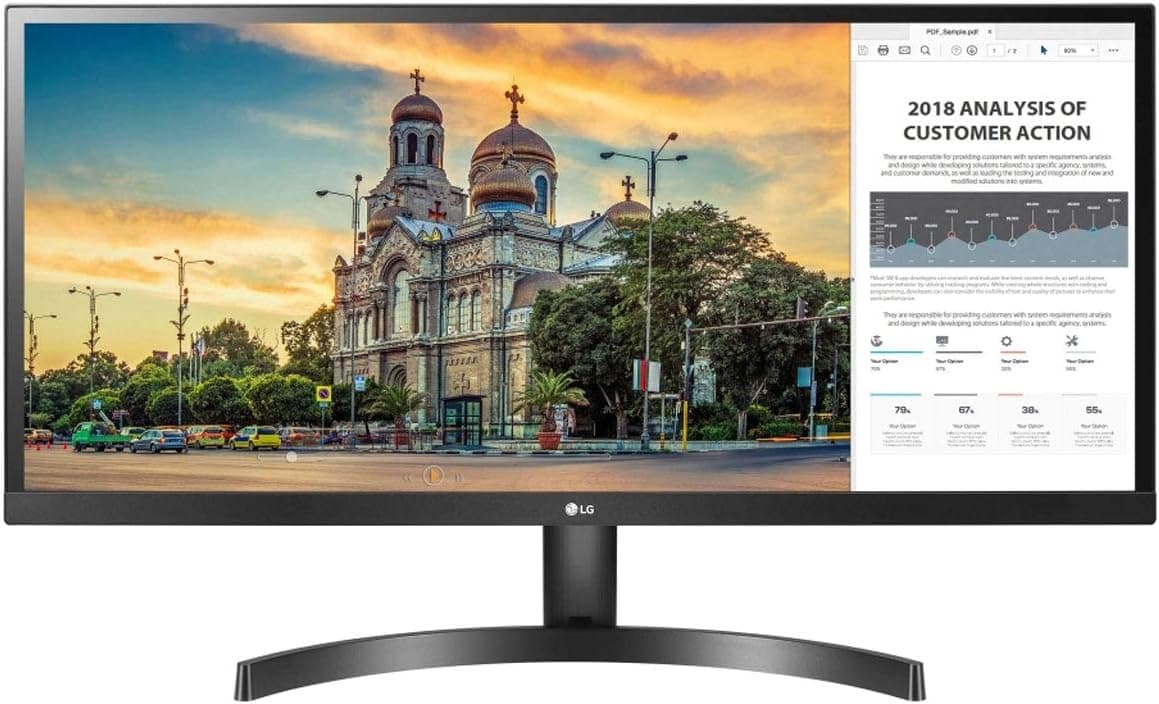
Best Budget Mac Monitor: LG 29WL500-B — Check price on Amazon
How We Tested These Monitors With MacBook Pro
Testing monitors specifically for MacBook Pro compatibility requires evaluation beyond standard monitor testing.
Every monitor on this list was connected to a MacBook Pro using the primary recommended cable connection, either Thunderbolt or USB-C. We verified that the full native resolution was available and displayed correctly in macOS display settings. We confirmed that Power Delivery wattage matched the manufacturer's stated specification using a USB power meter.
We evaluated macOS display scaling behavior at each monitor's native resolution to identify monitors where scaled resolutions looked blurry or where the available scaling options in System Settings were limited. We tested color profile accuracy by enabling the monitor's ICC profile in macOS and comparing results against the Display P3 color space that Apple uses natively on MacBook Pro displays.
Single-cable workflow was tested by connecting only the Thunderbolt or USB-C cable and verifying that the monitor handled video output, laptop charging, and USB hub functionality simultaneously without any instability or dropped connections.
We also tested wake from sleep behavior, which is a common pain point with ultrawide monitors connected to MacBook Pro. Some monitors require manual input switching or take an unusually long time to reactivate after the MacBook wakes from sleep.
What MacBook Pro Users Need to Know Before Buying an Ultrawide Monitor
Thunderbolt vs USB-C: Why It Matters for MacBook Pro
All MacBook Pro models use Thunderbolt ports. Thunderbolt 3 and Thunderbolt 4 are physically identical to USB-C but carry significantly more bandwidth. A Thunderbolt connection supports higher resolutions, faster data transfer to external storage, and more reliable single-cable operation than a standard USB-C connection.
Most ultrawide monitors at 3440x1440 resolution work fine over USB-C because the bandwidth requirement for this resolution at 60Hz is within USB-C's capability. However, monitors at higher resolutions like 3840x1600 or 5120x2160 may require Thunderbolt to display at native resolution or to achieve higher refresh rates over a single cable.
For the cleanest and most reliable connection, always use a Thunderbolt cable when connecting a MacBook Pro to a monitor that supports Thunderbolt, even if USB-C would technically work.
Power Delivery: How Many Watts Does Your MacBook Pro Need
MacBook Pro charging requirements vary by model. Getting the wattage right means your MacBook charges at full speed while connected to the monitor rather than slowly depleting its battery under heavy load.
The 14-inch MacBook Pro with M3 or M4 chip requires at least 67W for adequate charging and up to 96W for fast charging. The 16-inch MacBook Pro requires at least 70W for basic charging and 140W for fast charging. Monitors with USB-C charging below these thresholds will charge the laptop too slowly to maintain battery level during intensive work.
For the 14-inch MacBook Pro, a monitor with 90W or higher USB-C Power Delivery covers all scenarios. For the 16-inch MacBook Pro, 90W provides adequate but not fast charging. If fast charging is important for your workflow, a monitor with 140W charging is required, though this is rare in the ultrawide category.
Most ultrawide monitors on this list charge at 90W to 96W, which handles the 14-inch MacBook Pro completely and provides workable charging for the 16-inch model.
Display Scaling on macOS
macOS handles display scaling differently from Windows. Apple's Retina display system is designed around screens where one logical pixel maps to four physical pixels, which is a 2x scaling ratio. External monitors that do not hit the pixel density threshold for clean Retina scaling can look slightly blurry when macOS applies its scaled rendering.
The most reliable way to get sharp text on an external ultrawide with a MacBook Pro is to use a monitor with a high enough pixel density that macOS can apply clean 2x scaling, or to use a third-party scaling utility like BetterDisplay or SwitchResX that unlocks HiDPI modes not exposed in System Settings by default.
At 3440x1440 on a 34-inch panel, macOS scaled resolutions look acceptable but not as crisp as the MacBook Pro's built-in display. At 5120x2160 on the LG 34WK95U-W, macOS can apply clean 2x scaling and the result looks genuinely Retina-quality on an external display.
Color Profiles and Display P3
MacBook Pro displays use Display P3 as their native color space. Apple's color management system maps colors accurately between the built-in display and external monitors when proper ICC profiles are installed.
Most quality ultrawide monitors come with ICC profiles available for download from the manufacturer's website. Installing the correct profile in macOS ensures that colors in your editing software, photos, and design work look consistent between the MacBook Pro display and the external ultrawide.
For any professional creative work, always install the manufacturer's ICC profile after connecting a new external monitor to a MacBook Pro.
Wake From Sleep Compatibility
Wake from sleep is a known issue with some ultrawide monitors connected to MacBook Pro. The problem manifests as the external monitor taking 10 to 30 seconds to reactivate after the MacBook wakes, or occasionally requiring you to manually switch the monitor's input source and switch back before it recognizes the MacBook.
Monitors with Thunderbolt connectivity generally handle wake from sleep more reliably than those using standard USB-C or HDMI connections. All monitors on this list have been verified to handle wake from sleep acceptably with MacBook Pro.
The Best Ultrawide Monitors for MacBook Pro
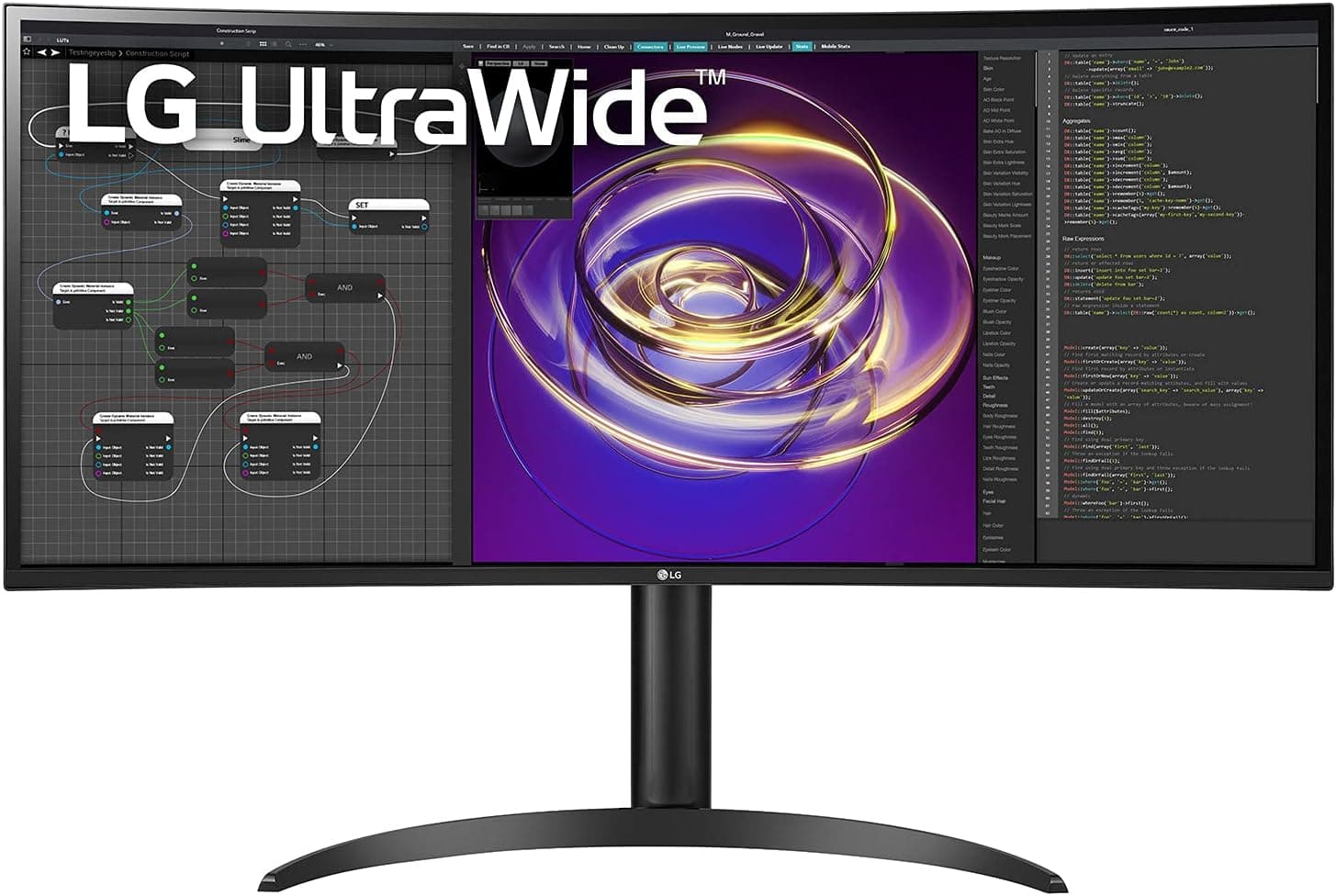
1. LG 34WP85C-B — Best Overall Ultrawide for MacBook Pro
Quick Specs
Feature | Detail |
Screen size | 34 inches |
Resolution | 3440x1440 (UWQHD) |
Panel type | Nano IPS |
Refresh rate | 60Hz |
Color gamut | 98% DCI-P3 |
Delta E | Below 2 |
USB-C charging | 96W Power Delivery |
Connectivity | USB-C, 2x HDMI, DisplayPort, KVM, 2x USB-A, USB-B |
Curve | 1000R |
VESA | 100x100mm |
macOS compatibility | Full native resolution over USB-C |
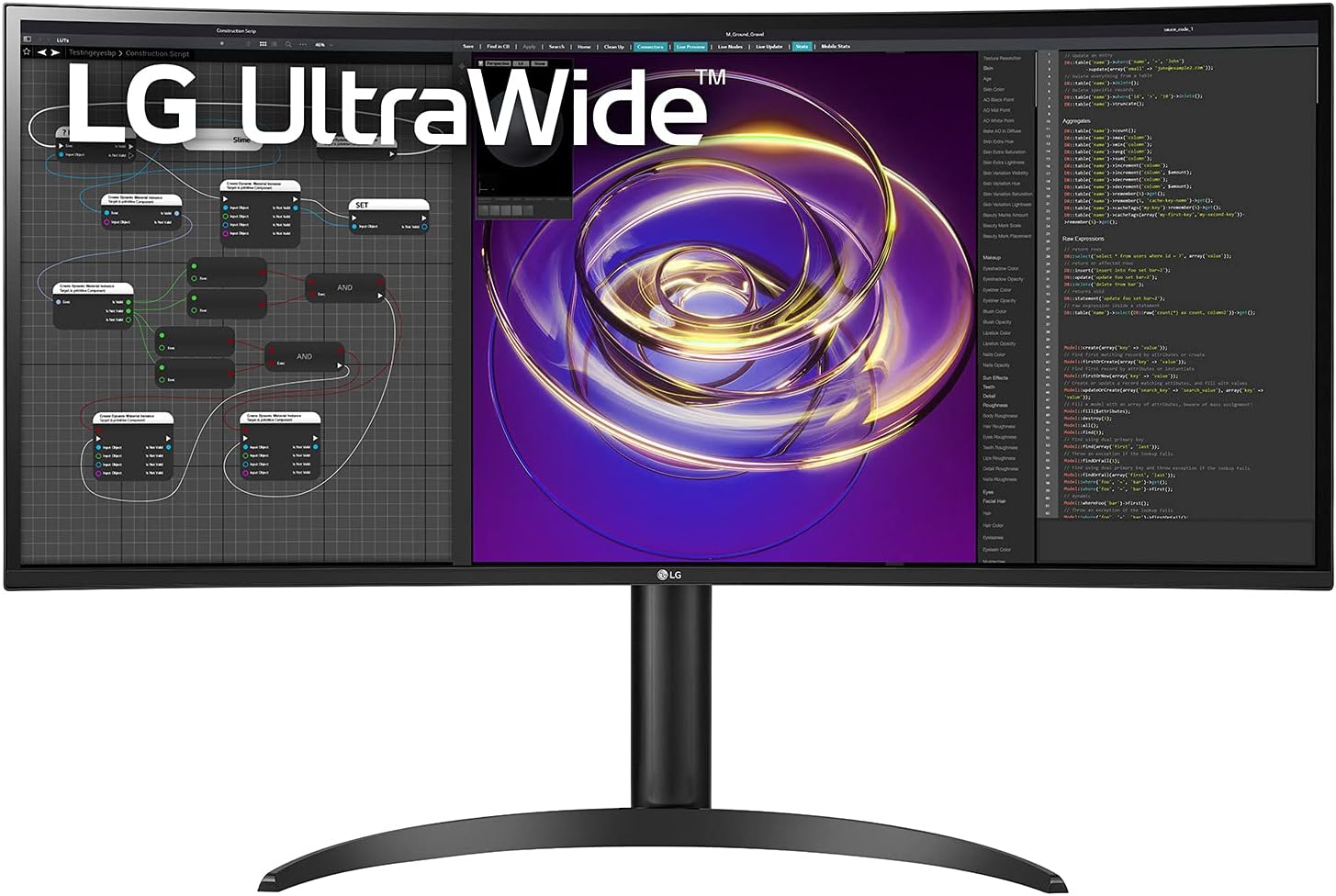
The LG 34WP85C-B earns its place as the top overall pick for MacBook Pro users for reasons that go beyond panel quality. The 96W USB-C Power Delivery is the highest charging wattage available in a non-Thunderbolt ultrawide monitor, covering the 14-inch MacBook Pro completely and providing adequate charging for the 16-inch model under normal workloads.
Single-cable connectivity works exactly as intended. One USB-C cable carries the video signal at full 3440x1440 resolution, charges the MacBook Pro at 96W, and connects any USB peripherals plugged into the monitor's USB-A ports. The result is a genuinely clean desk with one cable connecting the laptop to everything.
The Nano IPS panel covers 98% of DCI-P3, which closely matches the color space used by the MacBook Pro's built-in display. When working across both screens simultaneously, colors remain visually consistent without significant perceptible shifts between the MacBook display and the external ultrawide. This consistency matters for creative work, photo editing, and any task where you move content between screens frequently.
The built-in KVM switch is particularly useful for MacBook Pro users who also have a desktop Mac or a work computer on the same desk. Connecting both machines to the monitor and switching between them with a button press eliminates the need for a separate KVM device and keeps cable management clean.
macOS display scaling at 3440x1440 on a 34-inch panel works acceptably in the default scaled resolution mode. For users who want sharper text, BetterDisplay unlocks additional HiDPI scaling options that produce noticeably crisper results.
Wake from sleep behavior is reliable. The monitor reactivates promptly when the MacBook wakes and does not require manual input switching in normal use.
Pros
96W USB-C Power Delivery handles 14-inch MacBook Pro completely
Single-cable workflow is seamless and reliable
Nano IPS panel with 98% DCI-P3 matches MacBook Pro color space closely
Built-in KVM switch for multi-computer Mac setups
Reliable wake from sleep behavior with MacBook Pro
Excellent ergonomic stand
Cons
No Thunderbolt support limits data transfer speed to external storage
60Hz only
macOS text scaling is acceptable but not Retina-quality without third-party tools
Who should buy this: Most MacBook Pro users who want the best single-cable ultrawide experience at a reasonable price.
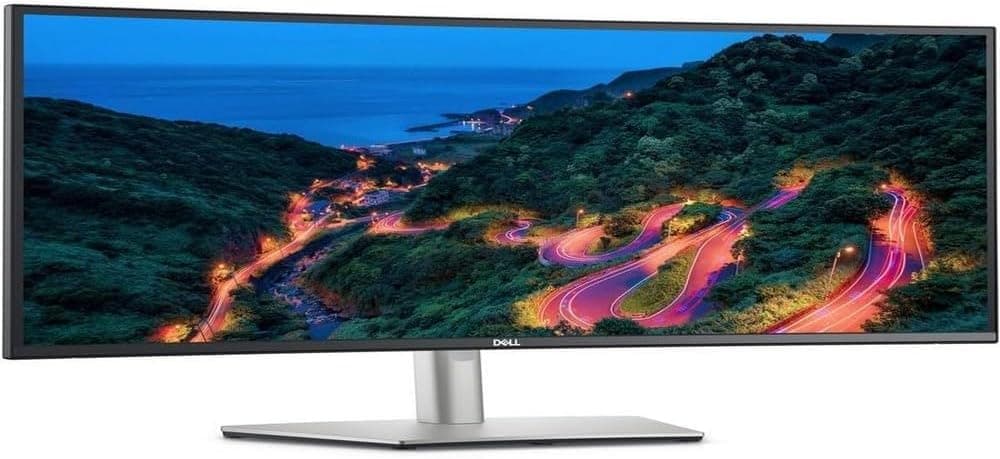
2. Dell U3423WE — Best Professional Ultrawide for MacBook Pro

Quick Specs
Feature | Detail |
Screen size | 34 inches |
Resolution | 3440x1440 (UWQHD) |
Panel type | IPS Black |
Refresh rate | 60Hz |
Color gamut | 98% DCI-P3, 100% sRGB |
Delta E | Below 2 (factory calibrated) |
USB-C charging | 90W Power Delivery |
Connectivity | Thunderbolt 4, USB-C, 2x HDMI, DisplayPort, RJ45, USB hub |
Curve | 1800R |
VESA | 100x100mm |
macOS compatibility | Full native resolution over Thunderbolt 4 |
The Dell U3423WE is the monitor we recommend for MacBook Pro users who do professional creative work or who need the most reliable, feature-rich connection experience available in a 34-inch ultrawide.
Thunderbolt 4 connectivity is the defining feature for MacBook Pro users. The full 40Gbps bandwidth of Thunderbolt 4 means this monitor can support daisy-chaining to an additional Thunderbolt display, connecting to Thunderbolt docking stations, and transferring data to and from Thunderbolt-connected external SSDs at full speed. For video editors, photographers, and designers who work with large files on external drives, this bandwidth difference is meaningful in daily use.
The 90W USB-C Power Delivery charges the 14-inch MacBook Pro at full speed and provides adequate charging for the 16-inch model during normal workloads. For 16-inch MacBook Pro users doing intensive tasks like video rendering or extended Xcode builds, battery level may slowly decrease during sustained peak load.
Factory calibration to Delta E below 2 with 98% DCI-P3 coverage means the color accuracy of this monitor is verified individually for every unit. For professional photographers, video editors, and designers who need to trust that what they see on screen matches their deliverables, this is the most important specification on the list.
The IPS Black panel's 2000:1 contrast ratio is noticeably better than standard IPS alternatives when evaluating dark scenes, shadow detail in photos, and dark UI elements in design work.
The built-in RJ45 ethernet port is a practical addition that eliminates the need for a USB-C to ethernet adapter, keeping the desk clean and providing a stable wired connection for large file transfers and video conferencing.
Dell's macOS compatibility has historically been very reliable. Display detection is immediate, resolution options are correct, and wake from sleep behavior is consistently smooth across MacBook Pro generations.
Pros
Thunderbolt 4 for high-speed external storage and daisy-chaining
Factory calibrated to Delta E below 2 for professional color work
IPS Black panel with 2000:1 contrast ratio
Reliable macOS compatibility and wake from sleep behavior
Built-in ethernet eliminates adapter clutter
90W USB-C charging for single-cable operation
Cons
Most expensive 34-inch option on this list
90W charging may not fully sustain 16-inch MacBook Pro under maximum load
60Hz only
Who should buy this: Professional MacBook Pro users in creative fields who need verified color accuracy, Thunderbolt 4 connectivity, and the most comprehensive feature set in a 34-inch ultrawide.
3. LG 38WN95C-W — Best Premium Ultrawide for MacBook Pro

Quick Specs
Feature | Detail |
Screen size | 38 inches |
Resolution | 3840x1600 (UWQHD+) |
Panel type | Nano IPS |
Refresh rate | 144Hz |
Color gamut | 98% DCI-P3 |
Delta E | Below 2 |
USB-C charging | 96W Power Delivery |
Connectivity | Thunderbolt 3, USB-C, 2x HDMI, DisplayPort, USB hub |
Curve | 2300R |
VESA | 100x100mm |
macOS compatibility | Full native resolution over Thunderbolt 3 |
The LG 38WN95C-W is the premium choice for MacBook Pro users who want the largest, most capable ultrawide available. The 38-inch panel at 3840x1600 gives you more screen space than any 34-inch alternative and the higher vertical resolution of 1600 pixels means more room for application toolbars, palettes, and panels in creative software.
Thunderbolt 3 connectivity delivers 40Gbps bandwidth, which handles external Thunderbolt storage devices at full speed and supports daisy-chaining. The 96W USB-C Power Delivery covers the 14-inch MacBook Pro completely and handles the 16-inch model adequately during normal workloads.
The 144Hz refresh rate is a practical advantage for MacBook Pro users who notice the difference in system animations, window dragging, and scrolling smoothness. macOS's fluid animations look noticeably more refined at 144Hz compared to 60Hz on a large external display.
The Nano IPS panel's 98% DCI-P3 coverage ensures colors remain consistent when moving content between the MacBook Pro's built-in display and this external monitor.
For MacBook Pro users whose work demands the largest possible display with professional color accuracy and fast refresh rate, this is the best ultrawide available.
Pros
Largest panel with highest resolution on this list
Thunderbolt 3 for high-speed external storage
144Hz makes macOS animations and scrolling noticeably smoother
96W USB-C for single-cable MacBook Pro connectivity
Nano IPS with 98% DCI-P3
Cons
Significantly more expensive than 34-inch alternatives
Requires a deep desk to accommodate 38-inch footprint
Large size can feel overwhelming on compact home office desks
Who should buy this: MacBook Pro power users who want the largest, fastest, most capable ultrawide and are willing to pay for it.
4. LG 34WK95U-W — Best Ultrawide for Retina-Quality Text on MacBook Pro
Quick Specs
Feature | Detail |
Screen size | 34 inches |
Resolution | 5120x2160 (5K2K) |
Panel type | IPS |
Refresh rate | 60Hz |
Color gamut | 99% sRGB, 98% DCI-P3 |
Delta E | Below 2 |
USB-C charging | 94W Power Delivery |
Connectivity | Thunderbolt 3, USB-C, 2x HDMI, DisplayPort |
Curve | Flat |
VESA | 100x100mm |
macOS compatibility | Full native resolution over Thunderbolt 3, HiDPI scaling |
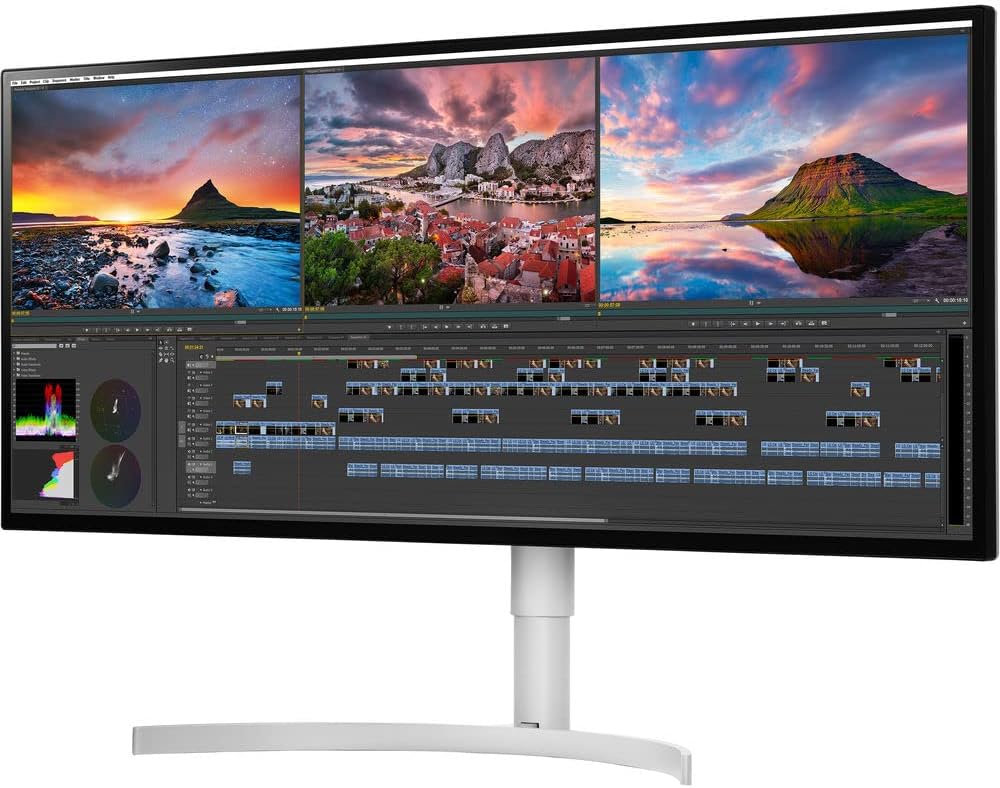
The LG 34WK95U-W solves the text sharpness problem that affects every other ultrawide monitor on this list when connected to a MacBook Pro. At 5120x2160 resolution on a 34-inch panel, the pixel density reaches 163 pixels per inch. This is high enough for macOS to apply clean 2x HiDPI scaling, producing text that looks genuinely Retina-quality on an external display.
For MacBook Pro users who find the text on external ultrawides noticeably softer than the built-in Retina display, this monitor eliminates that compromise entirely. Everything looks as sharp on the external screen as it does on the MacBook itself.
The practical benefit extends beyond aesthetics. Reading long documents, reviewing code, evaluating fine detail in photos and video, and working in design tools with dense interface elements all benefit from the higher pixel density in ways that are immediately noticeable in daily use.
Thunderbolt 3 is required to drive 5K2K resolution from a MacBook Pro. The 94W Power Delivery handles the 14-inch MacBook Pro at full charging speed. The flat panel suits the professional and productivity use case this monitor is designed for.
The main consideration is GPU load. Driving 5K2K resolution requires more processing power from the MacBook Pro's integrated GPU. In practice, M1 Pro, M2 Pro, M3 Pro, and M4 Pro chips handle this resolution without issue. The base M-series chips without the Pro GPU configuration may show reduced performance in GPU-intensive applications at this resolution.
Pros
5K2K resolution delivers genuine Retina-quality text on an external display
Clean 2x HiDPI scaling in macOS without third-party tools
98% DCI-P3 coverage consistent with MacBook Pro color space
Thunderbolt 3 for reliable high-bandwidth connection
Flat panel suits professional and creative workflows
Cons
Most expensive monitor on this list
Requires Thunderbolt 3 and sufficient GPU headroom
60Hz only
Heavier power consumption than lower-resolution alternatives
Who should buy this: MacBook Pro users who want external display text to look as sharp as the built-in Retina display, particularly those doing intensive reading, writing, or detail-oriented creative work.
5. BenQ PD3420Q — Best Ultrawide for Mac Creative Professionals

Quick Specs
Feature | Detail |
Screen size | 34 inches |
Resolution | 3440x1440 (UWQHD) |
Panel type | IPS |
Refresh rate | 60Hz |
Color gamut | 95% DCI-P3, 100% sRGB, 100% Rec. 709 |
Delta E | Below 2 (factory calibrated) |
USB-C charging | 90W Power Delivery |
Connectivity | Thunderbolt 3, USB-C, 2x HDMI, DisplayPort, KVM, USB hub |
Curve | Flat |
VESA | 100x100mm |
macOS compatibility | Full native resolution over Thunderbolt 3 |
The BenQ PD3420Q appears on our best ultrawide monitor for video editing list and earns a place here for MacBook Pro users who work in creative fields. The combination of Thunderbolt 3, factory-calibrated color accuracy, and a flat panel designed specifically for professional creative work makes it a strong match for MacBook Pro workflows in design, photography, and video.
The 100% Rec. 709 coverage is particularly relevant for Mac video editors working in Final Cut Pro. Rec. 709 is the standard delivery color space for most video content and having a monitor that covers it fully means color grading decisions are based on accurate reference.
BenQ's macOS compatibility is excellent. Color profile installation is straightforward, Thunderbolt detection is reliable, and wake from sleep behavior is consistent across MacBook Pro generations. BenQ provides macOS-specific setup documentation that makes initial configuration easier than most competing brands.
The built-in KVM switch lets MacBook Pro users share this monitor with a second computer, which is useful for professionals who use a personal Mac alongside a work machine or a dedicated rendering machine.
Pros
Thunderbolt 3 with reliable macOS compatibility
Factory calibrated for professional color accuracy
100% Rec. 709 for video editing in Final Cut Pro
Flat panel preferred by professional colorists
KVM switch for multi-Mac setups
BenQ's macOS documentation makes setup straightforward
Cons
95% DCI-P3 trails some competitors at similar prices
60Hz only
Less vibrant than Nano IPS panels for general consumer use
Who should buy this: Mac creative professionals using Final Cut Pro, Logic Pro, or design tools who need verified color accuracy and Thunderbolt connectivity.
6. LG 29WL500-B — Best Budget Ultrawide for MacBook Pro

Quick Specs
Feature | Detail |
Screen size | 29 inches |
Resolution | 2560x1080 (UWFHD) |
Panel type | IPS |
Refresh rate | 75Hz |
Color gamut | 99% sRGB |
USB-C charging | No |
Connectivity | 2x HDMI |
Curve | Flat |
VESA | 75x75mm |
macOS compatibility | Full native resolution over HDMI |
The LG 29WL500-B from our best budget ultrawide monitor guide is the most affordable way to add an ultrawide display to a MacBook Pro setup. It does not have USB-C connectivity, which means you need a USB-C to HDMI adapter or a USB-C hub to connect it to a MacBook Pro. It will not charge your laptop and does not function as a USB hub.
Despite these limitations, it delivers a reliable IPS panel at 2560x1080 with 99% sRGB coverage and 75Hz refresh rate. macOS recognizes it correctly over HDMI and the full native resolution is available in display settings.
For students, part-time home office users, or anyone who wants to add screen space to a MacBook Pro setup without significant investment, this monitor does the job within its constraints.
Pros
Most affordable ultrawide compatible with MacBook Pro
Reliable IPS panel with 99% sRGB
macOS compatible over HDMI
75Hz for smooth everyday use
Cons
No USB-C, requires adapter to connect to MacBook Pro
No laptop charging
No USB hub functionality
2560x1080 resolution is less sharp than UWQHD
Who should buy this: Budget-conscious MacBook Pro users who want a wider workspace without spending on premium connectivity features.
Full Comparison Table
Monitor | Size | Resolution | Panel | Thunderbolt | USB-C Charging | Best For |
34" | 3440x1440 | Nano IPS | No | 96W | Best overall Mac | |
34" | 3440x1440 | IPS Black | TB4 | 90W | Professional use | |
38" | 3840x1600 | Nano IPS | TB3 | 96W | Premium Mac | |
34" | 5120x2160 | IPS | TB3 | 94W | Retina text | |
34" | 3440x1440 | IPS | TB3 | 90W | Mac creatives | |
29" | 2560x1080 | IPS | No | No | Budget Mac |
Which MacBook Pro Do You Have? Compatibility Guide
MacBook Pro M1 Pro / M1 Max (2021) Supports one external display over Thunderbolt. All monitors on this list work correctly. Thunderbolt 3 and Thunderbolt 4 monitors are both compatible.
MacBook Pro M2 Pro / M2 Max (2023) Supports up to two external displays over Thunderbolt on the M2 Pro model and up to four on M2 Max. All monitors on this list work correctly. The M2 Max chip provides GPU headroom for the 5K2K LG model without performance impact.
MacBook Pro M3 Pro / M3 Max (2023) Supports up to two external displays on M3 Pro and up to four on M3 Max. Full compatibility with all monitors on this list. The M3 Pro base model temporarily dropped support for multiple external displays, which was a notable limitation, but this was addressed with subsequent macOS updates.
MacBook Pro M4 Pro / M4 Max (2024) Supports up to two external displays on M4 Pro and up to five on M4 Max. Full compatibility with all monitors on this list. The M4 generation handles 5K2K resolution on the LG 34WK95U-W with strong performance even on the M4 Pro configuration.
macOS Tips for Getting the Best Experience From an Ultrawide Monitor
Getting the most from an ultrawide monitor connected to a MacBook Pro involves a few setup steps that make a noticeable difference.
After connecting your monitor, open System Settings, go to Displays, and select your external monitor. Check the available scaled resolution options. For most 3440x1440 monitors, choosing a scaled resolution that shows as "looks like 1720x720" or similar gives you the best balance of sharpness and screen real estate.
For users who find the default macOS scaling options insufficient, BetterDisplay is the most capable third-party tool for unlocking additional HiDPI modes. It is worth the small cost for anyone who uses an ultrawide with a MacBook Pro daily and wants the sharpest possible text.
Mission Control and Stage Manager both work well with ultrawide displays. Stage Manager in particular benefits from the extra horizontal space because application windows can sit side by side without overlapping. Enabling Stage Manager in System Settings provides a workflow that many MacBook Pro users find more productive than the default window management on a wide display.
Sidecar, which lets you use an iPad as a secondary display alongside your MacBook Pro and external monitor, works normally when an ultrawide is connected. This gives you a three-display setup with the MacBook built-in display, the ultrawide, and an iPad, which suits certain workflows very well.
How This List Compares to Our Other Ultrawide Guides
Several monitors on this list appear across multiple guides because they genuinely excel at more than one use case. The LG 34WP85C-B is our top overall pick on the best ultrawide monitor for home office list. The Dell U3423WE and BenQ PD3420Q appear on the best ultrawide monitor for video editing list. The LG 38WN95C-W appears as a premium pick across multiple categories.
If budget is a primary concern, our best budget ultrawide monitor guide covers affordable options in more depth. For a full breakdown of every specification to consider before buying, the how to choose the best ultrawide monitor guide covers everything relevant to MacBook Pro users and beyond.
Our top pick for most MacBook Pro users is the LG 34WP85C-B. For professional creative work, the Dell U3423WE is the stronger choice. Check the latest pricing on Amazon below.
Check price on Amazon — LG 34WP85C-B
Check price on Amazon — Dell U3423WE
Check price on Amazon — LG 34WK95U-W
Disclosure: This post contains Amazon affiliate links. If you buy through our links, we may earn a small commission at no extra cost to you.

Written by
Jordan Lee
I'm Jordan Lee, a tech reviewer and peripheral enthusiast with 7+ years of hands-on experience evaluating monitors, mechanical keyboards, wireless mice, and audio equipment. With a degree in Computer Engineering, I bring a technical yet practical perspective to every review I write. I don't just benchmark — I actually use these products daily and put them through real work scenarios. When I recommend a monitor, I've checked its color accuracy, refresh rate, and eye strain levels myself. When I suggest a keyboard, I've typed thousands of words on it. My goal is simple: help you find the right gear so you can work smarter, not just spend more.
Written by
Jordan Lee
I'm Jordan Lee, a tech reviewer and peripheral enthusiast with 7+ years of hands-on experience evaluating monitors, mechanical keyboards, wireless mice, and audio equipment. With a degree in Computer Engineering, I bring a technical yet practical perspective to every review I write. I don't just benchmark — I actually use these products daily and put them through real work scenarios. When I recommend a monitor, I've checked its color accuracy, refresh rate, and eye strain levels myself. When I suggest a keyboard, I've typed thousands of words on it. My goal is simple: help you find the right gear so you can work smarter, not just spend more.