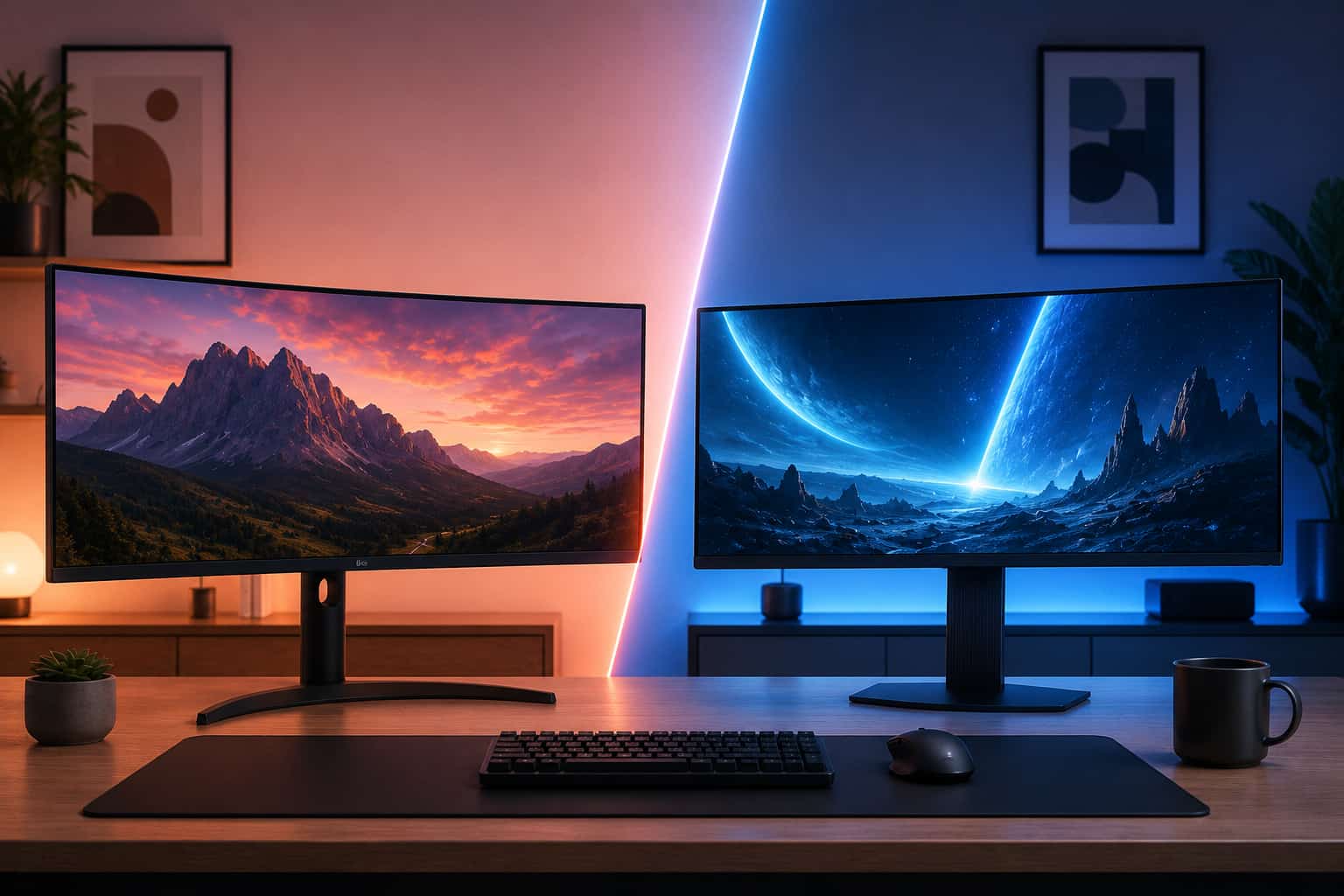
Best Ultrawide Monitor for Programmers and Coders in 2026
We tested and ranked the best ultrawide monitors for programmers and coders in 2026. This guide covers text sharpness, dark mode performance, multi-window coding layouts, eye care technology, and the best picks for MacBook Pro developers at every budget level.

Our Top Picks
Programmers spend more time staring at a monitor than almost any other profession. Eight to twelve hours a day reading code, switching between a text editor, terminal, browser, and documentation simultaneously, and evaluating output across multiple windows is a workflow that demands a display that handles all of it comfortably.
The ultrawide format suits developer workflows particularly well. Having a code editor, terminal, and browser preview open side by side without any of them feeling cramped is a daily experience improvement that most developers who try it describe as immediately obvious. The question is which ultrawide monitor handles the specific demands of programming work best.
We evaluated ultrawide monitors specifically against developer workflows, testing across VS Code, JetBrains IDEs, Neovim, multiple terminal configurations, browser developer tools, and documentation-heavy research sessions. We prioritized text sharpness, color accuracy for extended reading, connectivity for laptop-centric developer setups, and eye care technology for long coding sessions.
Quick Picks: Best Ultrawide Monitors for Programmers
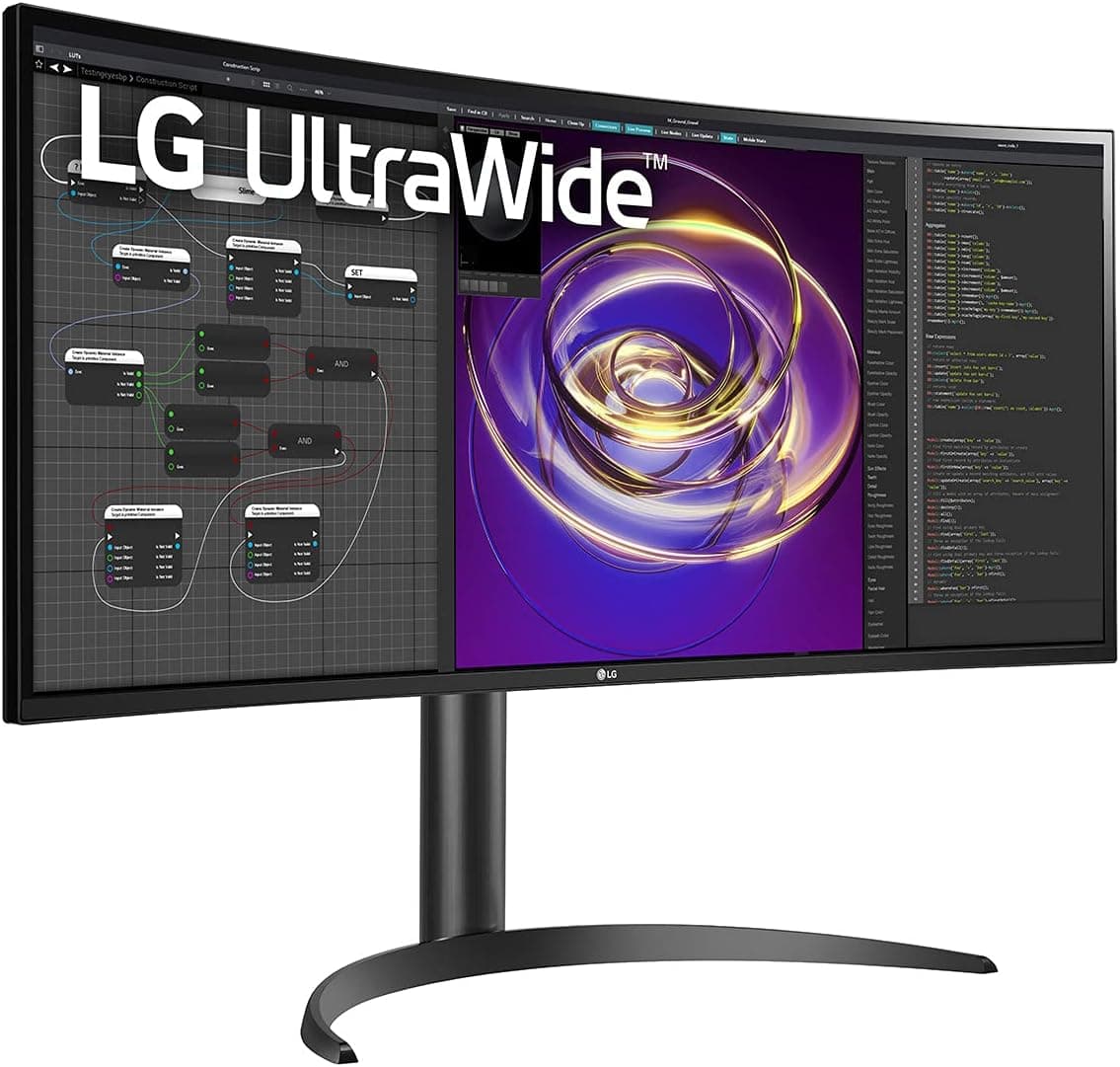
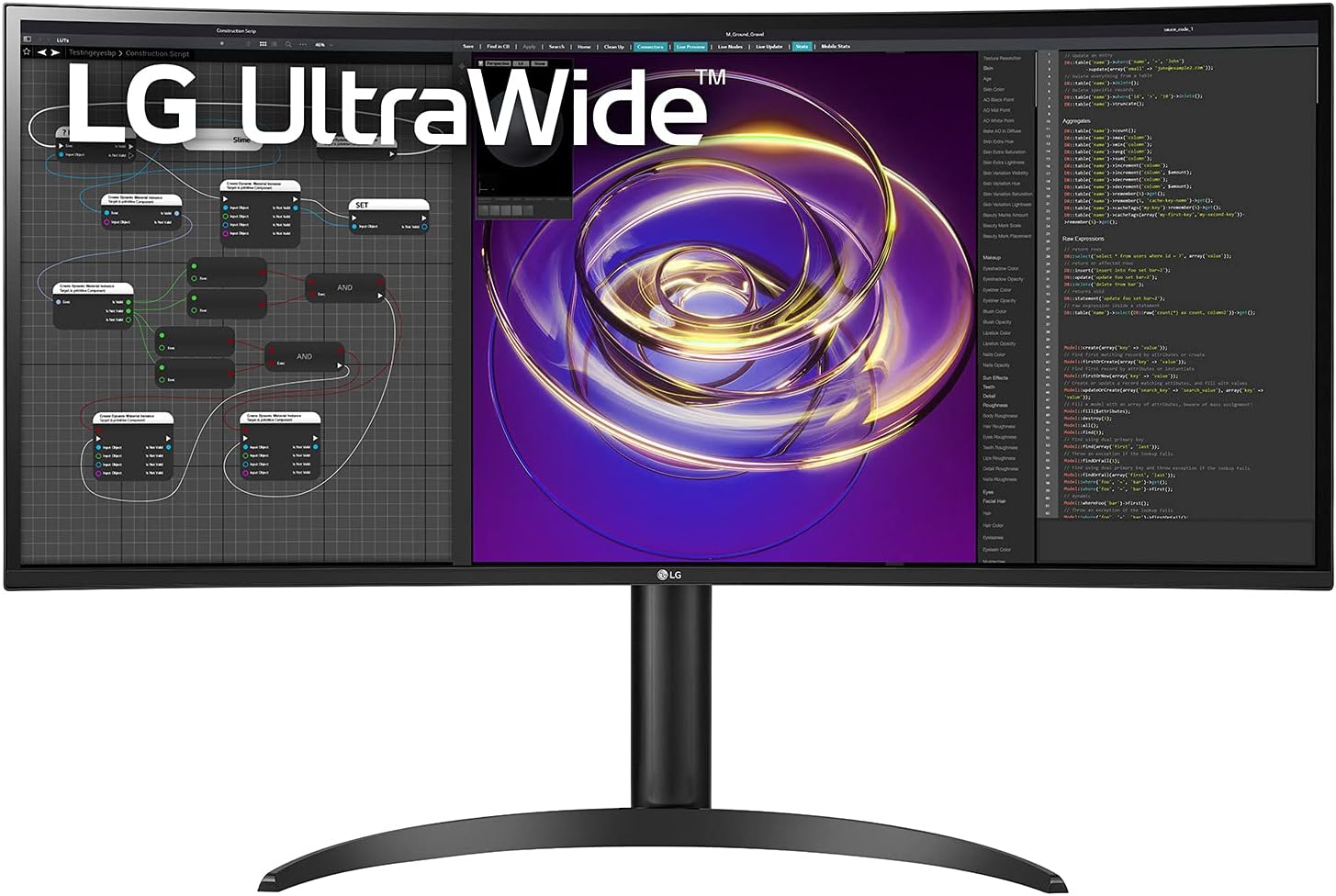
Best Overall: LG 34WP85C-B =======>> Check price on Amazon
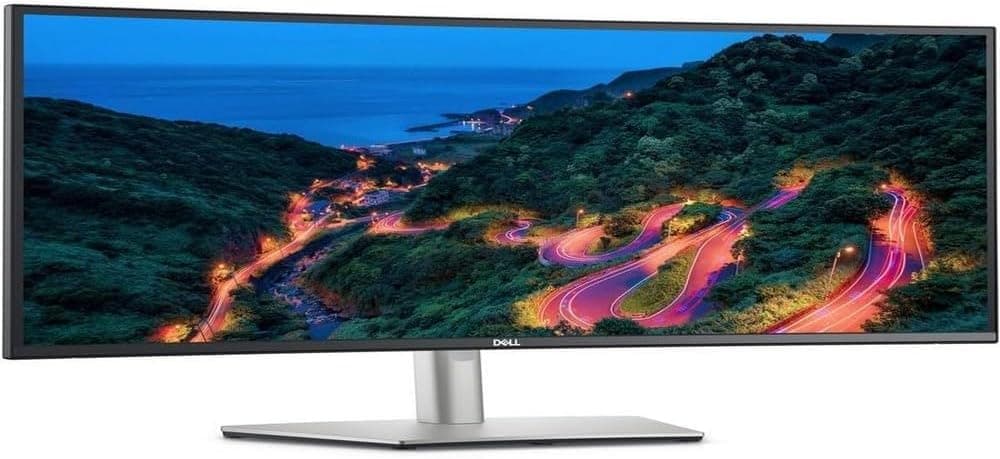
Best for Text Sharpness: Dell U3423WE =======>> Check price on Amazon
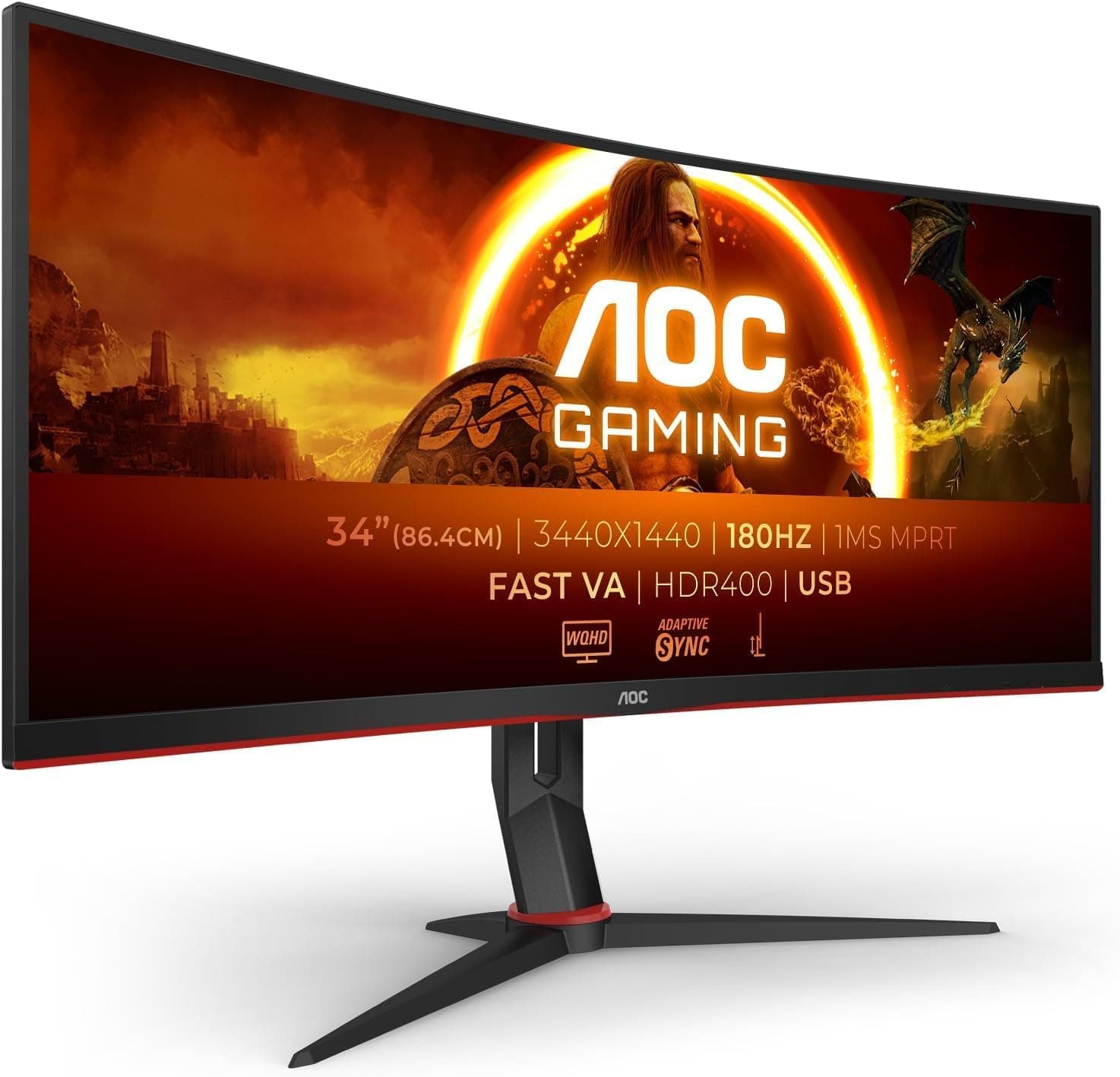
Best Budget Pick: AOC CU34G2XP =======>> Check price on Amazon
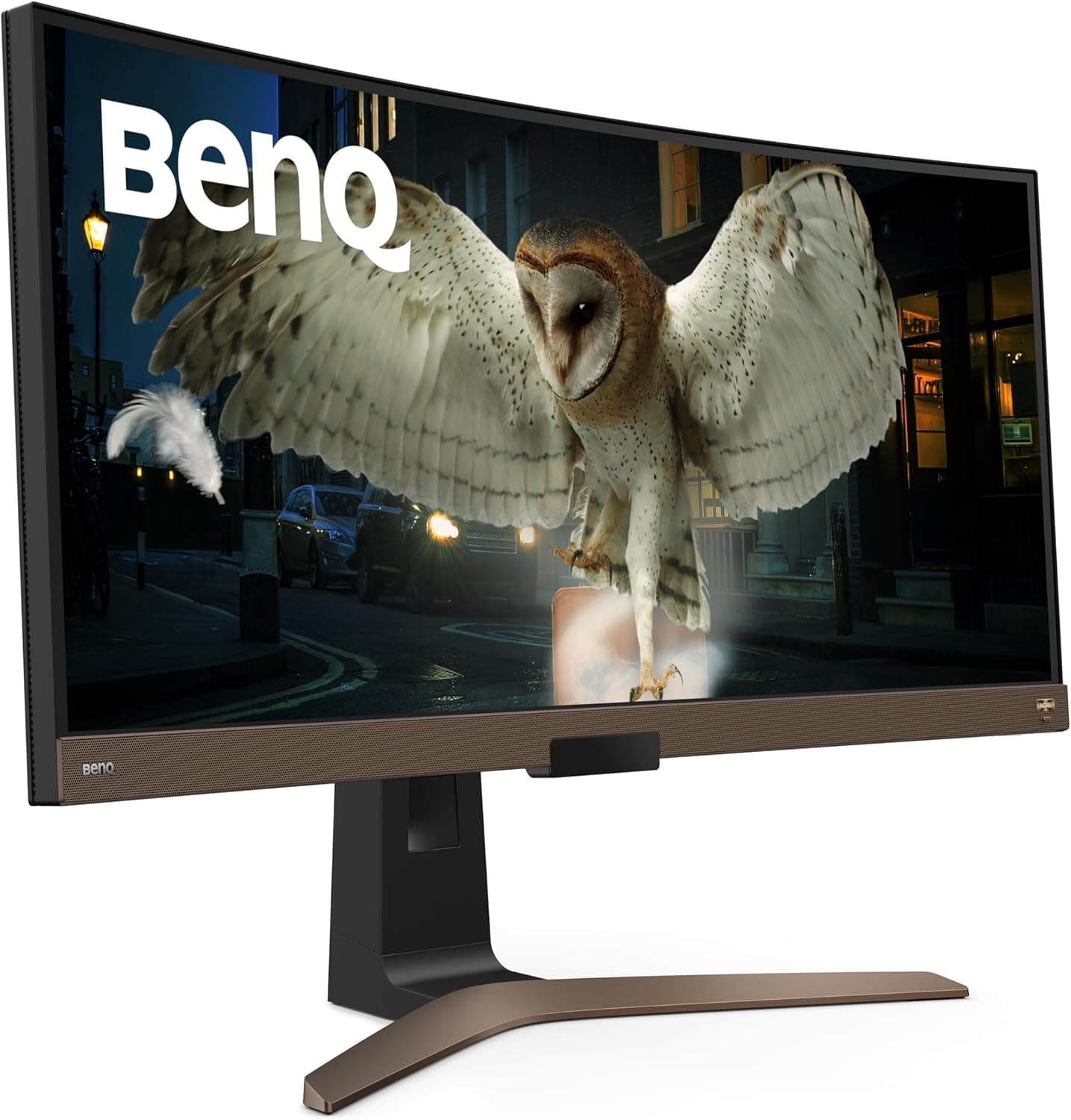
Best for Eye Care: BenQ EW3880R =======>> Check price on Amazon
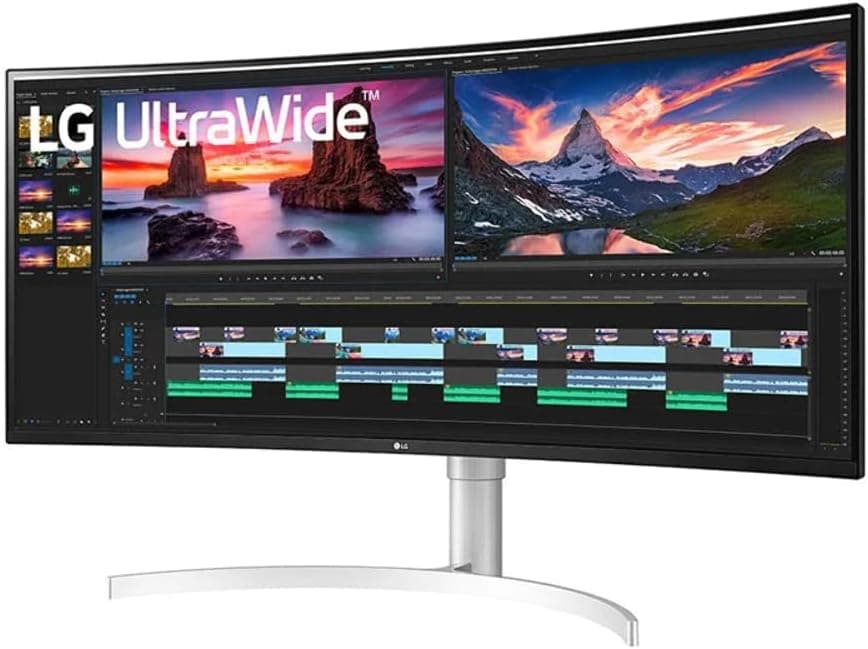
Best Premium Option: LG 38WN95C-W =======>> Check price on Amazon
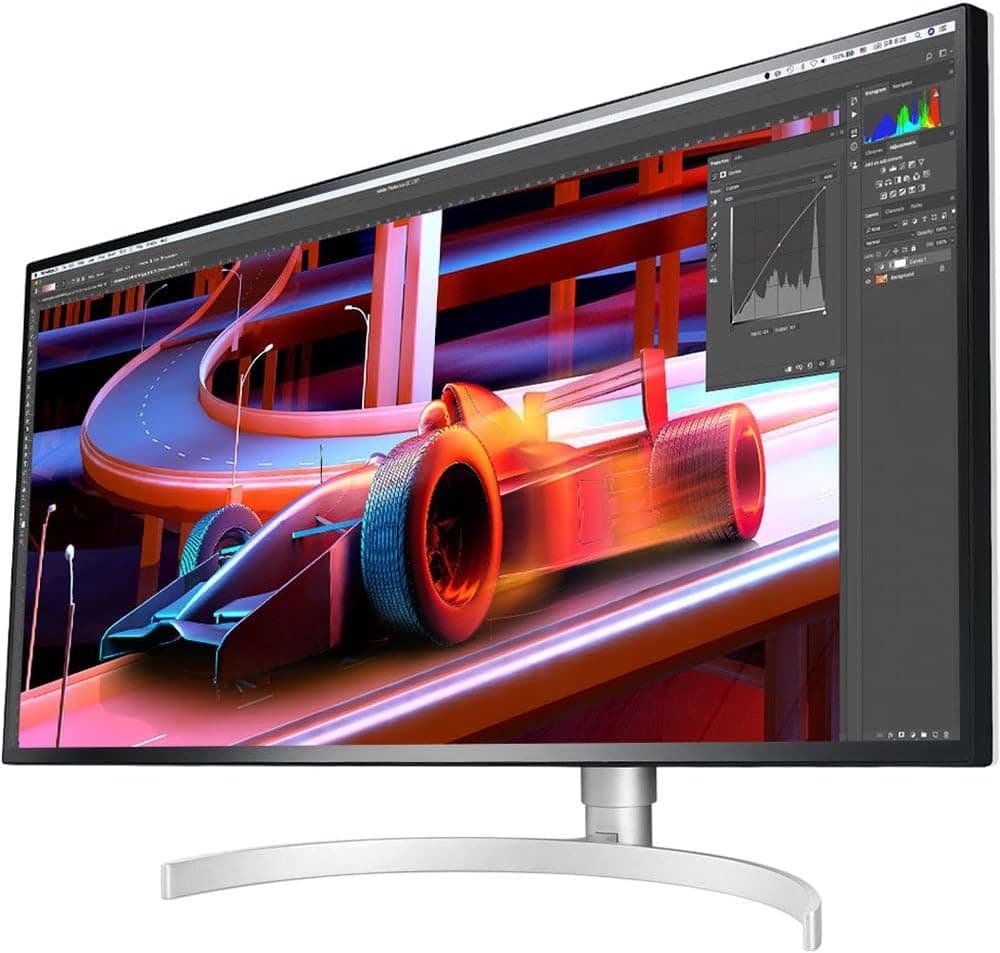
Best Mac Developer Pick: LG 34WK95U-W =======>> Check price on Amazon
How We Tested These Monitors for Programming Use
Testing monitors for programming requires a different evaluation framework than testing for gaming or creative work.
Text rendering quality was assessed by displaying code in VS Code, JetBrains IntelliJ IDEA, and terminal emulators at typical font sizes ranging from 12px to 16px. We evaluated how readable individual characters were at each font size, how well the monitor rendered thin font weights used in modern code editors, and how comfortable extended reading sessions felt after two and four hours of continuous use.
We tested multi-window coding layouts extensively. The primary layout we used placed a code editor taking up 50% of the screen width on the left, a terminal on the lower right, and a browser window on the upper right. We varied this layout across different development workflows including frontend development with live preview, backend development with API testing, and data science work with Jupyter notebooks.
Eye fatigue was assessed subjectively during full-day coding sessions, with specific attention to the difference between monitors with hardware-level eye care technology and those without. We noted headache frequency, end-of-day visual discomfort, and the impact of dark mode coding environments on monitors with different contrast ratios.
Connectivity was tested by connecting developer-typical setups including MacBooks with USB-C hubs, Windows laptops with Thunderbolt docks, and desktop machines with multiple USB peripherals.
Why Ultrawide Monitors Work Exceptionally Well for Programming
Before getting into specific product recommendations, it helps to understand why the ultrawide format suits developer workflows in ways that standard monitors do not.
Side-by-Side Coding Layouts Without Compromise
The most common frustration developers face with standard 27-inch monitors is that running a code editor and a terminal side by side forces both windows to be uncomfortably narrow. On a standard 16:9 monitor, half-screen width for a code editor gives you around 960 pixels of horizontal space, which causes unwanted line wrapping in most codebases with typical line lengths.
On a 34-inch ultrawide at 3440x1440, half-screen width gives you around 1720 pixels, which is more than enough for a code editor displaying 120-character lines without wrapping. The remaining screen space handles a terminal and browser window simultaneously without any of the three windows feeling cramped.
This is not a marginal improvement. Developers who switch to ultrawide consistently describe the side-by-side layout quality as one of the most impactful productivity changes they have made to their workspace.
Three-Panel Layouts Become Genuinely Practical
Standard monitors technically support three-panel layouts but the individual panels end up too narrow to be genuinely useful. On a 34-inch ultrawide, a three-panel layout with a code editor at 50% width, a terminal at 25%, and a documentation browser at 25% gives each panel enough space to work comfortably.
For frontend developers who want a live preview alongside their editor and terminal, this layout is the standard recommendation. For data scientists who want a notebook alongside a data viewer and terminal, the same principle applies. The ultrawide format makes three-panel layouts practical rather than cramped.
Reference Documentation Without Alt-Tab
Keeping API documentation, language references, or architecture diagrams permanently visible in a side panel while coding in the main editor eliminates a constant source of context switching. Every time a developer alt-tabs to check documentation and alt-tabs back, there is a small but real interruption to focus. On an ultrawide, the documentation lives on screen alongside the editor and is glanceable rather than requiring a mode switch.
This benefit compounds over a full day of development work. Reducing context switching interruptions hundreds of times per day adds up to meaningful sustained focus improvements.
What Programmers Should Look for in an Ultrawide Monitor
Text Sharpness: The Most Critical Factor
For programming work, text sharpness matters more than color accuracy, contrast ratio, or refresh rate. A developer reads tens of thousands of characters of code every day. A monitor that renders text with crisp, clear edges at standard coding font sizes makes extended reading comfortable. A monitor with soft text rendering at typical coding font sizes becomes a source of fatigue over time.
The most important factor determining text sharpness is pixel density, which is determined by the combination of resolution and screen size. At 34 inches, UWQHD resolution at 3440x1440 produces approximately 110 pixels per inch. This is adequate for comfortable text rendering at standard font sizes and is the minimum specification worth considering for serious programming use.
At 38 inches with 3840x1600 resolution, the pixel density is similar at around 109 pixels per inch. At this size the extra vertical resolution benefits complex IDE layouts.
The LG 34WK95U-W at 5120x2160 resolution on 34 inches produces 163 pixels per inch, which is the threshold for genuinely Retina-quality text on an external display. For Mac developers who find external monitors noticeably softer than their MacBook Pro display, this monitor resolves the issue completely.
Color Accuracy for Dark Mode and Syntax Highlighting
Modern code editors use sophisticated syntax highlighting with many distinct colors representing different code elements. Keywords, strings, comments, variables, functions, and operators each appear in different colors in most popular color schemes.
A monitor with accurate color reproduction renders these distinctions clearly and consistently, making it easier to parse code structure visually at a glance. A monitor with poor color accuracy or inconsistent color rendering across the panel makes the visual distinction between syntax highlighting colors less reliable.
For programming use, a monitor that covers at least 99% of sRGB with Delta E below 3 handles syntax highlighting accurately. Monitors with DCI-P3 coverage provide even richer color rendering for color schemes that use more saturated tones.
Dark Mode Performance
The vast majority of professional developers use dark mode in their editors and terminals. On a standard IPS panel, dark mode backgrounds appear as dark gray rather than true black due to the limited contrast ratio. On a VA panel with 3000:1 contrast, dark mode backgrounds appear genuinely dark, which many developers find easier on the eyes during long sessions.
This is one area where VA panels have a practical advantage over IPS for programming use. The richer blacks in dark mode make code on a dark background look more defined and reduce the overall brightness of the screen during long coding sessions.
That said, the color accuracy advantage of IPS for syntax highlighting is also real. The best compromise for developers who prioritize dark mode is an IPS Black panel like the one in the Dell U3423WE, which achieves 2000:1 contrast while maintaining IPS color accuracy.
Eye Care for Long Coding Sessions
Developers are among the heaviest monitor users of any profession. Twelve-hour coding sessions are not unusual during intensive development periods, and the cumulative eye strain from years of intensive screen use is a genuine occupational health concern.
Monitors with flicker-free backlights eliminate the low-level flicker that contributes to eye fatigue during long sessions. Hardware-level low blue light filters reduce blue light emission without distorting the color rendering of syntax highlighting. These features matter more for developers than for almost any other monitor use case given the duration of typical daily use.
Connectivity for Developer Setups
Developer setups vary widely but several connectivity patterns are particularly common.
MacBook Pro users connecting to an external display for development work benefit from USB-C or Thunderbolt connectivity with sufficient Power Delivery to charge the laptop while working. Single-cable connectivity is particularly valued by developers who move between home and office or work from multiple locations.
Desktop developers with dedicated GPUs and multiple USB peripherals including keyboards, mice, USB hubs, external drives, and debugging hardware benefit from monitors with built-in USB hubs that reduce cable complexity.
Developers who use a work laptop alongside a personal machine benefit from monitors with built-in KVM switches that allow both computers to share the monitor and peripherals.
Screen Real Estate for IDE Layouts
Different development environments have different real estate needs. VS Code with its sidebar, editor, and panel layout benefits from a monitor tall enough to show the full editor panel without excessive scrolling. JetBrains IDEs with their more complex layout including project tree, editor, tool windows, and debugger panels benefit from both horizontal and vertical real estate.
For most IDE layouts, 34-inch UWQHD at 3440x1440 provides adequate horizontal space for side-by-side workflows. The vertical resolution of 1440 pixels is sufficient but not generous for complex IDE layouts with multiple panels. The 38-inch format at 3840x1600 provides noticeably more vertical room that complex IDE configurations use well.
The Best Ultrawide Monitors for Programmers
1. LG 34WP85C-B — Best Overall Ultrawide for Programmers
Quick Specs
Feature | Detail |
Screen size | 34 inches |
Resolution | 3440x1440 (UWQHD) |
Panel type | Nano IPS |
Refresh rate | 60Hz |
Color gamut | 98% DCI-P3 |
Delta E | Below 2 |
USB-C charging | 96W Power Delivery |
Connectivity | USB-C, 2x HDMI, DisplayPort, KVM, 2x USB-A, USB-B |
Curve | 1000R |
VESA | 100x100mm |
The LG 34WP85C-B earns the top spot for programmers for the same reasons it leads our best ultrawide monitor for home office guide. The combination of Nano IPS panel quality, 96W USB-C Power Delivery, and built-in KVM switch addresses the three most common practical needs of developers working from home.
The Nano IPS panel renders syntax highlighting with exceptional color richness. Popular dark-theme coding color schemes like Dracula, One Dark Pro, and Tokyo Night use saturated color palettes that benefit from the wider DCI-P3 gamut of Nano IPS technology. Colors appear vivid and distinct rather than compressed, making visual parsing of code structure easier during long reading sessions.
Text rendering at UWQHD on a 34-inch Nano IPS panel is sharp and comfortable at typical coding font sizes. Characters at 13px to 15px in VS Code or JetBrains IDEs are clearly legible with well-defined edges that hold up comfortably during extended reading sessions.
The 96W USB-C Power Delivery is the highest available in a non-Thunderbolt ultrawide monitor, covering any MacBook Pro completely for single-cable developer workflow. The built-in KVM switch handles the common developer scenario of a work laptop and a personal machine sharing the same monitor and peripherals seamlessly.
The 1000R curve is more aggressive than some developers prefer for document-heavy work. Users who spend significant time reading long text documents or working in full-screen text editors occasionally find the 1000R curve slightly distracting at the edges. For code editor layouts that occupy the center portion of the screen most of the time, the curve is less noticeable than it would be during full-screen document reading.
Pros
Nano IPS panel renders syntax highlighting with exceptional color richness
Sharp text rendering at UWQHD for comfortable extended coding sessions
96W USB-C for single-cable MacBook Pro developer workflow
Built-in KVM switch for work and personal machine sharing
Flicker-free backlight reduces eye fatigue during long sessions
Excellent ergonomic stand with full adjustment range
Cons
1000R curve may feel aggressive for full-screen document reading
No Thunderbolt connectivity for high-speed external storage
60Hz only, not ideal for developers who also game seriously
Who should buy this: Most developers working from home, especially MacBook Pro users and anyone with two computers on their desk.
2. Dell U3423WE — Best Ultrawide for Text Sharpness and Professional Development

Quick Specs
Feature | Detail |
Screen size | 34 inches |
Resolution | 3440x1440 (UWQHD) |
Panel type | IPS Black |
Refresh rate | 60Hz |
Color gamut | 98% DCI-P3, 100% sRGB |
Delta E | Below 2 (factory calibrated) |
USB-C charging | 90W Power Delivery |
Connectivity | Thunderbolt 4, USB-C, 2x HDMI, DisplayPort, RJ45, USB hub |
Curve | 1800R |
VESA | 100x100mm |
The Dell U3423WE is the monitor we recommend most confidently to developers who want the best combination of text rendering quality and practical connectivity features available in a 34-inch ultrawide.
The IPS Black panel's 2000:1 contrast ratio is the most practically relevant specification for developers who use dark mode environments. Dark mode backgrounds in VS Code, Neovim, and terminal emulators appear genuinely dark on this panel rather than the washed-out dark gray visible on standard IPS alternatives. This improvement in dark mode rendering makes code on dark backgrounds look more defined, reduces overall screen brightness during evening coding sessions, and contributes to reduced eye fatigue during long work days.
Factory calibration to Delta E below 2 ensures color accuracy that renders syntax highlighting reliably. The distinction between different syntax elements is clear and consistent across the full panel, which matters for visual code parsing in complex codebases with many syntax highlighting categories.
Thunderbolt 4 is the defining connectivity feature for professional developers. Being able to connect a Thunderbolt external SSD at full 40Gbps bandwidth is meaningful for developers who work with large repositories, Docker images, virtual machines, or media files that benefit from fast external storage access. The daisy-chaining capability means this monitor can serve as the hub for a comprehensive Thunderbolt dock setup.
The 1800R curve is subtler than the 1000R on the LG above and feels more natural during long reading sessions and full-screen text work. For developers who spend significant time reading documentation, code reviews, or technical articles at full screen, the gentler curve of the Dell is more comfortable than aggressive 1000R alternatives.
Pros
IPS Black panel delivers genuinely dark backgrounds for dark mode coding
Factory calibrated for reliable syntax highlighting color accuracy
Thunderbolt 4 for high-speed external storage and professional connectivity
1800R curve is comfortable for long reading and document sessions
Built-in ethernet for stable wired development environment
90W USB-C for single-cable laptop connectivity
Cons
Most expensive 34-inch option on this list
90W USB-C may not fully sustain 16-inch MacBook Pro under maximum compile load
60Hz only
Who should buy this: Professional developers who want the best dark mode experience, Thunderbolt connectivity for external storage, and factory-calibrated color accuracy in a 34-inch ultrawide.
3. BenQ EW3880R — Best Ultrawide for Eye Care During Long Coding Sessions

Quick Specs
Feature | Detail |
Screen size | 38 inches |
Resolution | 3840x1600 (UWQHD+) |
Panel type | IPS |
Refresh rate | 60Hz |
Color gamut | 99% sRGB, 95% DCI-P3 |
Delta E | Below 3 |
USB-C charging | 60W Power Delivery |
Connectivity | USB-C, 2x HDMI, DisplayPort, USB hub, remote control |
Curve | 2300R |
VESA | 100x100mm |
Developers who experience eye strain, headaches, or visual fatigue during long coding sessions will find the BenQ EW3880R addresses these issues more directly than any other monitor on this list. BenQ has built its professional monitor reputation around eye care technology and the EW3880R applies that focus to a 38-inch ultrawide panel.
The combination of hardware-level flicker-free backlighting, BenQ's Eye-Care technology, and an ambient light sensor that automatically adjusts screen brightness based on room conditions creates a noticeably gentler viewing experience during extended sessions. After a full day of coding on this monitor, the difference in eye fatigue compared to monitors without these features is real and subjectively noticeable.
The 38-inch panel at 3840x1600 resolution provides more screen space than any 34-inch alternative, which suits complex IDE layouts with multiple panels, tool windows, and debug views that benefit from additional vertical resolution. The larger canvas handles a three-panel coding layout with more comfortable window sizes than a 34-inch panel.
The ambient light sensor is a feature that developers in home office environments with changing light conditions throughout the day will appreciate. Morning work with bright window light, afternoon work, and evening coding sessions in dimmer conditions are all handled automatically without manual brightness adjustments.
The included remote control for monitor settings is genuinely useful for developers who adjust monitor settings regularly, such as switching between a bright daytime profile and a warmer evening profile for late coding sessions.
Pros
Best eye care technology on this list for long daily coding sessions
38-inch panel with higher resolution for complex IDE layouts
Ambient light sensor adjusts brightness automatically throughout the day
Flicker-free backlight eliminates a major source of coding session eye fatigue
Built-in 2.1 speaker system with subwoofer
Remote control for convenient monitor adjustments
Cons
60W USB-C charging is insufficient for many MacBook Pro models
Delta E below 3 is adequate but not professional-grade accuracy
No Thunderbolt connectivity
60Hz only
Who should buy this: Developers who experience eye strain or headaches during long coding sessions and want a monitor specifically designed to minimize these issues across a larger 38-inch panel.
4. LG 38WN95C-W — Best Premium Ultrawide for Serious Developers

Quick Specs
Feature | Detail |
Screen size | 38 inches |
Resolution | 3840x1600 (UWQHD+) |
Panel type | Nano IPS |
Refresh rate | 144Hz |
Color gamut | 98% DCI-P3 |
Delta E | Below 2 |
USB-C charging | 96W Power Delivery |
Connectivity | Thunderbolt 3, USB-C, 2x HDMI, DisplayPort, USB hub |
Curve | 2300R |
VESA | 100x100mm |
The LG 38WN95C-W is the best ultrawide monitor available for developers who want the most capable display without compromise. It combines the largest practical panel size with professional color accuracy, Thunderbolt 3 connectivity, and a 144Hz refresh rate that doubles as an excellent gaming display for developers who game after work.
The 38-inch panel at 3840x1600 resolution handles the most complex IDE layouts comfortably. Running VS Code with a full sidebar, split editor, integrated terminal, and extension panels simultaneously still leaves comfortable space for each component. JetBrains IDEs with their more demanding layout requirements benefit particularly from the additional vertical resolution and horizontal width.
Thunderbolt 3 at 96W USB-C Power Delivery makes this monitor the most capable single-cable docking solution on this list for MacBook Pro developers. Full display output, laptop charging at 96W, and peripheral connectivity all run over one Thunderbolt cable. External SSD access at Thunderbolt speeds keeps large repository operations and Docker image management fast.
The 144Hz refresh rate benefits developers more than the spec might suggest for a productivity-focused purchase. Terminal output during intensive build processes, smooth scrolling through large files in the editor, and the general responsiveness of the interface all feel more fluid at 144Hz than at 60Hz. For developers who also game, the higher refresh rate makes this a genuinely dual-purpose display.
Pros
Largest panel on this list with the most real estate for complex IDE layouts
Thunderbolt 3 with 96W USB-C for complete MacBook Pro single-cable workflow
144Hz makes IDE use and gaming both noticeably smoother
Nano IPS with 98% DCI-P3 for excellent syntax highlighting rendering
Subtle 2300R curve suits extended reading and document work
The best all-around developer monitor if budget allows
Cons
Most expensive option on this list outside the Mac-specific LG model
Large 38-inch footprint requires a deep desk
Premium price is hard to justify for developers on a budget
Who should buy this: Senior developers, engineering leads, and anyone who wants the absolute best ultrawide for daily development work and is willing to invest in it.
5. AOC CU34G2XP — Best Budget Ultrawide for Programmers

Quick Specs
Feature | Detail |
Screen size | 34 inches |
Resolution | 3440x1440 (UWQHD) |
Panel type | VA |
Refresh rate | 144Hz |
Response time | 1ms MPRT |
Adaptive sync | FreeSync Premium, G-Sync Compatible |
Connectivity | 2x HDMI 2.0, DisplayPort 1.4, 4x USB-A |
Curve | 1500R |
VESA | 100x100mm |
The AOC CU34G2XP is the best choice for developers who want UWQHD resolution at 34 inches without spending over $400. It consistently falls at or under $300 and delivers specifications that would have cost twice as much just a few years ago.
The VA panel is a practical advantage for developers who code in dark mode environments. The 3000:1 contrast ratio produces genuinely dark backgrounds in dark-theme editors and terminals, which looks significantly better than the dark gray appearance of standard IPS panels in the same conditions. For developers who spend most of their time in dark mode interfaces, the VA panel makes dark mode look as intended rather than as a compromise.
UWQHD resolution at 34 inches provides the same pixel density as mid-range and premium alternatives, delivering acceptable text sharpness for coding work. Characters at standard coding font sizes are clearly legible without the softness that 2560x1080 panels exhibit on 34-inch panels.
The 144Hz refresh rate at this price point is exceptional value for developers who also game. The combination of UWQHD resolution, 144Hz, and FreeSync Premium with G-Sync Compatible certification delivers a gaming experience that far exceeds what the price suggests.
The four USB-A ports on the back cover most peripheral connectivity needs without a separate hub, which is a practical advantage for developers with multiple USB devices on their desk.
Pros
UWQHD at 144Hz under $300 is exceptional value
VA panel delivers excellent dark mode rendering
Four USB-A ports cover most peripheral needs
144Hz suits both development use and gaming
FreeSync Premium with G-Sync Compatible for tear-free gaming
Cons
No USB-C connectivity
VA panel has lower color accuracy than IPS for syntax highlighting
No Thunderbolt for external storage access
Stand offers limited ergonomic adjustment
Who should buy this: Developers on a budget who want UWQHD resolution, good dark mode rendering, and the ability to game on the same display.
6. LG 34WK95U-W — Best Ultrawide for Mac Developers Who Want Retina Text

Quick Specs
Feature | Detail |
Screen size | 34 inches |
Resolution | 5120x2160 (5K2K) |
Panel type | IPS |
Refresh rate | 60Hz |
Color gamut | 99% sRGB, 98% DCI-P3 |
Delta E | Below 2 |
USB-C charging | 94W Power Delivery |
Connectivity | Thunderbolt 3, USB-C, 2x HDMI, DisplayPort |
Curve | Flat |
VESA | 100x100mm |
Mac developers who are bothered by the difference in text sharpness between their MacBook Pro's built-in display and a standard external ultrawide will find the LG 34WK95U-W resolves this completely. The 5K2K resolution at 34 inches produces 163 pixels per inch, which is sufficient for macOS to apply clean 2x HiDPI scaling. The result is external display text that looks genuinely Retina-quality rather than noticeably softer than the built-in screen.
For developers who read code for most of their working day, this sharpness improvement is meaningful. Individual characters at small font sizes are crisply rendered with clean edges. Thin font weights used in modern coding fonts like SF Mono, JetBrains Mono, and Fira Code look as intended rather than slightly blurry at smaller sizes.
Thunderbolt 3 connectivity handles both the bandwidth required for 5K2K resolution output and the data transfer needs of professional development work. The 94W Power Delivery covers MacBook Pro 14-inch completely.
The flat panel suits the reading-intensive nature of development work. Without a curve to consider, the screen geometry is straightforward and consistent from edge to edge, which some developers prefer for code review and documentation reading.
Pros
5K2K resolution delivers Retina-quality text on an external display for Mac developers
macOS clean 2x HiDPI scaling without third-party tools
Thunderbolt 3 for reliable Mac connectivity and fast external storage
Flat panel for consistent geometry during extended reading sessions
98% DCI-P3 for accurate syntax highlighting rendering
Cons
Most expensive monitor on this list
Requires Thunderbolt 3 and sufficient Mac GPU headroom
60Hz only
No built-in KVM switch
Who should buy this: Mac developers who find external ultrawide text noticeably softer than their MacBook Pro's display and want a genuinely Retina-quality coding environment.
Full Comparison Table
Monitor | Size | Resolution | Panel | Hz | USB-C | Thunderbolt | Best For |
34" | 3440x1440 | Nano IPS | 60 | 96W | No | Best overall | |
34" | 3440x1440 | IPS Black | 60 | 90W | TB4 | Dark mode + TB | |
38" | 3840x1600 | IPS | 60 | 60W | No | Eye care | |
38" | 3840x1600 | Nano IPS | 144 | 96W | TB3 | Premium pick | |
34" | 3440x1440 | VA | 144 | No | No | Budget | |
34" | 5120x2160 | IPS | 60 | 94W | TB3 | Mac Retina text |
Recommended Multi-Window Layouts for Developers
Getting the most from an ultrawide monitor for development work requires an intentional approach to window management. Here are the layouts that work best for common developer workflows.
Frontend Development Layout
The most effective layout for frontend developers places the code editor at 60% of the screen width on the left side and a live browser preview at 40% on the right. Within the code editor, the integrated terminal can occupy the bottom panel without needing to be a separate window. This layout lets you see code changes reflected in the browser instantly without any window switching.
On Windows 11, the snap layout feature handles this arrangement with a keyboard shortcut. On macOS, Rectangle or Magnet provides equivalent functionality.
Backend Development Layout
For backend developers who work with API endpoints, a useful layout places the code editor at 50% on the left, API testing tools like Insomnia or Postman at 30% in the middle, and a terminal or database client at 20% on the right. This arrangement keeps request testing visible alongside the code handling the requests, which reduces the mental overhead of switching contexts during API development.
Full-Stack Development Layout
Full-stack developers benefit from a three-column layout with the primary code file at 40% on the left, a related file such as a test file or template at 30% in the middle, and a terminal plus browser at 30% on the right. The ultrawide format handles this layout comfortably where a standard monitor would make each column too narrow to use effectively.
Data Science and Machine Learning Layout
Data scientists using Jupyter notebooks benefit from placing the notebook at 60% of the screen width and keeping a terminal with running process output at 20% and documentation or a data viewer at 20% on the right. The additional horizontal space on an ultrawide makes it practical to reference documentation without closing the notebook.
Window Management Tools for Ultrawide Monitors
Getting the most from an ultrawide monitor for coding requires the right window management software. Built-in operating system tools handle basic splitting but dedicated tools provide more precise control.
On Windows, the built-in snap layout feature in Windows 11 is the most convenient option for quick splits. PowerToys FancyZones provides more granular control, letting you define custom zones across the ultrawide canvas and snap windows to precise positions with keyboard shortcuts.
On macOS, the built-in window management in recent versions of macOS handles basic two-window splits but lacks the precision that ultrawide layouts benefit from. Rectangle is the most widely used free option for Mac window management on ultrawide displays. Magnet is a paid alternative with a slightly cleaner interface. Both allow defining custom keyboard shortcuts for snapping windows to left half, right half, left third, right two-thirds, and other positions that suit ultrawide coding layouts.
How This List Compares to Our Other Guides
Several monitors on this list appear across multiple guides because they handle multiple use cases well. The LG 34WP85C-B is our top pick in both the best ultrawide monitor for home office and best ultrawide monitor for MacBook Pro guides. The Dell U3423WE appears in the best ultrawide monitor for video editing guide as well.
For developers who game alongside their coding work, the best ultrawide monitor for gaming under $500 covers the gaming performance side of monitors that also handle development work well. For developers considering whether an ultrawide is the right choice over a dual monitor setup, the ultrawide vs dual monitor setup guide covers that comparison in full. For developers who want the complete specification guide before making a decision, the how to choose the best ultrawide monitor covers every relevant factor.
Our top recommendation for most developers is the LG 34WP85C-B. For developers who prioritize dark mode quality and Thunderbolt connectivity, the Dell U3423WE is the stronger choice. Check the latest pricing on Amazon below.
Check price on Amazon 👉👉👉👉 LG 34WP85C-B
Check price on Amazon 👉👉👉👉 Dell U3423WE
Check price on Amazon 👉👉👉👉 AOC CU34G2XP
Disclosure: This post contains Amazon affiliate links. If you buy through our links, we may earn a small commission at no extra cost to you.

Written by
Jordan Lee
I'm Jordan Lee, a tech reviewer and peripheral enthusiast with 7+ years of hands-on experience evaluating monitors, mechanical keyboards, wireless mice, and audio equipment. With a degree in Computer Engineering, I bring a technical yet practical perspective to every review I write. I don't just benchmark — I actually use these products daily and put them through real work scenarios. When I recommend a monitor, I've checked its color accuracy, refresh rate, and eye strain levels myself. When I suggest a keyboard, I've typed thousands of words on it. My goal is simple: help you find the right gear so you can work smarter, not just spend more.
Written by
Jordan Lee
I'm Jordan Lee, a tech reviewer and peripheral enthusiast with 7+ years of hands-on experience evaluating monitors, mechanical keyboards, wireless mice, and audio equipment. With a degree in Computer Engineering, I bring a technical yet practical perspective to every review I write. I don't just benchmark — I actually use these products daily and put them through real work scenarios. When I recommend a monitor, I've checked its color accuracy, refresh rate, and eye strain levels myself. When I suggest a keyboard, I've typed thousands of words on it. My goal is simple: help you find the right gear so you can work smarter, not just spend more.