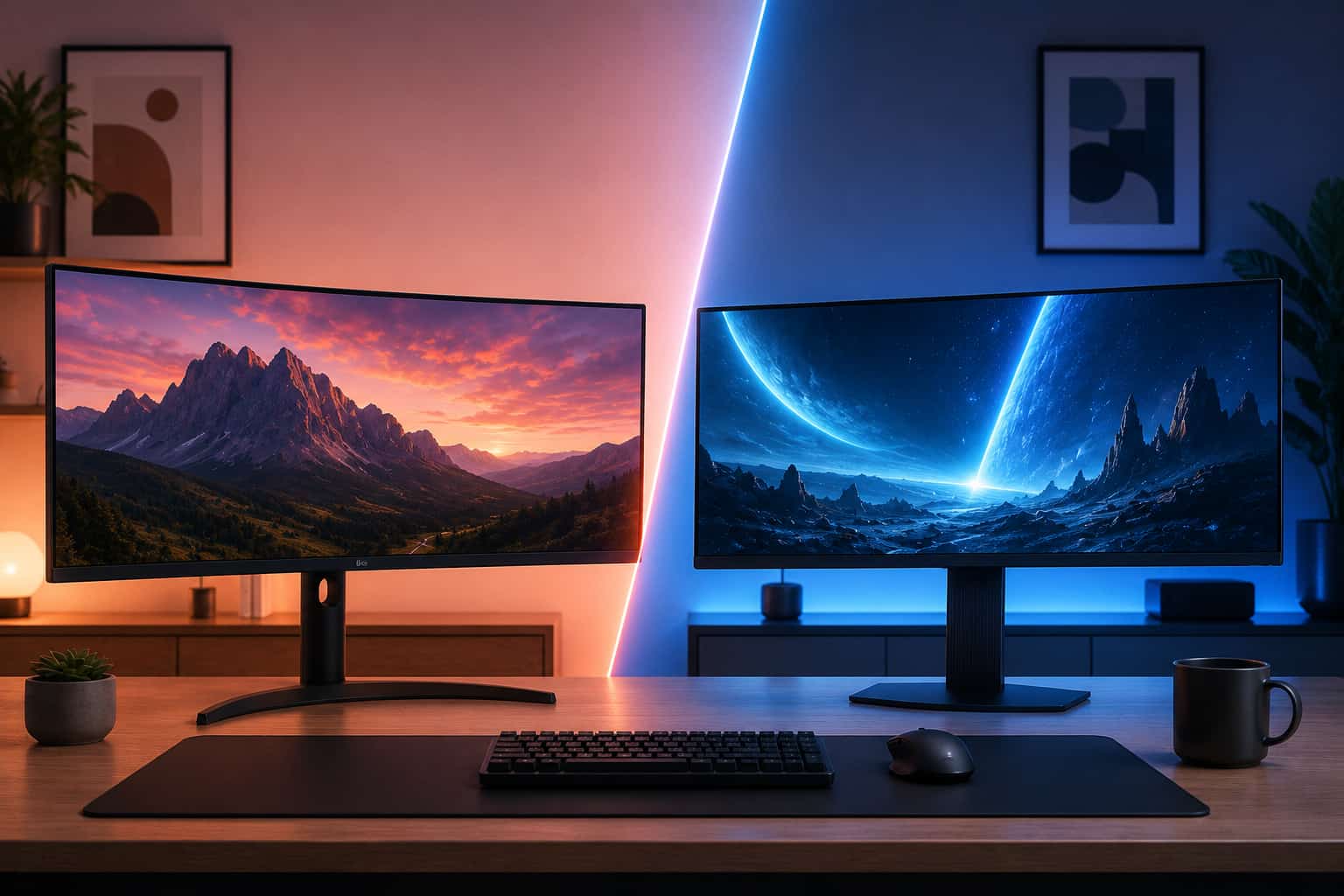
How to Choose the Best Ultrawide Monitor
This complete ultrawide monitor buying guide covers every specification that matters in 2026 including resolution, panel type, refresh rate, USB-C Power Delivery wattage, Thunderbolt connectivity, eye care features, and ergonomics everything you need to make the right choice before spending any money.

Buying an ultrawide monitor without understanding what the specifications actually mean in daily use is one of the most common ways home office buyers waste money on hardware. A monitor that looks impressive on a spec sheet can feel disappointing in practice, and a monitor with modest numbers can be the perfect fit for your specific workflow.
This guide covers every specification, feature, and consideration that matters when choosing an ultrawide monitor in 2026. Whether you are buying your first ultrawide or upgrading from a previous model, this is the reference you need before spending any money.
We wrote this guide to work alongside our specific product recommendations. After reading it, you will understand exactly what to look for and why, which makes choosing from our curated lists significantly easier.
Who This Guide Is For
This buying guide is written for anyone considering an ultrawide monitor for home office use, gaming, creative work, or general productivity. It assumes no prior knowledge of monitor specifications and explains every relevant term from the ground up.
If you already understand the basics and want specific product recommendations, jump directly to our best ultrawide monitor for home office guide. For specific use cases, our guides on best ultrawide for gaming under $500, best ultrawide for video editing, best ultrawide for MacBook Pro, and best budget ultrawide under $300 cover curated recommendations in each category.
Step One: Decide on Screen Size
Screen size is the first decision because it determines everything else including desk requirements, resolution options, and budget range.
29-inch Ultrawide
A 29-inch ultrawide is the entry-level size in the format. It is physically narrower than a 34-inch alternative and delivers a more modest version of the ultrawide experience. The main advantage is that 29-inch ultrawides are the most affordable option in the category and fit comfortably on compact desks.
At 29 inches with 2560x1080 resolution, the pixel density reaches around 96 pixels per inch. This is readable and workable for general tasks but noticeably softer than a sharp 27-inch 1440p monitor. If text sharpness is important to your daily work, the 29-inch format at standard resolution can become a source of frustration over time.
A 29-inch ultrawide suits buyers who are trying the ultrawide format for the first time, have a compact desk, or have a strict budget that does not stretch to a 34-inch alternative.
34-inch Ultrawide
The 34-inch ultrawide is the sweet spot for home office use and the size that the vast majority of the guides on this site cover. It delivers enough horizontal workspace to run two applications side by side comfortably, fits on most standard desks, and is available in the widest range of panel types, resolutions, and price points.
At 34 inches, the ultrawide format feels genuinely spacious without being overwhelming. You can position your primary working application at a generous size on one side and keep a reference document, communication tool, or browser window open on the other without either feeling cramped.
Most home office users who try a 34-inch ultrawide describe the transition from a standard 27-inch monitor as immediately and obviously positive. The extra horizontal space changes how you work in a way that is hard to fully appreciate until you experience it.
38-inch Ultrawide
The 38-inch ultrawide occupies the space between a standard 34-inch model and a 49-inch super ultrawide. Monitors in this size category typically run at 3840x1600 resolution, which provides more vertical pixels than standard 34-inch UWQHD panels and a higher pixel density than a 34-inch monitor at similar resolution.
The 38-inch format is the right choice for power users who find 34 inches limiting but are not ready for the desk requirements and cost of a 49-inch super ultrawide. Monitors like the LG 38WN95C-W combine the larger panel with Thunderbolt connectivity and high refresh rates to deliver a genuinely premium experience.
The trade-off is cost and desk requirements. 38-inch ultrawides are among the most expensive monitors in any category and require a desk with reasonable depth to position comfortably.
49-inch Super Ultrawide
The 49-inch super ultrawide is a different product category rather than simply a larger version of a standard ultrawide. It delivers the pixel equivalent of two 27-inch monitors on a single seamless curved surface and fundamentally changes how you interact with your workspace.
Before considering a super ultrawide, read our dedicated best 49-inch super ultrawide monitor guide, which covers the desk requirements, GPU demands, and application compatibility considerations that make this format unsuitable for a significant number of buyers who are drawn to it.
Step Two: Understand Resolution
Resolution is the second most important decision after screen size, and at the ultrawide format, resolution choices have a more significant impact on daily experience than they do with standard monitors.
UWFHD: 2560x1080
Ultra-Wide Full HD is the base resolution for ultrawide monitors. It is most commonly found on 29-inch panels but also appears on budget 34-inch models. At 29 inches, this resolution produces approximately 96 pixels per inch. At 34 inches, it drops to approximately 81 pixels per inch.
The honest assessment of UWFHD at 34 inches is that text looks noticeably soft compared to a quality 27-inch 1440p monitor. The pixel density simply is not high enough for the large panel size to produce crisp results. During reading-heavy work sessions, this softness becomes a source of eye fatigue that many users attribute to other causes without realizing the monitor resolution is responsible.
UWFHD at 29 inches is more acceptable but still trails sharper alternatives. It makes the most sense as an entry-level option for first-time ultrawide buyers who prioritize affordability over visual quality.
UWQHD: 3440x1440
Ultra-Wide Quad HD is the recommended resolution standard for 34-inch ultrawide monitors. At 34 inches, this resolution produces approximately 110 pixels per inch, which is close to the pixel density of a 27-inch 1440p monitor and produces comfortable, reasonably sharp text for extended work sessions.
The visual quality difference between UWFHD and UWQHD on a 34-inch panel is substantial and immediately apparent. Text is noticeably crisper, fine details in images are clearer, and the overall presentation looks significantly more premium. If your budget allows only one upgrade from a base specification, choosing UWQHD over UWFHD is the single most impactful improvement you can make.
Most of the monitors recommended across the guides on this site use 3440x1440 resolution for exactly this reason.
UWQHD+: 3840x1600
This resolution is found on 38-inch ultrawide monitors. At 38 inches, 3840x1600 produces approximately 109 pixels per inch, maintaining similar sharpness to a 34-inch UWQHD panel while providing more total screen area.
The extra vertical resolution of 1600 pixels compared to 1440p is particularly noticeable in creative software where toolbars, palettes, and interface panels take up vertical space. Video editors and designers using complex software layouts benefit meaningfully from the additional vertical room.
5K2K: 5120x2160
Found on a small number of premium ultrawide monitors including the LG 34WK95U-W, 5K2K resolution at 34 inches produces approximately 163 pixels per inch. This is the threshold at which macOS applies clean 2x HiDPI scaling, producing genuinely Retina-quality text on an external display.
For Mac users who find external ultrawide text noticeably softer than their MacBook Pro's built-in display, this resolution solves the problem entirely. The trade-off is significantly higher cost and greater GPU demand.
Step Three: Choose Your Panel Type
Panel technology determines color accuracy, contrast ratio, viewing angles, and response time. For ultrawide monitors, three panel types are worth understanding: IPS, VA, and Nano IPS.
IPS: The Reliable All-Rounder
In-Plane Switching panels are the most popular choice for home office ultrawide monitors. They offer accurate, consistent colors across a wide viewing angle, which means the image looks correct whether you are sitting directly in front of the screen or viewing from a slight angle.
IPS panels typically cover 99% of the sRGB color space and increasingly cover 95% to 98% of the wider DCI-P3 space. For home office work, content creation, and casual photo editing, IPS color accuracy is excellent.
The main limitation of standard IPS panels is a relatively low contrast ratio of approximately 1000:1. This means blacks look more like dark gray than true black, which is most noticeable in a dimly lit room watching dark content or working with dark-themed interfaces.
For the majority of home office users, IPS is the correct panel choice. It handles every common workflow well without meaningful compromises for typical use cases.
IPS Black: Enhanced Contrast Without Sacrificing Accuracy
IPS Black is a panel technology found on premium monitors including the Dell U3423WE. It maintains the wide viewing angles and color accuracy of standard IPS while achieving a contrast ratio closer to 2000:1, which is double the standard IPS specification.
In practice, IPS Black panels show noticeably richer blacks and more realistic shadow detail compared to standard IPS alternatives. For professional creative work where both color accuracy and contrast quality matter, IPS Black represents a meaningful improvement.
IPS Black panels command a price premium over standard IPS alternatives. For professional buyers who work with color-critical content and evaluate dark scenes regularly, the premium is justified. For general home office use, standard IPS performs well enough that the cost difference is hard to justify.
Nano IPS: Wider Color Gamut With IPS Foundations
Nano IPS is LG's proprietary enhancement to standard IPS technology. It adds a layer of nanoparticles to the backlight system that absorbs excess light wavelengths, producing more saturated and accurate colors across a wider gamut.
Nano IPS monitors typically cover 98% of the DCI-P3 color space compared to the 95% to 97% coverage of standard IPS panels. The colors look noticeably more vivid and rich, which improves both the visual quality of creative work and the immersive quality of games.
Nano IPS maintains the same wide viewing angles as standard IPS and generally achieves faster pixel response times than standard IPS at the same price point, making it a popular choice for gaming monitors.
For buyers who want the best possible color quality in an IPS panel without paying for the specialized IPS Black technology, Nano IPS is the recommended choice.
VA: Better Contrast at the Cost of Accuracy
Vertical Alignment panels offer a significantly higher contrast ratio than any IPS variant, typically 3000:1 or higher. This means darker content looks genuinely dark rather than a washed-out gray, which produces a more atmospheric and visually striking result in games, movies, and dark-themed work environments.
The trade-offs of VA panels are narrower viewing angles than IPS, lower out-of-box color accuracy, and a phenomenon called black smearing where dark objects moving against dark backgrounds can show trailing artifacts in fast motion. Modern VA panels have improved significantly on all of these issues but the gap compared to IPS remains present.
VA panels suit buyers who spend significant time watching video content, playing atmospheric games in dimly lit rooms, or working heavily in dark-mode interfaces where the richer blacks make a noticeable improvement to the experience.
For home office users whose primary use is document work, spreadsheets, and communication tools in a standard lit environment, the contrast advantage of VA is less meaningful and IPS is generally the more practical choice.
Step Four: Decide on Refresh Rate
Refresh rate is measured in Hz and represents how many times per second the monitor updates the image on screen. For ultrawide monitors, the decision depends primarily on whether gaming is part of your intended use.
60Hz for Pure Office Use
60Hz is perfectly adequate for every productivity task. Spreadsheets, documents, emails, video calls, and web browsing do not benefit from higher refresh rates in any perceptible way.
If gaming is not part of your monitor use case, there is no practical reason to pay a premium for a higher refresh rate. The money is better spent on resolution, panel quality, or connectivity features that make a genuine difference to daily work.
75Hz: A Small but Noticeable Improvement
75Hz costs little or no premium over 60Hz on most budget monitors and makes everyday use slightly smoother. Scrolling through long documents, dragging windows, and switching between applications all benefit from the modest step up in refresh rate.
For home office users who want the most comfortable daily experience without paying gaming monitor prices, 75Hz is the ideal minimum specification. Most LG budget monitors include 75Hz as a standard feature rather than a premium addition.
100Hz to 144Hz: The Gaming Sweet Spot
The range from 100Hz to 144Hz is where gaming performance starts to genuinely matter. For users who game regularly alongside their home office work, targeting this refresh rate range delivers noticeably smoother gameplay in most genres without requiring an extremely powerful GPU to maintain high frame rates at UWQHD resolution.
144Hz has become the standard target for gaming ultrawide monitors and is widely available in the under $500 price range. For more detail on gaming ultrawides at this refresh rate, the best ultrawide monitor for gaming under $500 guide covers the best options.
165Hz and Above: Competitive Gaming Territory
Refresh rates above 144Hz are aimed at competitive gamers who play fast-paced titles where every frame of additional smoothness provides a marginal competitive advantage. At these refresh rates, the visual difference from 144Hz is subtle rather than dramatic.
For home office users who game occasionally, there is no practical justification for paying the premium that monitors above 144Hz command. The money is better invested in panel quality or connectivity features that benefit daily work.
Step Five: Evaluate Connectivity
Connectivity is one of the most practically impactful specifications on a monitor and one that many buyers overlook until they are frustrated by a limitation after purchase.
USB-C with Power Delivery
USB-C with Power Delivery is the single most useful connectivity feature for laptop users. A monitor with USB-C PD can receive a video signal from your laptop, power any USB peripherals connected to the monitor's hub, and charge your laptop simultaneously, all over a single cable.
The wattage of the Power Delivery specification determines how well the monitor can charge your laptop. Here is a practical guide to the minimum wattage you need for common laptop categories:
Thin-and-light Windows laptops and MacBook Air require at least 45W for adequate charging. Mid-range Windows laptops with dedicated GPUs require at least 65W. MacBook Pro 14-inch requires at least 67W for adequate charging and up to 96W for fast charging. MacBook Pro 16-inch requires at least 70W for basic charging and 140W for fast charging.
When a monitor's USB-C PD wattage is insufficient for your laptop, the laptop will either charge very slowly, maintain its current battery level without gaining charge, or slowly lose battery under heavy load. Always verify the PD wattage against your laptop's requirements before purchasing.
Thunderbolt 3 and Thunderbolt 4
Thunderbolt connectivity provides 40Gbps bandwidth over a USB-C cable, which is significantly more than standard USB-C allows. For ultrawide monitor use, Thunderbolt offers three practical advantages over standard USB-C.
First, it reliably supports higher resolutions including 5K2K at 60Hz, which may not be achievable over standard USB-C on all hardware. Second, it enables high-speed data transfer to Thunderbolt-connected external storage devices, which matters for video editors working with high-bitrate footage. Third, it supports daisy-chaining additional Thunderbolt displays and peripherals from the monitor itself.
Thunderbolt 4 is backward compatible with Thunderbolt 3. A Thunderbolt 4 cable works with Thunderbolt 3 ports and vice versa without any performance limitation for display purposes.
For MacBook Pro users in particular, Thunderbolt connectivity on an external monitor provides the most reliable and feature-complete experience. USB-C monitors work with MacBook Pro but Thunderbolt monitors offer more consistent behavior, better wake from sleep reliability, and access to the full bandwidth the MacBook Pro's ports support.
DisplayPort vs HDMI
DisplayPort and HDMI are the standard video inputs found on ultrawide monitors. For most home office use, either works correctly at the resolutions and refresh rates common in this category.
DisplayPort 1.4 supports 3440x1440 at 144Hz without compression and 4K at 120Hz. HDMI 2.0 supports 3440x1440 at 100Hz without bandwidth limitations. HDMI 2.1 handles 4K at 144Hz and higher.
For desktop users with dedicated GPUs, DisplayPort is generally preferred because it supports higher bandwidth and is standard on modern gaming graphics cards. For users connecting laptops that lack DisplayPort outputs, HDMI is the common alternative.
When connecting a MacBook or modern laptop that has USB-C or Thunderbolt ports only, using a USB-C to DisplayPort cable provides the most reliable connection for standard ultrawide resolutions.
Built-in USB Hub
A monitor with a built-in USB hub lets you connect keyboard, mouse, USB drive, and other peripherals to the monitor rather than directly to your computer. When combined with USB-C single-cable laptop connectivity, a monitor with a USB hub becomes a comprehensive docking station that keeps your desk cable-free.
For home office users with a laptop as their primary computer, a monitor with at least two USB-A downstream ports and a USB-C downstream port covers most peripheral needs. Monitors with four USB-A ports provide enough connectivity for most setups without a separate hub.
Built-in KVM Switch
A KVM switch allows one keyboard, monitor, and mouse to control multiple computers. A monitor with a built-in KVM switch lets you connect two computers and switch between them with a button press, without needing a separate hardware device.
This feature is particularly valuable for home office users who have a work laptop and a personal desktop or laptop on the same desk. It eliminates the need for duplicate peripherals and keeps the desk clean.
Built-in Ethernet
A monitor with a built-in RJ45 ethernet port allows a direct wired network connection through the monitor, eliminating the need for a USB-C to ethernet adapter. For home office users who prefer wired internet for stability during video calls or large file transfers, this is a convenient feature found on professional monitors like the Dell U3423WE and Dell U4924DW.
Step Six: Curved vs Flat
The decision between curved and flat panels depends primarily on your use case and personal preference.
Why Curved Ultrawides Are Popular
At 34 inches and wider, a gentle curve keeps the edges of the panel at roughly equal perceived distance from your eyes as the center. Without any curve, the corners of a wide panel are physically further away than the center, which can make the viewing experience feel slightly unnatural during extended sessions.
A well-chosen curve radius reduces the amount of eye and head movement required to view the full panel and creates a more immersive feel during both work and gaming. The 1800R curve found on many professional monitors is subtle enough to go unnoticed during typical use while still providing the distance-equalization benefit.
Curve Radius: What the Numbers Mean
The curve radius number indicates how large a circle would have to be for the panel to form part of its circumference. A smaller number means a tighter, more aggressive curve.
A 3800R curve is barely perceptible and feels almost flat in daily use. A 1800R curve is the standard for professional and productivity monitors, providing a noticeable but subtle wraparound feel. A 1500R curve is more pronounced and suits mixed gaming and productivity use. A 1000R curve is the most aggressive common radius and creates the strongest immersive gaming experience.
For home office use, 1800R is the most practical choice. For dedicated gaming setups, 1000R maximizes immersion. For professional creative work where edge distortion could affect composition evaluation, flat panels provide the most geometrically accurate surface.
When to Choose a Flat Panel
Flat ultrawide panels are less common than curved alternatives but suit specific use cases well. Professional colorists and photographers who evaluate the geometry of wide shots and panoramic images prefer flat panels because a curved surface can subtly distort the perceived shape of objects toward the panel edges.
Video editors evaluating cinematic widescreen footage and designers who work with precise geometric layouts also benefit from the undistorted surface a flat panel provides.
For general home office use and productivity work, the choice between flat and curved is primarily aesthetic. Both work well.
Step Seven: Eye Care Features
Spending eight or more hours daily in front of any monitor creates potential for digital eye strain, headaches, and disrupted sleep. Monitors with genuine eye care technology reduce these effects meaningfully.
Flicker-Free Backlight
Standard monitors use Pulse Width Modulation dimming to control backlight brightness, which means the backlight rapidly flickers on and off rather than running at a constant level. Many users are sensitive to this flicker without consciously perceiving it, experiencing headaches or eye fatigue during extended sessions.
Flicker-free monitors use DC dimming to control brightness, maintaining a constant backlight level that does not flicker at any brightness setting. For users who spend long hours in front of a screen, flicker-free backlighting is one of the most impactful eye care features available.
Most quality monitors in the mid-range and premium categories now include flicker-free backlighting. Budget models sometimes omit this feature, which is worth checking before purchasing.
Low Blue Light Technology
High-energy blue light wavelengths from monitor backlights contribute to eye strain and can suppress melatonin production, disrupting sleep when monitors are used in the evening.
Hardware-level low blue light technology reduces blue light emission at the panel level without adding a yellow tint to the image, unlike software filters that simply warm the color temperature. Dell's ComfortView Plus and BenQ's Eye-Care technology are examples of hardware implementations that reduce blue light without visibly distorting colors.
For home office users who work into the evening or experience eye fatigue during long sessions, prioritizing a monitor with hardware-level low blue light technology is worth the consideration.
Ambient Light Sensor
Some monitors include a built-in ambient light sensor that automatically adjusts screen brightness based on room lighting conditions. This keeps the monitor at a comfortable brightness level without requiring manual adjustment throughout the day as light conditions change.
BenQ's professional monitors include this feature as a standard component. For home office users who work across varying light conditions, automatic brightness adjustment is a convenient quality-of-life improvement.
Step Eight: Ergonomics and Stand Quality
A monitor that cannot be positioned correctly for your body forces you into poor posture that causes neck and shoulder pain over time. Stand quality and VESA compatibility are specifications that have a direct impact on long-term physical comfort.
Height Adjustment
The most important ergonomic feature on a monitor stand is height adjustment. Being able to raise or lower the monitor so the top of the screen sits at roughly eye level is the single most important factor in comfortable long-term monitor use.
Quality monitor stands offer at least 100mm of height adjustment range. Budget monitor stands frequently offer tilt only, with no height adjustment. For budget monitors with tilt-only stands, purchasing a separate VESA monitor arm is the most cost-effective solution.
Tilt, Swivel, and Pivot
Tilt adjustment lets you angle the top of the monitor toward or away from you. Swivel allows horizontal rotation without moving the whole base. Pivot rotates the monitor to portrait orientation.
For ultrawide monitors, pivot to portrait is rarely useful given the extreme width of the panel, but tilt and swivel are worth having for fine positioning. Mid-range and premium monitors typically include all three adjustments. Budget models often offer tilt only.
VESA Compatibility
VESA mounting compatibility means the monitor has a standardized pattern of screw holes on the back that accepts aftermarket monitor arms and wall mounts. The most common patterns are 75x75mm for smaller monitors and 100x100mm for most monitors 27 inches and larger.
A monitor arm provides significantly more positioning flexibility than any fixed stand, allows the monitor to be moved completely out of the way when the desk is needed for other purposes, and frees up the desk space occupied by the monitor stand base.
For any budget monitor with a limited stand, a monitor arm is a practical upgrade that costs $25 to $80 and transforms the ergonomics of the setup. For heavy 38-inch and 49-inch monitors, verify that any arm you consider is rated for the weight of your specific monitor before purchasing.
Step Nine: HDR Support
High Dynamic Range allows monitors to display a wider range of brightness levels between the darkest shadows and the brightest highlights, producing more realistic and visually striking images in supported content.
The honest reality of HDR on monitors in the under $600 price range is that most implementations are not impressive. Monitors certified to VESA DisplayHDR 400 have a maximum brightness of 400 nits, which is insufficient to produce the dramatic HDR effect that genuinely good HDR content delivers. The result is HDR certification that looks better on a spec sheet than on screen.
Meaningful HDR performance begins at DisplayHDR 600, which requires at least 600 nits peak brightness with local dimming. The Samsung Odyssey G9 and Neo G9 achieve DisplayHDR 1000 with Mini LED local dimming, producing HDR performance that is genuinely impressive rather than nominally compliant.
For home office users, HDR support is largely irrelevant to daily productivity work. For gaming and video consumption, HDR 400 certification provides minimal real-world benefit and should not be a significant factor in a purchasing decision. If genuine HDR performance matters to your use case, budget for a monitor with DisplayHDR 600 or higher with local dimming.
Step Ten: Budget Planning
Understanding what each price tier realistically delivers helps set expectations and identifies where the best value lies for your specific needs.
Under $200: Entry-Level Budget
At this price, you are looking at 29-inch panels at UWFHD resolution with basic connectivity and tilt-only stands. Panel quality is adequate for casual use. Long working sessions may reveal the limitations of lower pixel density and basic stands.
$200 to $350: Mid-Budget
This range opens up 34-inch panels at UWFHD resolution with improved build quality and occasionally 34-inch UWQHD panels from competitive brands. The AOC CU34G2XP from our budget ultrawide guide represents exceptional value in this range with UWQHD resolution and 144Hz gaming performance.
$350 to $600: The Sweet Spot
This is where the best value in the ultrawide category lives for most home office users. 34-inch UWQHD panels from LG and Dell with reliable IPS or Nano IPS panels, solid connectivity, and ergonomic stands are consistently available in this range. The LG 34WP85C-B at the upper end of this range is our top overall recommendation for home office use.
$600 to $900: Professional and Premium
This range covers professional monitors with factory calibration, Thunderbolt connectivity, and advanced panel technologies. The Dell U3423WE with its IPS Black panel and Thunderbolt 4 lives here. For buyers whose work demands the best color accuracy and connectivity available in a 34-inch ultrawide, this investment is justified.
Above $900: High-End and Specialized
Above $900, you are in the territory of 38-inch premium ultrawides, 49-inch super ultrawides, and monitors with specialized features like 5K2K resolution or Quantum Mini LED backlighting. These monitors are exceptional tools for specific use cases. Our best 49-inch super ultrawide guide covers this tier in detail.
Quick Reference: Specification Checklist
Use this checklist when comparing ultrawide monitors to make sure you have evaluated every relevant factor before purchasing.
Size and format Is the physical size compatible with your desk? Is the aspect ratio supported by your primary software?
Resolution Is it UWQHD 3440x1440 or higher for a 34-inch panel? Have you confirmed the pixel density is comfortable for your daily tasks?
Panel type Does IPS, Nano IPS, IPS Black, or VA suit your primary use case?
Refresh rate Does the refresh rate match your use case? Are you paying for a high refresh rate you will not use?
Connectivity Does the USB-C PD wattage match your laptop's requirements? Do you need Thunderbolt? Is there a USB hub? Do you need a KVM switch?
Ergonomics Does the stand offer height adjustment? Is it VESA compatible for a monitor arm?
Eye care Is the backlight flicker-free? Does it include hardware-level low blue light technology?
Curve Does the curve radius suit your primary use case? Have you confirmed whether curved or flat suits your workflow?
Warranty Does the warranty include dead pixel coverage? What is the response time for warranty claims?
Where to Go From Here
Now that you understand every specification that matters, the curated guides below will help you choose the right specific monitor for your situation.
For the best all-around home office ultrawide at every price point, start with the best ultrawide monitor for home office guide. For gaming, the best ultrawide monitor for gaming under $500 covers the top performers. For professional creative work, the best ultrawide monitor for video editing covers color-accurate options. For MacBook Pro users, the best ultrawide monitor for MacBook Pro covers Mac-specific compatibility in detail. For budget buyers, the best budget ultrawide monitor under $300 covers the best value options available.
Related Guides
Best ultrawide monitor for home office
Best ultrawide monitor for gaming under $500
Best ultrawide monitor for video editing
Best budget ultrawide monitor under $300
Best ultrawide monitor for MacBook Pro
Best ultrawide monitor for programmers
Best OLED ultrawide monitor
Best 49-inch super ultrawide monitor
Ultrawide vs dual monitor setup
Do you actually need an ultrawide monitor?
Best ultrawide monitor deals this month
Now that you understand every specification that matters, explore our curated recommendations starting with the best ultrawide monitor for home office guide.
Disclosure: This post contains Amazon affiliate links. If you buy through our links, we may earn a small commission at no extra cost to you.

Written by
Jordan Lee
I'm Jordan Lee, a tech reviewer and peripheral enthusiast with 7+ years of hands-on experience evaluating monitors, mechanical keyboards, wireless mice, and audio equipment. With a degree in Computer Engineering, I bring a technical yet practical perspective to every review I write. I don't just benchmark — I actually use these products daily and put them through real work scenarios. When I recommend a monitor, I've checked its color accuracy, refresh rate, and eye strain levels myself. When I suggest a keyboard, I've typed thousands of words on it. My goal is simple: help you find the right gear so you can work smarter, not just spend more.
Written by
Jordan Lee
I'm Jordan Lee, a tech reviewer and peripheral enthusiast with 7+ years of hands-on experience evaluating monitors, mechanical keyboards, wireless mice, and audio equipment. With a degree in Computer Engineering, I bring a technical yet practical perspective to every review I write. I don't just benchmark — I actually use these products daily and put them through real work scenarios. When I recommend a monitor, I've checked its color accuracy, refresh rate, and eye strain levels myself. When I suggest a keyboard, I've typed thousands of words on it. My goal is simple: help you find the right gear so you can work smarter, not just spend more.